> ## Documentation Index
> Fetch the complete documentation index at: https://docs.runlayer.com/llms.txt
> Use this file to discover all available pages before exploring further.
# Automatic Configuration Provisioning
> Automatically deploy MCP server configurations to client applications across your organization
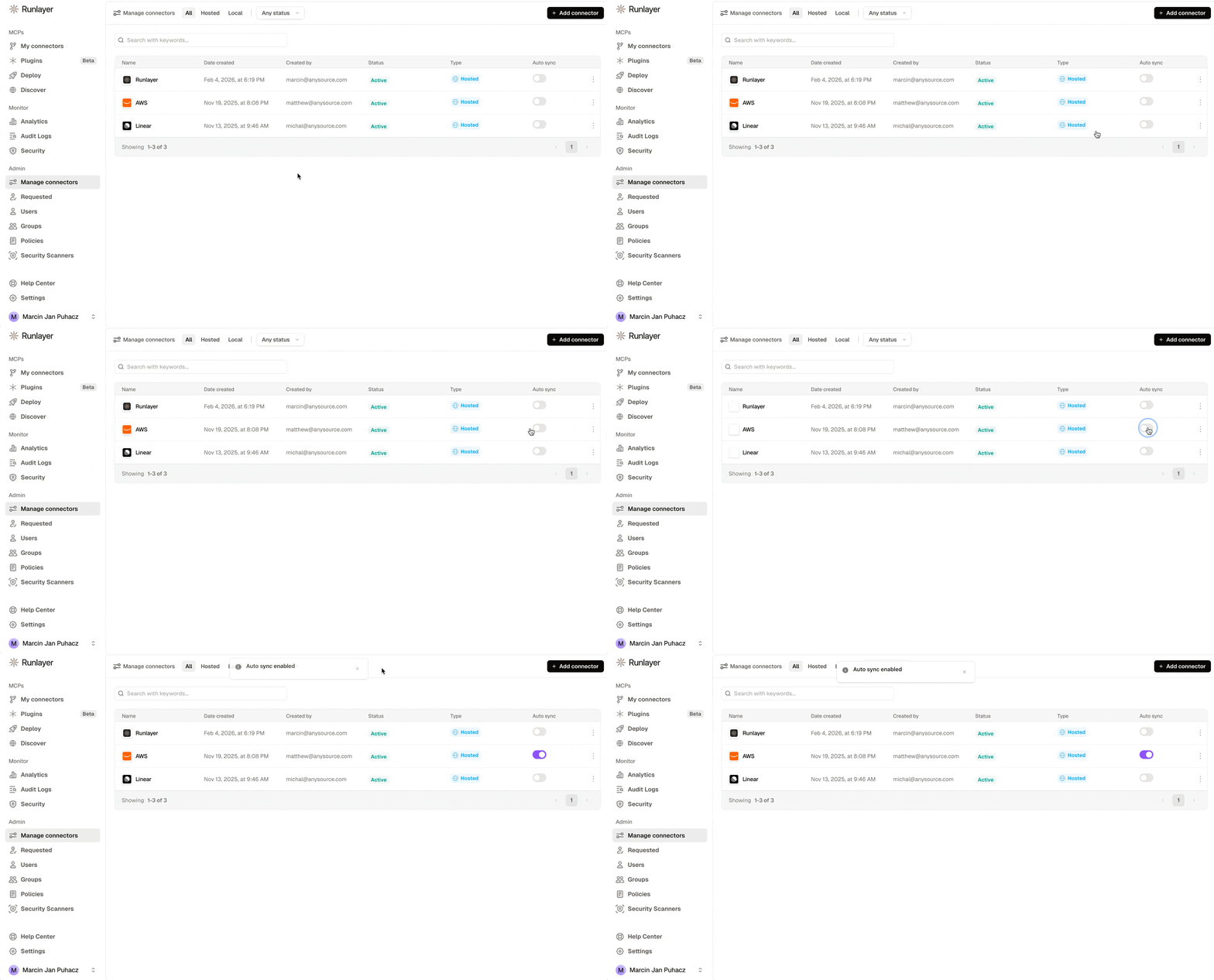
Automatic Configuration Provisioning pushes managed MCP configurations directly into client applications. Admins mark connectors or plugins as auto-synced in the dashboard, and the Runlayer CLI writes them into each developer's tools.
## How It Works
1. **Admin enables auto-sync** on connectors or plugins in the Runlayer dashboard
2. **CLI fetches configuration** for auto-synced connectors and plugins accessible to the user
3. **Client detection** — the CLI auto-detects installed clients
4. **Config injection** — MCP entries are written into each client's config file
 ## Quick Start
```bash macOS/Linux theme={null}
# Install uv (package manager for the Runlayer CLI)
curl -LsSf https://astral.sh/uv/install.sh | sh
# Log in to Runlayer
uvx runlayer login --host https://your-instance.runlayer.com
# Sync all auto-synced MCPs to your clients
uvx runlayer setup sync -y
```
```powershell Windows theme={null}
# Install uv (package manager for the Runlayer CLI)
powershell -ExecutionPolicy ByPass -c "irm https://astral.sh/uv/install.ps1 | iex"
# Log in to Runlayer
uvx runlayer login --host https://your-instance.runlayer.com
# Sync all auto-synced MCPs to your clients
uvx runlayer setup sync -y
```
Credentials are stored in your OS keychain when available, with a fallback to `~/.runlayer/config.yaml`.
Use `--client cursor` to target a specific client. Run without `-y` to preview changes before applying.
## Supported Clients
| Client | macOS | Windows | Linux |
| ------------------ | :---: | :-----: | :---: |
| **Cursor** | ✓ | ✓ | |
| **VS Code** | ✓ | ✓ | |
| **Claude Desktop** | ✓ | ✓ | |
| **Claude Code** | ✓ | ✓ | |
| **Windsurf** | ✓ | ✓ | |
| **Goose** | ✓ | ✓ | |
| **Zed** | ✓ | ✓ | |
| **OpenCode** | ✓ | ✓ | ✓ |
***
## MDM Deployment
For enterprise-wide deployment, use your MDM solution to run the sync command across all devices:
macOS deployment
macOS deployment
macOS deployment
macOS deployment
Windows deployment
### Can users remove synced MCPs?
Synced entries are written into each client's standard config file, which lives in the user's own profile — they are not made read-only, so a user can edit or delete an entry locally. However, every sync run re-writes **all** auto-synced connectors and plugins, so local removals are reverted on the next scheduled run (each MDM guide recommends a recurring schedule, e.g. daily on macOS MDMs or every 60 minutes with Intune's scheduled task).
Note that the synced config entries point at the Runlayer gateway, so access control doesn't depend on the local file: what a user can actually reach is enforced server-side by their Runlayer permissions and [policies](/platform-policies), whether or not the local entry is present.
***
## Monitoring Sync Status
There are three places to check whether auto-sync is actually landing on devices:
1. **On the device** — open a client application (e.g., Cursor) and confirm the synced MCPs appear, or re-run `uvx runlayer setup sync` manually. Sync logs are written to `/var/log/runlayer/auto_provisioning.log` on macOS, or `%ProgramData%\Runlayer\auto_provisioning.log` on Windows.
2. **In your MDM console** — use your MDM's script/policy execution reporting for fleet-level visibility: policy execution status in Jamf Pro, the Custom Script **Status** tab in Iru/Kandji, script execution results in SimpleMDM and Mosyle, and Task Scheduler status or remediation compliance for [Intune](/auto-provisioning/intune).
3. **In the Runlayer dashboard** — confirm which connectors and plugins have auto-sync enabled, and use [audit logs](/platform-audit-logs) (UI or `uvx runlayer logs`) to see gateway activity from synced clients once devices start using them.
Each MDM guide includes a platform-specific verification step; see the cards above.
## Quick Start
```bash macOS/Linux theme={null}
# Install uv (package manager for the Runlayer CLI)
curl -LsSf https://astral.sh/uv/install.sh | sh
# Log in to Runlayer
uvx runlayer login --host https://your-instance.runlayer.com
# Sync all auto-synced MCPs to your clients
uvx runlayer setup sync -y
```
```powershell Windows theme={null}
# Install uv (package manager for the Runlayer CLI)
powershell -ExecutionPolicy ByPass -c "irm https://astral.sh/uv/install.ps1 | iex"
# Log in to Runlayer
uvx runlayer login --host https://your-instance.runlayer.com
# Sync all auto-synced MCPs to your clients
uvx runlayer setup sync -y
```
Credentials are stored in your OS keychain when available, with a fallback to `~/.runlayer/config.yaml`.
Use `--client cursor` to target a specific client. Run without `-y` to preview changes before applying.
## Supported Clients
| Client | macOS | Windows | Linux |
| ------------------ | :---: | :-----: | :---: |
| **Cursor** | ✓ | ✓ | |
| **VS Code** | ✓ | ✓ | |
| **Claude Desktop** | ✓ | ✓ | |
| **Claude Code** | ✓ | ✓ | |
| **Windsurf** | ✓ | ✓ | |
| **Goose** | ✓ | ✓ | |
| **Zed** | ✓ | ✓ | |
| **OpenCode** | ✓ | ✓ | ✓ |
***
## MDM Deployment
For enterprise-wide deployment, use your MDM solution to run the sync command across all devices:
macOS deployment
macOS deployment
macOS deployment
macOS deployment
Windows deployment
### Can users remove synced MCPs?
Synced entries are written into each client's standard config file, which lives in the user's own profile — they are not made read-only, so a user can edit or delete an entry locally. However, every sync run re-writes **all** auto-synced connectors and plugins, so local removals are reverted on the next scheduled run (each MDM guide recommends a recurring schedule, e.g. daily on macOS MDMs or every 60 minutes with Intune's scheduled task).
Note that the synced config entries point at the Runlayer gateway, so access control doesn't depend on the local file: what a user can actually reach is enforced server-side by their Runlayer permissions and [policies](/platform-policies), whether or not the local entry is present.
***
## Monitoring Sync Status
There are three places to check whether auto-sync is actually landing on devices:
1. **On the device** — open a client application (e.g., Cursor) and confirm the synced MCPs appear, or re-run `uvx runlayer setup sync` manually. Sync logs are written to `/var/log/runlayer/auto_provisioning.log` on macOS, or `%ProgramData%\Runlayer\auto_provisioning.log` on Windows.
2. **In your MDM console** — use your MDM's script/policy execution reporting for fleet-level visibility: policy execution status in Jamf Pro, the Custom Script **Status** tab in Iru/Kandji, script execution results in SimpleMDM and Mosyle, and Task Scheduler status or remediation compliance for [Intune](/auto-provisioning/intune).
3. **In the Runlayer dashboard** — confirm which connectors and plugins have auto-sync enabled, and use [audit logs](/platform-audit-logs) (UI or `uvx runlayer logs`) to see gateway activity from synced clients once devices start using them.
Each MDM guide includes a platform-specific verification step; see the cards above.