> ## Documentation Index
> Fetch the complete documentation index at: https://docs.runlayer.com/llms.txt
> Use this file to discover all available pages before exploring further.
# Build Custom MCPs with MCP Builder
> Use Runlayer MCP plus MCP Builder prompt to scaffold custom MCP servers fast.
Use Runlayer MCP to create and deploy custom MCP servers with minimal setup. MCP Builder handles the scaffolding for you and uses Runlayer Deploy under the hood.
Keep the `runlayer` MCP server enabled in your client before starting.
## Steps
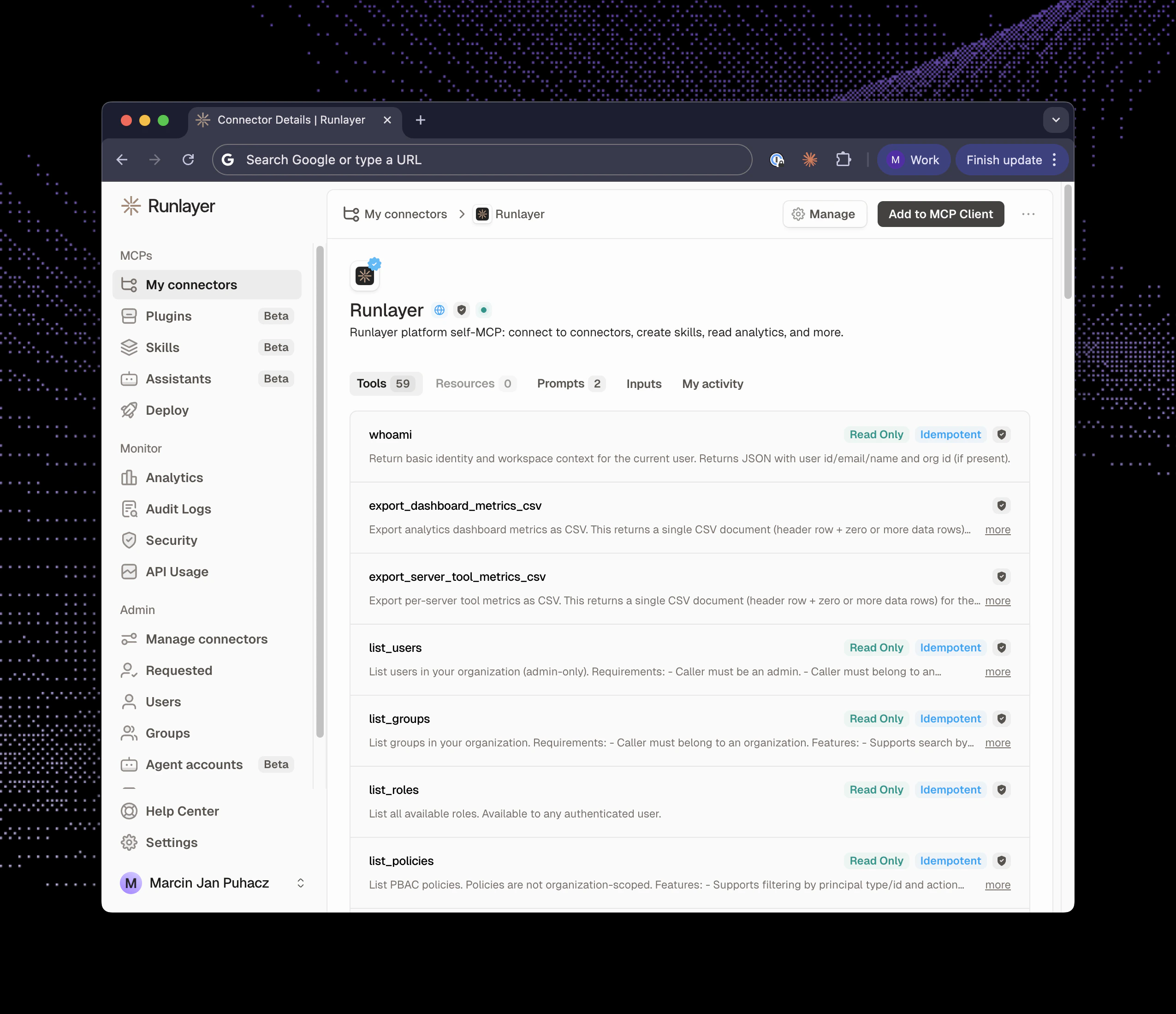
Open Connectors page, select Runlayer MCP connector and click Add to Client.
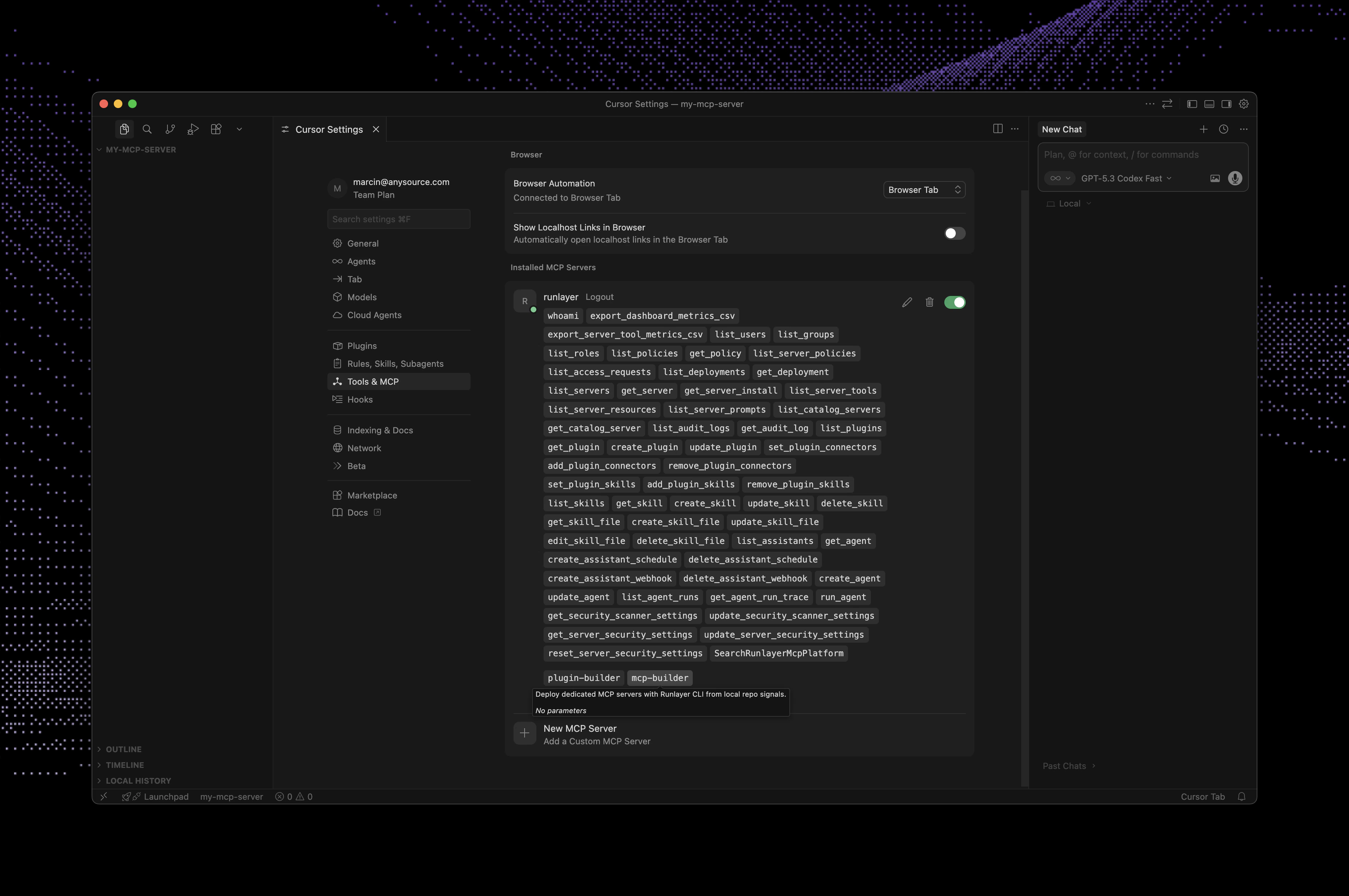
 Open client MCP settings and verify `runlayer` is listed and enabled.
 Start a new chat and use `/runlayer/mcp-builder` with your server goal.
Example:
```text theme={null}
/runlayer/mcp-builder Create an MCP server that returns current time. Use TypeScript and include files needed for deploy.
```
Start a new chat and use `/runlayer/mcp-builder` with your server goal.
Example:
```text theme={null}
/runlayer/mcp-builder Create an MCP server that returns current time. Use TypeScript and include files needed for deploy.
```
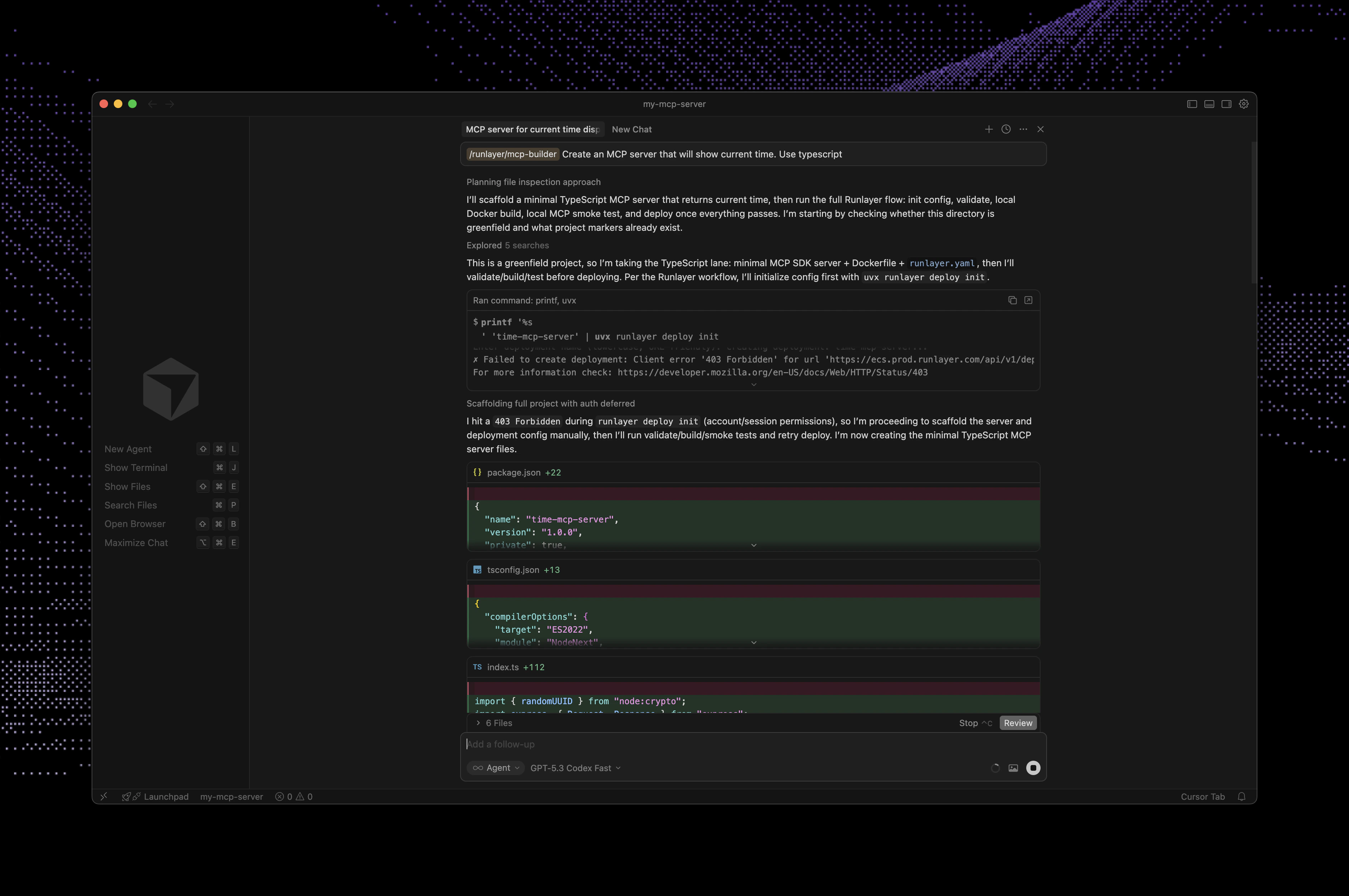 Keep working in the same thread: ask MCP Builder to validate, fix, and refine until done.
## Prompt ideas
```text theme={null}
/runlayer/mcp-builder Build an internal support MCP server that calls our backend API to fetch customer account status, recent incidents, and subscription plan.
```
```text theme={null}
/runlayer/mcp-builder Build a customer troubleshooting MCP server with tools: get_user_by_email, list_recent_errors, and summarize_common_failures. Data comes from our internal APIs only.
```
```text theme={null}
/runlayer/mcp-builder Build an operations MCP server for our team to check deployment status, feature flags, and audit events from our platform API with strict input validation.
```
## Need advanced setup?
Runlayer MCP Builder uses Runlayer Deploy under the hood. If you want more control over deployment and configuration, see [Custom MCP Servers](/platform-deploy).
## Other clients
Same flow works in Cursor, Codex, Claude Code, and OpenCode: keep Runlayer MCP enabled, and call `mcp-builder` prompt.
Keep working in the same thread: ask MCP Builder to validate, fix, and refine until done.
## Prompt ideas
```text theme={null}
/runlayer/mcp-builder Build an internal support MCP server that calls our backend API to fetch customer account status, recent incidents, and subscription plan.
```
```text theme={null}
/runlayer/mcp-builder Build a customer troubleshooting MCP server with tools: get_user_by_email, list_recent_errors, and summarize_common_failures. Data comes from our internal APIs only.
```
```text theme={null}
/runlayer/mcp-builder Build an operations MCP server for our team to check deployment status, feature flags, and audit events from our platform API with strict input validation.
```
## Need advanced setup?
Runlayer MCP Builder uses Runlayer Deploy under the hood. If you want more control over deployment and configuration, see [Custom MCP Servers](/platform-deploy).
## Other clients
Same flow works in Cursor, Codex, Claude Code, and OpenCode: keep Runlayer MCP enabled, and call `mcp-builder` prompt.