> ## Documentation Index
> Fetch the complete documentation index at: https://docs.runlayer.com/llms.txt
> Use this file to discover all available pages before exploring further.
# Approvals
> Review and approve MCP requests
## MCP Approval Workflow
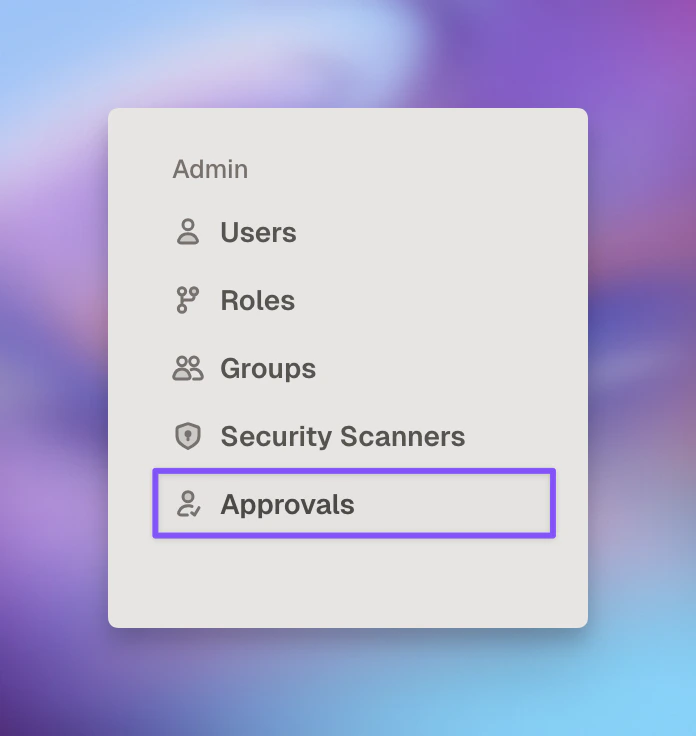 ### Finding Pending Requests
You'll receive notifications through multiple channels:
* Email alerts for new requests (configurable per admin)
* Slack channel notifications when a new server or access request is submitted
* Slack DMs to the requester when a decision is made
### Reviewing Request Details
### Finding Pending Requests
You'll receive notifications through multiple channels:
* Email alerts for new requests (configurable per admin)
* Slack channel notifications when a new server or access request is submitted
* Slack DMs to the requester when a decision is made
### Reviewing Request Details
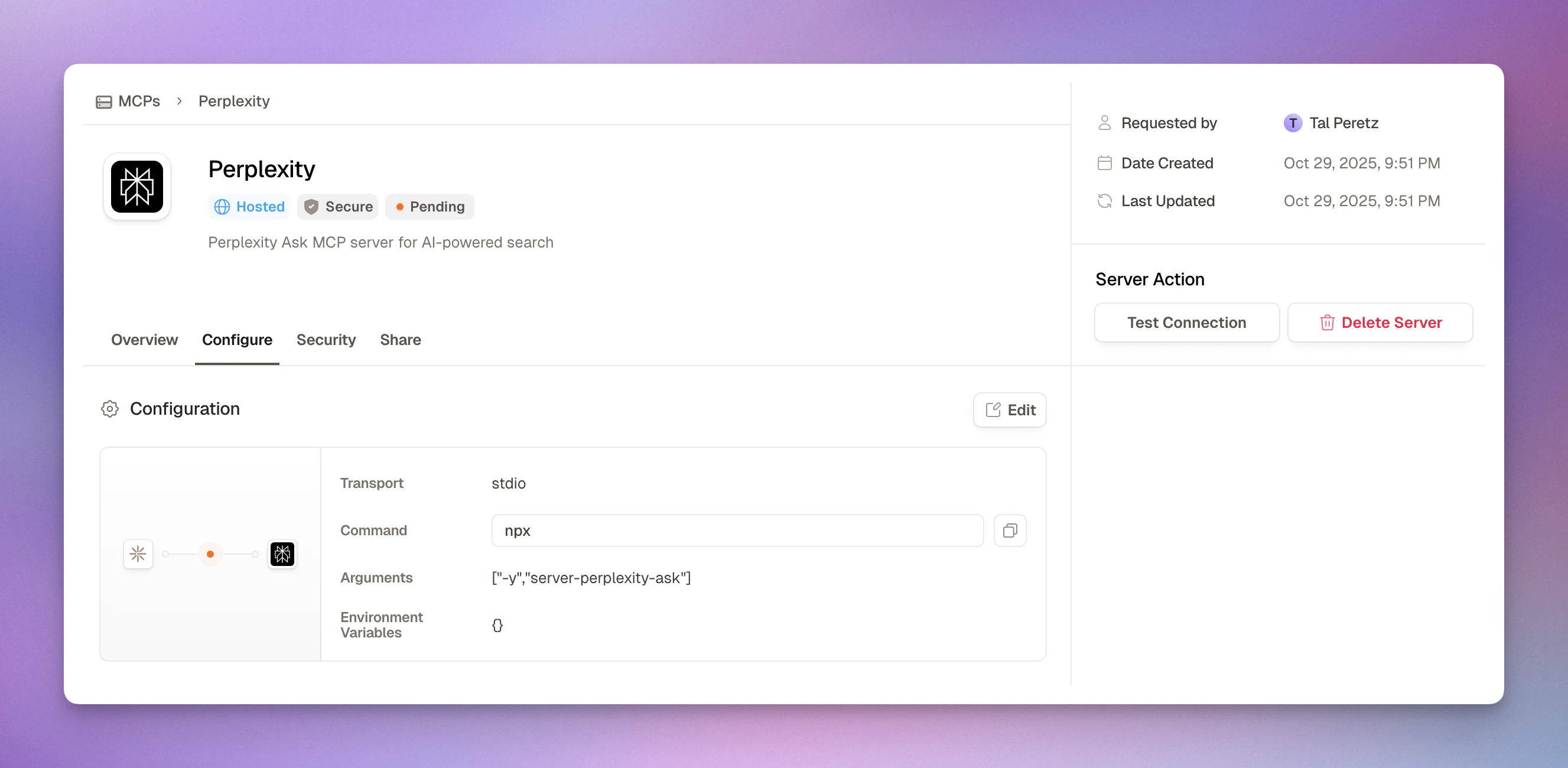 Click on any pending request to see:
* **Requester Information**: Name and email
* **MCP Configuration**: Linked server or catalog item details (URL, transport type, authentication)
* **Request Reason**: Free-text justification provided by the requester
### Approval Actions
Click on any pending request to see:
* **Requester Information**: Name and email
* **MCP Configuration**: Linked server or catalog item details (URL, transport type, authentication)
* **Request Reason**: Free-text justification provided by the requester
### Approval Actions
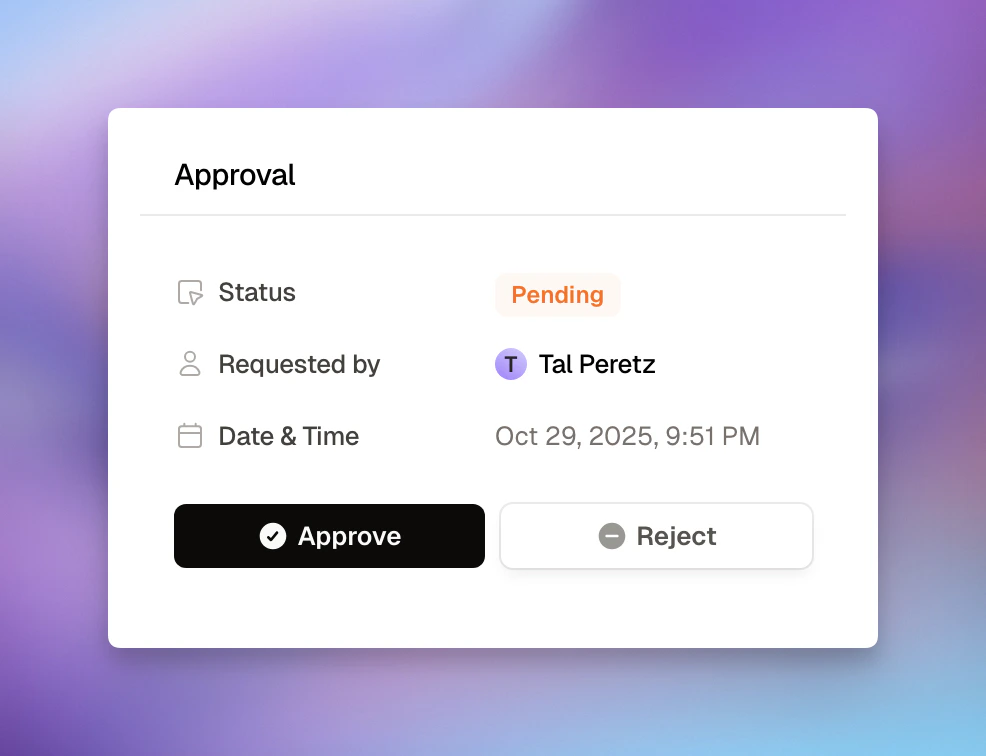 **When approving:**
1. Click 'Approve' button
2. Review summary
3. Add notes (optional)
4. Confirm approval
**What happens automatically:**
* Request status changes to "Approved"
* Notification sent to requester via Slack DM
* Audit log entry created
**When rejecting:**
1. Click 'Reject' button
2. Provide a reason (optional)
3. Confirm rejection
**What happens automatically:**
* Request status changes to "Rejected"
* Notification sent to requester via Slack DM (includes rejection reason if provided)
* Audit log entry created
***
## Viewing Approval History
The pending requests view only shows requests awaiting a decision. Once a request is approved or rejected, the permanent record lives in the [audit log](/platform-audit-logs), which captures who made the decision, when, and the rejection reason if one was provided.
To review past decisions:
1. **Navigate to Audit Logs** in the sidebar
2. **Filter by Action type** — approval decisions are logged as `server_request_approved`, `server_request_rejected`, `access_request_approved`, and `access_request_rejected` (the filter dropdown is searchable, so typing "approved" surfaces them)
3. Narrow further by **user**, **date range**, or **resource** (a specific MCP server)
4. **Click any entry** for full details, including the approver and the linked request
Audit logs are tamper-proof and retained for compliance, so approval history
can't be edited or deleted after the fact.
***
## Related Resources
Security review checklist
Filterable, tamper-proof record of all approvals
**When approving:**
1. Click 'Approve' button
2. Review summary
3. Add notes (optional)
4. Confirm approval
**What happens automatically:**
* Request status changes to "Approved"
* Notification sent to requester via Slack DM
* Audit log entry created
**When rejecting:**
1. Click 'Reject' button
2. Provide a reason (optional)
3. Confirm rejection
**What happens automatically:**
* Request status changes to "Rejected"
* Notification sent to requester via Slack DM (includes rejection reason if provided)
* Audit log entry created
***
## Viewing Approval History
The pending requests view only shows requests awaiting a decision. Once a request is approved or rejected, the permanent record lives in the [audit log](/platform-audit-logs), which captures who made the decision, when, and the rejection reason if one was provided.
To review past decisions:
1. **Navigate to Audit Logs** in the sidebar
2. **Filter by Action type** — approval decisions are logged as `server_request_approved`, `server_request_rejected`, `access_request_approved`, and `access_request_rejected` (the filter dropdown is searchable, so typing "approved" surfaces them)
3. Narrow further by **user**, **date range**, or **resource** (a specific MCP server)
4. **Click any entry** for full details, including the approver and the linked request
Audit logs are tamper-proof and retained for compliance, so approval history
can't be edited or deleted after the fact.
***
## Related Resources
Security review checklist
Filterable, tamper-proof record of all approvals