> ## Documentation Index
> Fetch the complete documentation index at: https://docs.runlayer.com/llms.txt
> Use this file to discover all available pages before exploring further.
# Slack Notifications
> Get real-time Slack alerts for security events, access requests, and connector approvals
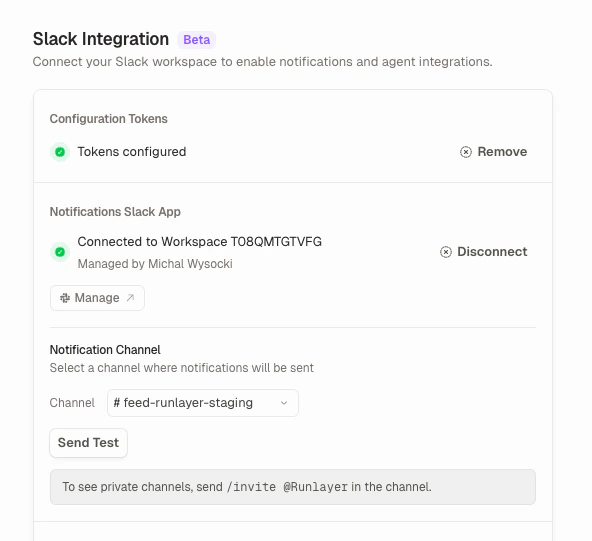
Runlayer can send notifications to a shared Slack channel and direct messages to individual users. Channel notifications alert admins to events that need attention — security violations, new connector requests, access requests. DMs notify users when their requests are approved or rejected.
 ## What Gets Notified
### Channel Notifications
Sent to your configured notification channel:
| Event | Description |
| ------------------------- | --------------------------------------------------------------------------------------------------------------------------------- |
| **New connector request** | A user requests a new MCP server to be added |
| **Access request** | A user requests access to an existing MCP server |
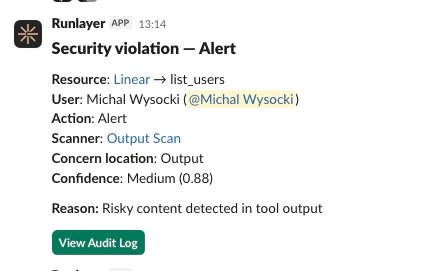
| **Security violation** | ToolGuard detects a policy violation or security threat. Suppressed when [Incidents](/platform-incidents) is enabled (see below). |
| **Incident lifecycle** | Created, resolved, or action-taken on an incident. Only sent when [Incidents](/platform-incidents) is enabled for your org. |
Each notification includes a direct link to review the event in Runlayer.
## What Gets Notified
### Channel Notifications
Sent to your configured notification channel:
| Event | Description |
| ------------------------- | --------------------------------------------------------------------------------------------------------------------------------- |
| **New connector request** | A user requests a new MCP server to be added |
| **Access request** | A user requests access to an existing MCP server |
| **Security violation** | ToolGuard detects a policy violation or security threat. Suppressed when [Incidents](/platform-incidents) is enabled (see below). |
| **Incident lifecycle** | Created, resolved, or action-taken on an incident. Only sent when [Incidents](/platform-incidents) is enabled for your org. |
Each notification includes a direct link to review the event in Runlayer.
 ### Direct Messages
Sent to individual users via DM:
| Event | Description |
| -------------------------- | --------------------------------------------------------------------------------------------------------------------------------------- |
| **Request approved** | Your connector or access request was approved |
| **Request rejected** | Your connector or access request was rejected |
| **Agent budget threshold** | An agent you own crossed 75%, 90%, or 100% of its daily or weekly run limit, or a run was rejected because the cost budget was exceeded |
| **Scheduled run failure** | A scheduled agent run you own failed — includes the agent name and error summary |
| **Config token expired** | Your Slack configuration token needs to be refreshed |
DM notifications require the user's Slack email to match their Runlayer email. Runlayer looks up and caches the Slack user ID automatically.
***
## Routing High-Risk Events
The Slack integration itself has no severity filter — but you can control alert volume and route by risk level in three ways:
**Blocked vs. masked violations.** Slack alerts fire when ToolGuard blocks a request or detects a violation in alert mode. Violations handled silently by masking (e.g. PII redaction) do not generate channel notifications.
**Incident-based alerting.** With [Incidents](/platform-incidents) enabled, per-violation Slack alerts are replaced by incident lifecycle alerts — created, resolved, action taken. Related violations are grouped into a single incident, and each alert carries a severity tier (Critical, High, Medium, Low) plus a link to the incident, so the channel shows ranked, deduplicated signals instead of one message per violation.
**Agent event triggers.** For custom routing logic, use [event triggers on agents](/platform-agents): an agent can subscribe to platform event types such as `security_violation` or `incident_created` and add a semantic condition prompt that filters which events start a run — for example, trigger on `incident_created` with the condition "only critical or high severity incidents", then have the agent post to a dedicated escalation channel.
To route events into external tools instead of Slack, use [SIEM export](/platform-audit-logs#siem-export-s3) — every audit event (including security violations and incident lifecycle events) is continuously exported to S3, where your SIEM can apply its own severity-based routing and alerting.
### Destination support
| Destination | Public docs status |
| -------------------- | --------------------------------------------------------------------------------------------------------------------- |
| **Slack** | Native channel and DM notifications, plus agent-triggered custom routing. |
| **SIEM / S3** | Audit events exported to S3 for SIEM ingestion. |
| **Teams** | Not documented as a native alert destination. Use SIEM/S3 or a custom agent/workflow if your environment supports it. |
| **Generic webhooks** | Agent webhooks can trigger agents, but public docs do not document generic outbound alert webhooks. |
***
## Setup
All Slack configuration lives in **Settings → Integrations**.
Go to [api.slack.com/apps](https://api.slack.com/apps), scroll to **Your App Configuration Tokens**, click **Generate Token**, and select your workspace. Copy the **Refresh Token** (starts with `xoxe-`).
### Direct Messages
Sent to individual users via DM:
| Event | Description |
| -------------------------- | --------------------------------------------------------------------------------------------------------------------------------------- |
| **Request approved** | Your connector or access request was approved |
| **Request rejected** | Your connector or access request was rejected |
| **Agent budget threshold** | An agent you own crossed 75%, 90%, or 100% of its daily or weekly run limit, or a run was rejected because the cost budget was exceeded |
| **Scheduled run failure** | A scheduled agent run you own failed — includes the agent name and error summary |
| **Config token expired** | Your Slack configuration token needs to be refreshed |
DM notifications require the user's Slack email to match their Runlayer email. Runlayer looks up and caches the Slack user ID automatically.
***
## Routing High-Risk Events
The Slack integration itself has no severity filter — but you can control alert volume and route by risk level in three ways:
**Blocked vs. masked violations.** Slack alerts fire when ToolGuard blocks a request or detects a violation in alert mode. Violations handled silently by masking (e.g. PII redaction) do not generate channel notifications.
**Incident-based alerting.** With [Incidents](/platform-incidents) enabled, per-violation Slack alerts are replaced by incident lifecycle alerts — created, resolved, action taken. Related violations are grouped into a single incident, and each alert carries a severity tier (Critical, High, Medium, Low) plus a link to the incident, so the channel shows ranked, deduplicated signals instead of one message per violation.
**Agent event triggers.** For custom routing logic, use [event triggers on agents](/platform-agents): an agent can subscribe to platform event types such as `security_violation` or `incident_created` and add a semantic condition prompt that filters which events start a run — for example, trigger on `incident_created` with the condition "only critical or high severity incidents", then have the agent post to a dedicated escalation channel.
To route events into external tools instead of Slack, use [SIEM export](/platform-audit-logs#siem-export-s3) — every audit event (including security violations and incident lifecycle events) is continuously exported to S3, where your SIEM can apply its own severity-based routing and alerting.
### Destination support
| Destination | Public docs status |
| -------------------- | --------------------------------------------------------------------------------------------------------------------- |
| **Slack** | Native channel and DM notifications, plus agent-triggered custom routing. |
| **SIEM / S3** | Audit events exported to S3 for SIEM ingestion. |
| **Teams** | Not documented as a native alert destination. Use SIEM/S3 or a custom agent/workflow if your environment supports it. |
| **Generic webhooks** | Agent webhooks can trigger agents, but public docs do not document generic outbound alert webhooks. |
***
## Setup
All Slack configuration lives in **Settings → Integrations**.
Go to [api.slack.com/apps](https://api.slack.com/apps), scroll to **Your App Configuration Tokens**, click **Generate Token**, and select your workspace. Copy the **Refresh Token** (starts with `xoxe-`).
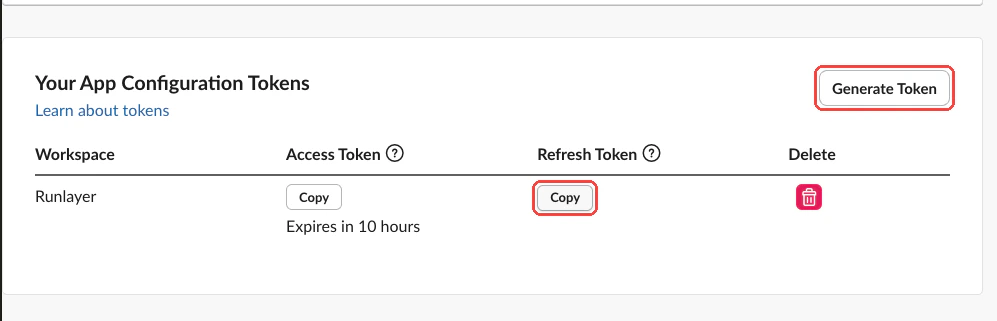 Configuration tokens are single-use. Do not paste the same token into multiple environments — each use permanently invalidates the previous token.
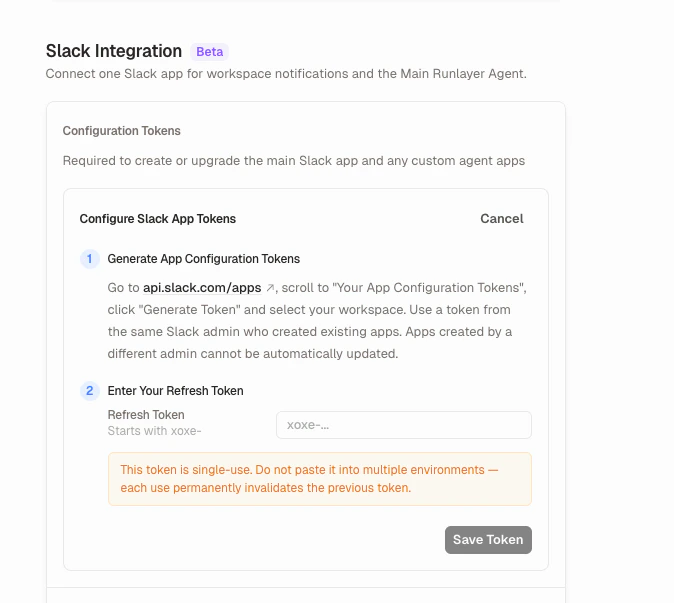
In **Settings → Integrations**, expand the **Configuration Tokens** section, click **Configure**, paste the refresh token, and click **Save Token**.
Configuration tokens are single-use. Do not paste the same token into multiple environments — each use permanently invalidates the previous token.
In **Settings → Integrations**, expand the **Configuration Tokens** section, click **Configure**, paste the refresh token, and click **Save Token**.
 Click **Create Slack App** in the Notifications section. Runlayer creates a Slack app with the correct permissions and redirects you to Slack for OAuth authorization.
Review the permissions and click **Allow**. You'll be redirected back to Runlayer.
Choose the channel where notifications should be sent. Only channels the Slack app has been invited to will appear.
To use a private channel, first invite the app by sending `/invite @Runlayer` in that channel.
Click **Send Test** to verify everything works. A test notification will appear in the selected channel.
***
## Enterprise Grid
For Slack Enterprise Grid installations, an additional **Workspace** selector appears after connecting. Select the workspace first, then choose a channel within it. The notification channel and workspace are saved together.
***
## Managing the Integration
### Changing the notification channel
Select a different channel from the dropdown at any time. The change takes effect immediately.
### Disconnecting
Click **Disconnect** next to the connection status. This revokes the bot token and stops all notifications. The Slack app itself remains in your workspace — you can reconnect by clicking **Connect to Slack** again.
### Removing the Slack app entirely
With a valid configuration token, click **Delete App** to remove the Slack app from your workspace completely.
If the app was created by a different Slack admin than the one who configured the token, Runlayer cannot auto-update or delete the app. You'll see a warning — manage it directly at [api.slack.com/apps](https://api.slack.com/apps).
***
## Runlayer Assistant
The Slack integration can create a managed **Runlayer Assistant** — a shared Slack bot that can respond to messages in channels and DMs. The assistant is available to all workspaces with agents enabled. Create it from **Settings → Integrations** by clicking **Create Runlayer Assistant**.
After creating the assistant, reinstall the Slack app to grant the additional scopes. The Runlayer Assistant appears as a regular agent in the Agents list but cannot be renamed or deleted like a custom agent.
## Agent Slack Apps
Separate from notifications, each agent can have its own Slack app for @mentions and DMs. These are configured per-agent on the agent detail page under **Slack** and require the same configuration token. See the Slack Integration section in Settings for a list of all connected agent apps.
Admins can open the Slack API management page for an agent's app directly from the agent Slack settings dialog via the **Manage Slack App** link.
When an agent runs from a Slack trigger, it can post additional messages back to the Slack thread using a built-in messaging tool. This is automatic for Slack-triggered runs and does not require extra configuration.
Agent icons are automatically synced to the Slack app's bot profile image. When you create a Slack app for an agent, or update an agent's icon, the icon appears in Slack within seconds. If no custom icon is set, the app uses the Runlayer logo.
***
## Troubleshooting
The Slack app can only see channels it's been invited to. For public channels, the app should see them automatically. For private channels, send `/invite @Runlayer` in the channel first, then refresh the page.
Check that:
* The Slack app is still authorized (not uninstalled from Slack)
* A notification channel is selected
* The app hasn't been removed from the channel
If the app's token was revoked (e.g., someone uninstalled it from Slack), Runlayer automatically marks the connection as disconnected. Reconnect to restore notifications.
DM notifications require the recipient's email in Runlayer to match their email in Slack. If emails don't match, the Slack user lookup fails silently and the DM is skipped.
This appears when the Slack app was created by a different admin than the one whose configuration token is currently saved. Runlayer needs the original creator's token to update app manifests. Either:
* Have the original creator generate a new configuration token, or
* Delete the app and recreate it with the current admin's token
Slack configuration tokens expire periodically. When this happens, the admin who configured the token receives a DM (if Slack is still connected) and the token is automatically removed. Generate a new token at [api.slack.com/apps](https://api.slack.com/apps) and save it in Settings.
Click **Create Slack App** in the Notifications section. Runlayer creates a Slack app with the correct permissions and redirects you to Slack for OAuth authorization.
Review the permissions and click **Allow**. You'll be redirected back to Runlayer.
Choose the channel where notifications should be sent. Only channels the Slack app has been invited to will appear.
To use a private channel, first invite the app by sending `/invite @Runlayer` in that channel.
Click **Send Test** to verify everything works. A test notification will appear in the selected channel.
***
## Enterprise Grid
For Slack Enterprise Grid installations, an additional **Workspace** selector appears after connecting. Select the workspace first, then choose a channel within it. The notification channel and workspace are saved together.
***
## Managing the Integration
### Changing the notification channel
Select a different channel from the dropdown at any time. The change takes effect immediately.
### Disconnecting
Click **Disconnect** next to the connection status. This revokes the bot token and stops all notifications. The Slack app itself remains in your workspace — you can reconnect by clicking **Connect to Slack** again.
### Removing the Slack app entirely
With a valid configuration token, click **Delete App** to remove the Slack app from your workspace completely.
If the app was created by a different Slack admin than the one who configured the token, Runlayer cannot auto-update or delete the app. You'll see a warning — manage it directly at [api.slack.com/apps](https://api.slack.com/apps).
***
## Runlayer Assistant
The Slack integration can create a managed **Runlayer Assistant** — a shared Slack bot that can respond to messages in channels and DMs. The assistant is available to all workspaces with agents enabled. Create it from **Settings → Integrations** by clicking **Create Runlayer Assistant**.
After creating the assistant, reinstall the Slack app to grant the additional scopes. The Runlayer Assistant appears as a regular agent in the Agents list but cannot be renamed or deleted like a custom agent.
## Agent Slack Apps
Separate from notifications, each agent can have its own Slack app for @mentions and DMs. These are configured per-agent on the agent detail page under **Slack** and require the same configuration token. See the Slack Integration section in Settings for a list of all connected agent apps.
Admins can open the Slack API management page for an agent's app directly from the agent Slack settings dialog via the **Manage Slack App** link.
When an agent runs from a Slack trigger, it can post additional messages back to the Slack thread using a built-in messaging tool. This is automatic for Slack-triggered runs and does not require extra configuration.
Agent icons are automatically synced to the Slack app's bot profile image. When you create a Slack app for an agent, or update an agent's icon, the icon appears in Slack within seconds. If no custom icon is set, the app uses the Runlayer logo.
***
## Troubleshooting
The Slack app can only see channels it's been invited to. For public channels, the app should see them automatically. For private channels, send `/invite @Runlayer` in the channel first, then refresh the page.
Check that:
* The Slack app is still authorized (not uninstalled from Slack)
* A notification channel is selected
* The app hasn't been removed from the channel
If the app's token was revoked (e.g., someone uninstalled it from Slack), Runlayer automatically marks the connection as disconnected. Reconnect to restore notifications.
DM notifications require the recipient's email in Runlayer to match their email in Slack. If emails don't match, the Slack user lookup fails silently and the DM is skipped.
This appears when the Slack app was created by a different admin than the one whose configuration token is currently saved. Runlayer needs the original creator's token to update app manifests. Either:
* Have the original creator generate a new configuration token, or
* Delete the app and recreate it with the current admin's token
Slack configuration tokens expire periodically. When this happens, the admin who configured the token receives a DM (if Slack is still connected) and the token is automatically removed. Generate a new token at [api.slack.com/apps](https://api.slack.com/apps) and save it in Settings.