> ## Documentation Index
> Fetch the complete documentation index at: https://docs.runlayer.com/llms.txt
> Use this file to discover all available pages before exploring further.
# Runlayer Plugin
> Runlayer's unified MCP entrypoint for org-approved tools, skills, and connectors.
Runlayer Plugin is Runlayer's unified MCP entrypoint for your organization. Instead of asking users to install and manage many separate MCP servers, Runlayer Plugin gives them one standard connection that can discover and run the tools they already have access to in Runlayer.
It is designed for teams that want broad tool access without broad tool sprawl: one install surface for users, one governance layer for admins, and one place for models to discover what they can actually use.
## What Runlayer Plugin Includes
Runlayer Plugin is a special Runlayer plugin that is built dynamically for each user.
For each request, Runlayer builds that user's Runlayer Plugin view from:
* active hosted connectors the user can access through policies
* accessible Runlayer skills
* Runlayer platform tools exposed through the Runlayer MCP connector
Runlayer Plugin does not include:
* local connectors that run on a user's machine
* draft or disabled connectors as normal executable tools
* connectors blocked by policy for that user
* tools the user could not use through the underlying connector directly
Runlayer Plugin does not grant new permissions. It only exposes capabilities the user
already has through Runlayer, and every tool execution still goes through the
underlying connector's normal Runlayer controls.
## Why teams use it
Runlayer Plugin is useful when your team wants a default, opinionated way to use MCP safely at scale.
Without it, users often end up with fragmented client setup, duplicate connectors, inconsistent tool availability, and unclear security boundaries. Runlayer Plugin fixes that by giving the organization a single approved surface for tool discovery and execution.
In practice, that means:
* admins can standardize the MCP experience across teams
* users get a simpler setup and fewer things to configure
* models can search for the right tool when needed instead of carrying every tool definition in context
* Runlayer policies, approvals, OAuth checks, ToolGuard, and audit logs stay in the loop
## How tool discovery works
When a user connects Runlayer Plugin in their AI client, the model sees a compact interface instead of hundreds of raw tools.
Runlayer Plugin exposes two main meta-tools:
| Tool | Purpose |
| -------------- | ----------------------------------------------------------------- |
| `search_tools` | Search across the user's accessible tools by describing the task. |
| `execute_tool` | Run a specific tool returned by `search_tools`. |
The normal flow is:
1. The model calls `search_tools` with the task it wants to accomplish.
2. Runlayer Plugin searches across the user's accessible connectors and returns relevant tool definitions.
3. The model calls `execute_tool` with the exact returned tool name and arguments.
4. Runlayer routes the call to the underlying connector and applies the same policy, security, auth, and audit controls as a direct connector call.
### `search_tools`
Use `search_tools` before running connector tools.
Inputs:
| Argument | Required | Description |
| -------- | -------- | ------------------------------------------------------------- |
| `meta` | Yes | Why the model is searching. Use this for intent/context. |
| `query` | No | Natural-language description of the capability needed. |
| `top_k` | No | Number of results to return. Default is `5`, maximum is `10`. |
Results include the exact tool name, description, source connector name, and input schema.
Example:
```json theme={null}
{
"meta": "Need to create a GitHub issue for the deployment bug",
"query": "create GitHub issue",
"top_k": 5
}
```
### `execute_tool`
Use `execute_tool` after selecting a tool from `search_tools` results.
Inputs:
| Argument | Required | Description |
| ----------- | -------- | ---------------------------------------------------------------------------------------- |
| `meta` | Yes | Why the model is executing this tool. |
| `tool_name` | Yes | Exact tool name returned by `search_tools`. |
| `arguments` | Yes | JSON object matching the returned input schema. Use `{}` if the tool takes no arguments. |
Example:
```json theme={null}
{
"meta": "Create the issue the user requested",
"tool_name": "github_create_issue",
"arguments": {
"repo": "acme/app",
"title": "Deployment bug",
"body": "Deployment failed after the latest release."
}
}
```
If a model guesses a tool name, Runlayer Plugin returns a structured error with
suggestions. The model should call `search_tools` again and use an exact name
from the results.
## Skills and `/runlayer`
Runlayer Plugin install packages include a Runlayer skill that teaches supported clients how to use Runlayer Plugin.
New install packages expose the MCP server as `runlayer-plugin`. Older organization installs may still expose the same server as `onelayer`; those installs continue to work because the proxy URL and plugin identity are unchanged.
The skill tells the model to:
* use Runlayer Plugin as the default entrypoint for tools, plugins, and skills
* call `search_tools` before `execute_tool`
* avoid guessing tool names
* route external tool calls through Runlayer so security policies and audit logs remain in effect
In supported clients, this appears as an org-level `/runlayer` skill so users can ask for Runlayer tools and skills without installing separate prompt packages manually.
## Permissions and security
Runlayer Plugin keeps the same security model as direct connector usage.
* **User-scoped results**: each user sees only hosted connectors and skills they can access.
* **Policy-aware discovery**: policy changes affect what appears in Runlayer Plugin on the next request.
* **Normal execution path**: `execute_tool` delegates to the underlying connector proxy, so PBAC, ToolGuard, OAuth/session checks, and audit logging still apply.
* **OAuth preserved**: if a connector needs user authorization, Runlayer Plugin can surface an auth-required tool instead of silently hiding the connector.
* **Partial results**: if one connector is slow or temporarily unavailable, Runlayer Plugin can still return tools from other available connectors.
## Admin rollout options
Admins have three rollout paths, depending on the target clients.
| Rollout path | Best for | What it configures |
| --------------------- | -------------------------------------------------------- | ----------------------------------------------- |
| Auto Sync | Local desktop/editor clients managed by the Runlayer CLI | MCP config entry for Runlayer Plugin |
| Anthropic org install | Claude admin plugin rollout | Claude plugin package with MCP config and skill |
| OpenAI org install | ChatGPT organization rollout | ChatGPT connector plus uploaded Runlayer skill |
Open the Runlayer Plugin page in Runlayer and click Add to Organization. Choose **Auto Sync**, **Anthropic**, or **OpenAI** in the dialog.
For Auto Sync setup and MDM deployment, see [Automatic Configuration Provisioning](/auto-provisioning).
## Anthropic org install
Use this flow when you want to install Runlayer Plugin through Claude admin plugin settings.
The downloaded `runlayer.zip` contains:
* `runlayer/.claude-plugin/plugin.json`
* `runlayer/.mcp.json`
* `runlayer/skills/runlayer/SKILL.md`
In Runlayer, open the Runlayer Plugin page, click Add to Organization, select Anthropic, and click Download zip.
Go to Claude admin plugin settings and click Add plugin.
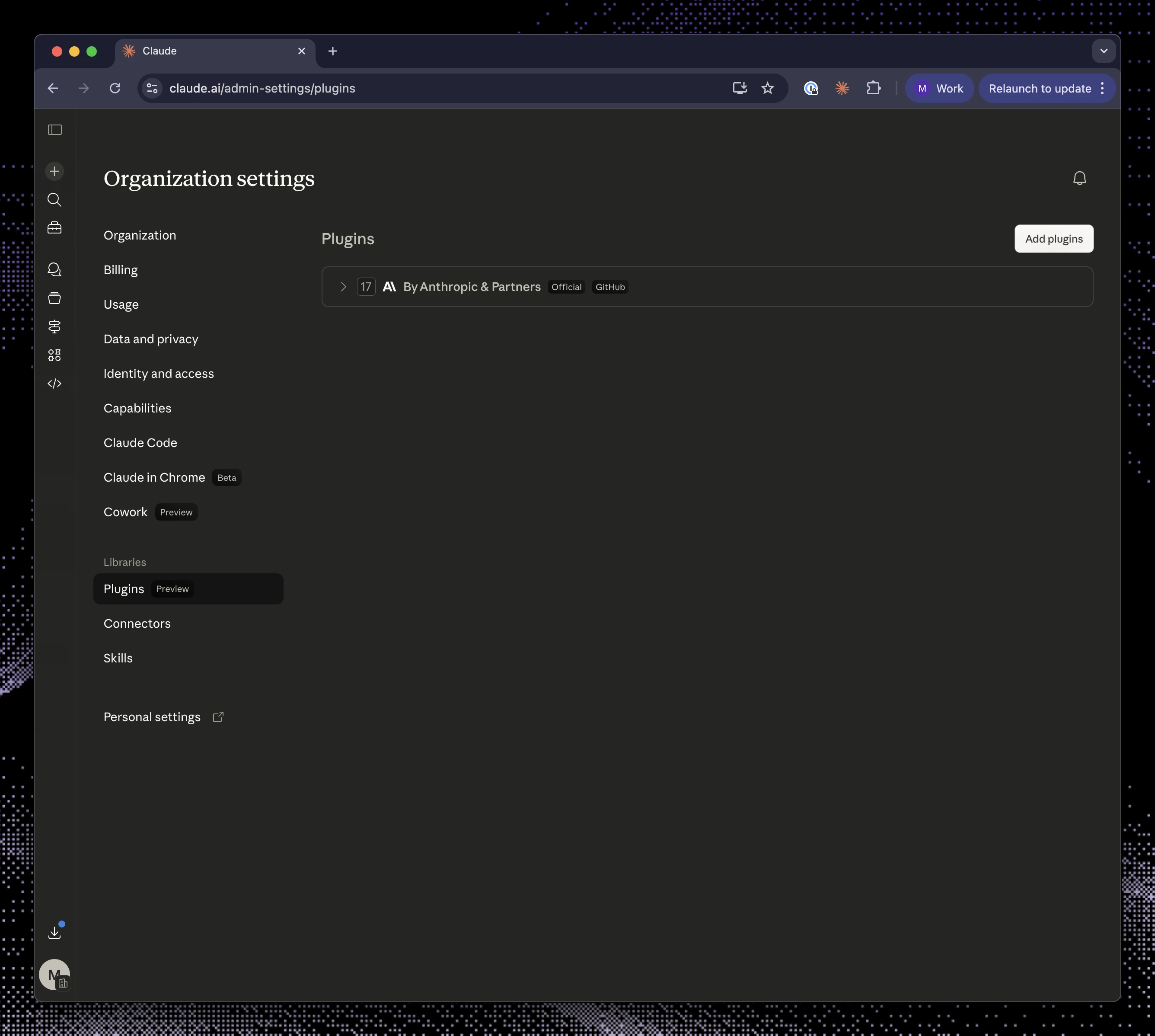 Choose Upload a file.
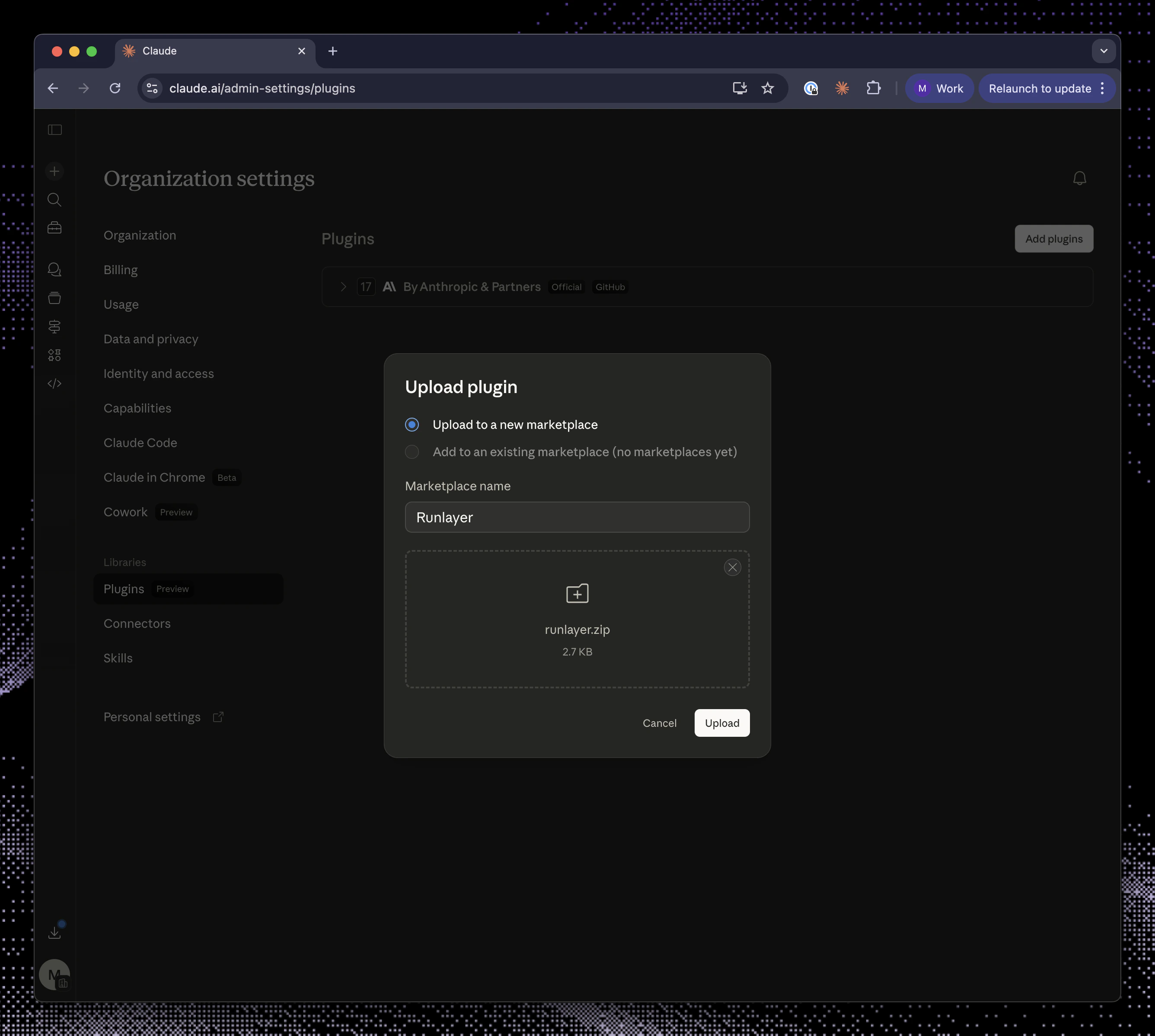
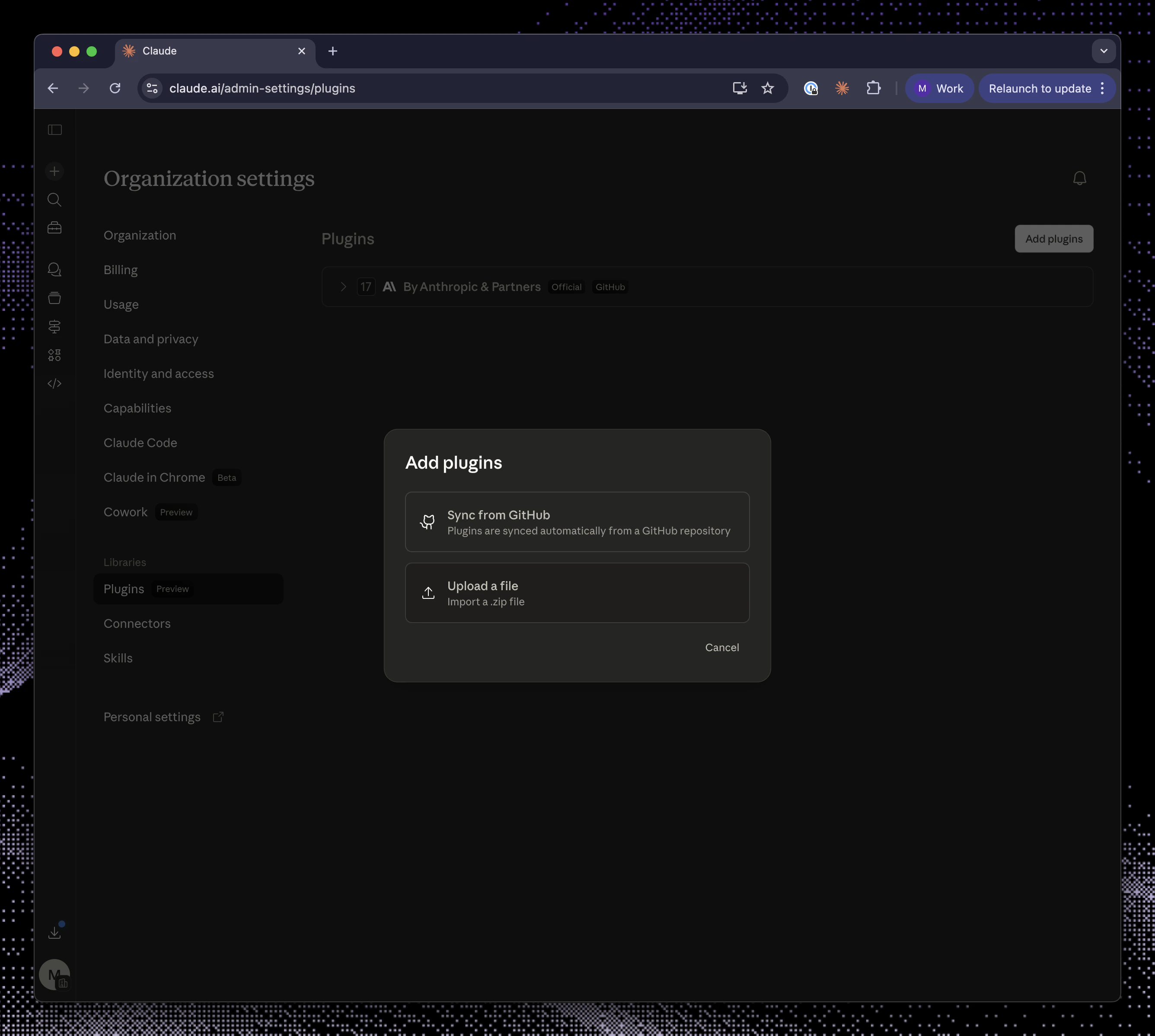 Select
 runlayer.zip and click Upload.
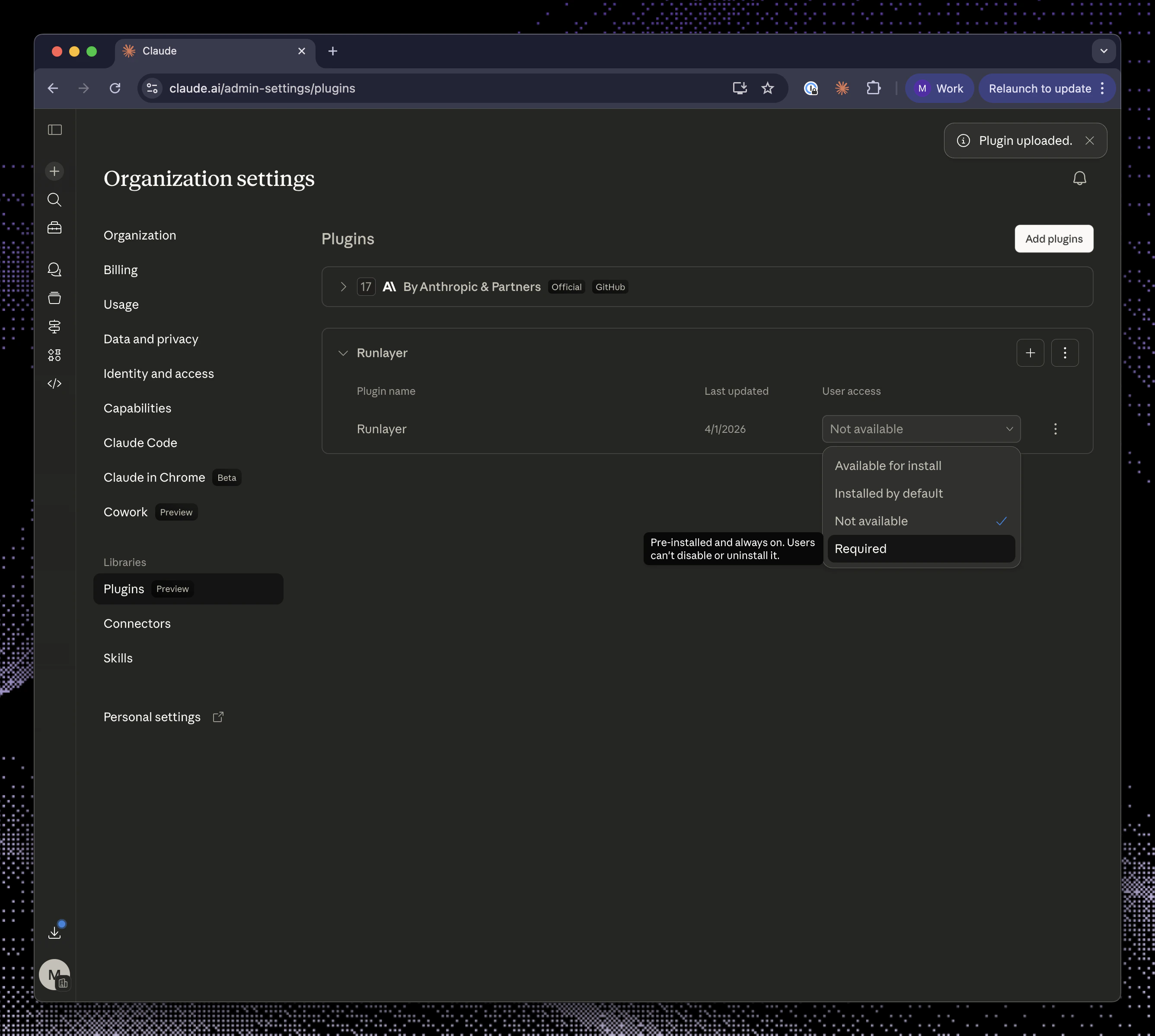
 Change user access to Required.
 ## OpenAI org install
Use this flow when you want Runlayer Plugin available in ChatGPT for your organization.
The downloaded `runlayer.zip` contains:
* `runlayer/SKILL.md`
* `runlayer/agents/openai.yaml`
* `runlayer/assets/runlayer-logo.svg`
Go to ChatGPT Admin Connectors, enable developer mode, and click Create in Apps and Connectors.
Use the values shown in the Runlayer dialog:
| Field | Value |
| -------------- | ------------------------------------------------------------------------------------------------------------------------------ |
| Name | `Runlayer Plugin` |
| Description | `Unified MCP server that provides access to all your organization's connectors, skills, plugins, and Runlayer platform tools.` |
| MCP Server URL | The URL shown in the Runlayer dialog |
| Authentication | OAuth |
Complete the OAuth authorization when prompted.
Publish the connector so it is available to your organization.
Review potential risks, mark them as reviewed, and configure action confirmation. For read-only actions, select Allow read actions with no user confirmation, then save.
Click Download zip in the Runlayer dialog. Go to chatgpt.com/skills, click + New skill, select Upload from your computer, and upload
## OpenAI org install
Use this flow when you want Runlayer Plugin available in ChatGPT for your organization.
The downloaded `runlayer.zip` contains:
* `runlayer/SKILL.md`
* `runlayer/agents/openai.yaml`
* `runlayer/assets/runlayer-logo.svg`
Go to ChatGPT Admin Connectors, enable developer mode, and click Create in Apps and Connectors.
Use the values shown in the Runlayer dialog:
| Field | Value |
| -------------- | ------------------------------------------------------------------------------------------------------------------------------ |
| Name | `Runlayer Plugin` |
| Description | `Unified MCP server that provides access to all your organization's connectors, skills, plugins, and Runlayer platform tools.` |
| MCP Server URL | The URL shown in the Runlayer dialog |
| Authentication | OAuth |
Complete the OAuth authorization when prompted.
Publish the connector so it is available to your organization.
Review potential risks, mark them as reviewed, and configure action confirmation. For read-only actions, select Allow read actions with no user confirmation, then save.
Click Download zip in the Runlayer dialog. Go to chatgpt.com/skills, click + New skill, select Upload from your computer, and upload runlayer.zip.
Share the skill and set access to Installed for everyone.
## User examples
Once Runlayer Plugin is connected, users can ask their AI client for work in normal language.
Examples:
* “Use Runlayer to find the right GitHub tool and create an issue for this bug.”
* “Search for Slack tools I can use, then summarize messages about the incident.”
* “Use `/runlayer` to list available skills for release management.”
* “Find the Salesforce tool for reading account details, then look up Acme.”
If the model cannot find a tool, ask it to search Runlayer Plugin first:
```text theme={null}
Search Runlayer Plugin for the tool you need before executing anything. Use the exact tool name from search results.
```
## Troubleshooting
The user may not have access to any active hosted connectors. Check connector status and policies for that user. Local connectors are not included in Runlayer Plugin.
Runlayer Plugin only includes active hosted connectors visible to the user through policy. Draft, disabled, local, or policy-blocked connectors will not appear as normal executable tools.
The underlying connector requires user OAuth or another user-scoped authorization. Complete the authorization, then search again.
Ask it to call `search_tools` first. Runlayer Plugin tool names must match the names returned by search results.
Runlayer Plugin is best-effort during discovery. If one connector times out or returns a non-auth error, Runlayer Plugin can still return tools from other available connectors.
## Related docs
Learn how dynamic tools work for Runlayer plugins.
Control which users can access each connector and tool.
Review Runlayer Plugin and connector activity.