> ## Documentation Index
> Fetch the complete documentation index at: https://docs.runlayer.com/llms.txt
> Use this file to discover all available pages before exploring further.
# Snowflake
> MCP server for Snowflake integration
**No longer maintained.** This Runlayer-built connector is deprecated and
will not receive further updates. Use Snowflake's managed [Cortex Agents MCP server](https://docs.snowflake.com/en/user-guide/snowflake-cortex/cortex-agents-mcp) instead.
Connect your AI assistant to [Snowflake](https://www.snowflake.com) for data warehouse queries and schema exploration. Uses **Snowflake OAuth** for authentication.
## Available Tools
| Tool | Description |
| ---------------- | --------------------------------------------------- |
| `read_query` | Execute read-only SQL queries against the warehouse |
| `list_databases` | List all accessible databases |
| `list_schemas` | List schemas in a database |
| `list_tables` | List tables in a schema |
| `describe_table` | Get column details for a table |
## Setup
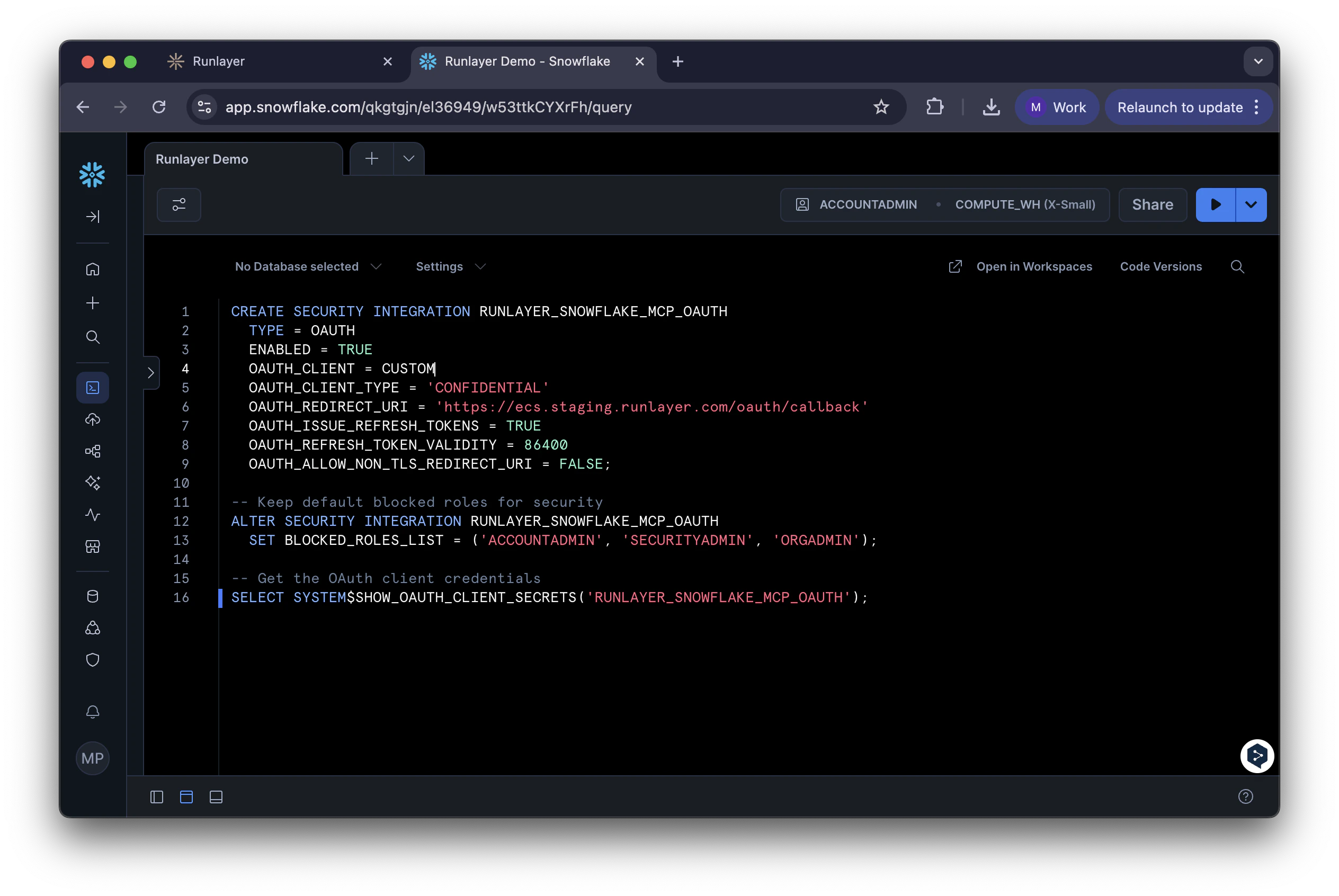
Run the following SQL in your Snowflake console. Replace `` with your Runlayer subdomain:
```sql theme={null}
CREATE SECURITY INTEGRATION RUNLAYER_SNOWFLAKE_MCP_OAUTH
TYPE = OAUTH
ENABLED = TRUE
OAUTH_CLIENT = CUSTOM
OAUTH_CLIENT_TYPE = 'CONFIDENTIAL'
OAUTH_REDIRECT_URI = 'https://.runlayer.com/oauth/callback'
OAUTH_ISSUE_REFRESH_TOKENS = TRUE
OAUTH_REFRESH_TOKEN_VALIDITY = 86400
OAUTH_ALLOW_NON_TLS_REDIRECT_URI = FALSE;
-- Keep default blocked roles for security
ALTER SECURITY INTEGRATION RUNLAYER_SNOWFLAKE_MCP_OAUTH
SET BLOCKED_ROLES_LIST = ('ACCOUNTADMIN', 'SECURITYADMIN', 'ORGADMIN');
```
**Security Note**: Never set `BLOCKED_ROLES_LIST` to empty. Always block at minimum `ACCOUNTADMIN`, `SECURITYADMIN`, and `ORGADMIN` to prevent OAuth tokens from having administrative access.
Run this SQL to get your credentials:
```sql theme={null}
SELECT SYSTEM$SHOW_OAUTH_CLIENT_SECRETS('RUNLAYER_SNOWFLAKE_MCP_OAUTH');
```
Copy the `OAUTH_CLIENT_ID` and `OAUTH_CLIENT_SECRET` from the result.
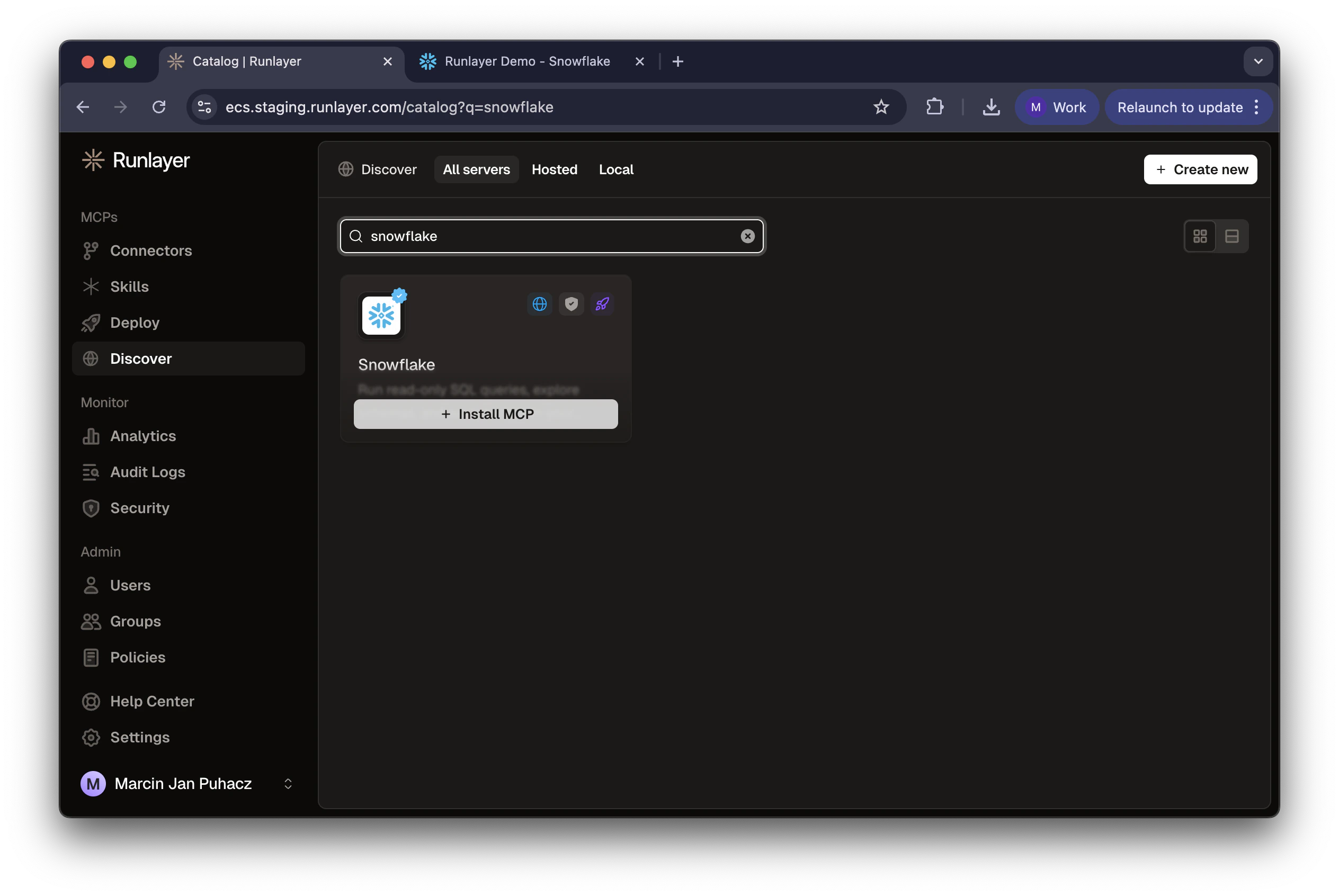
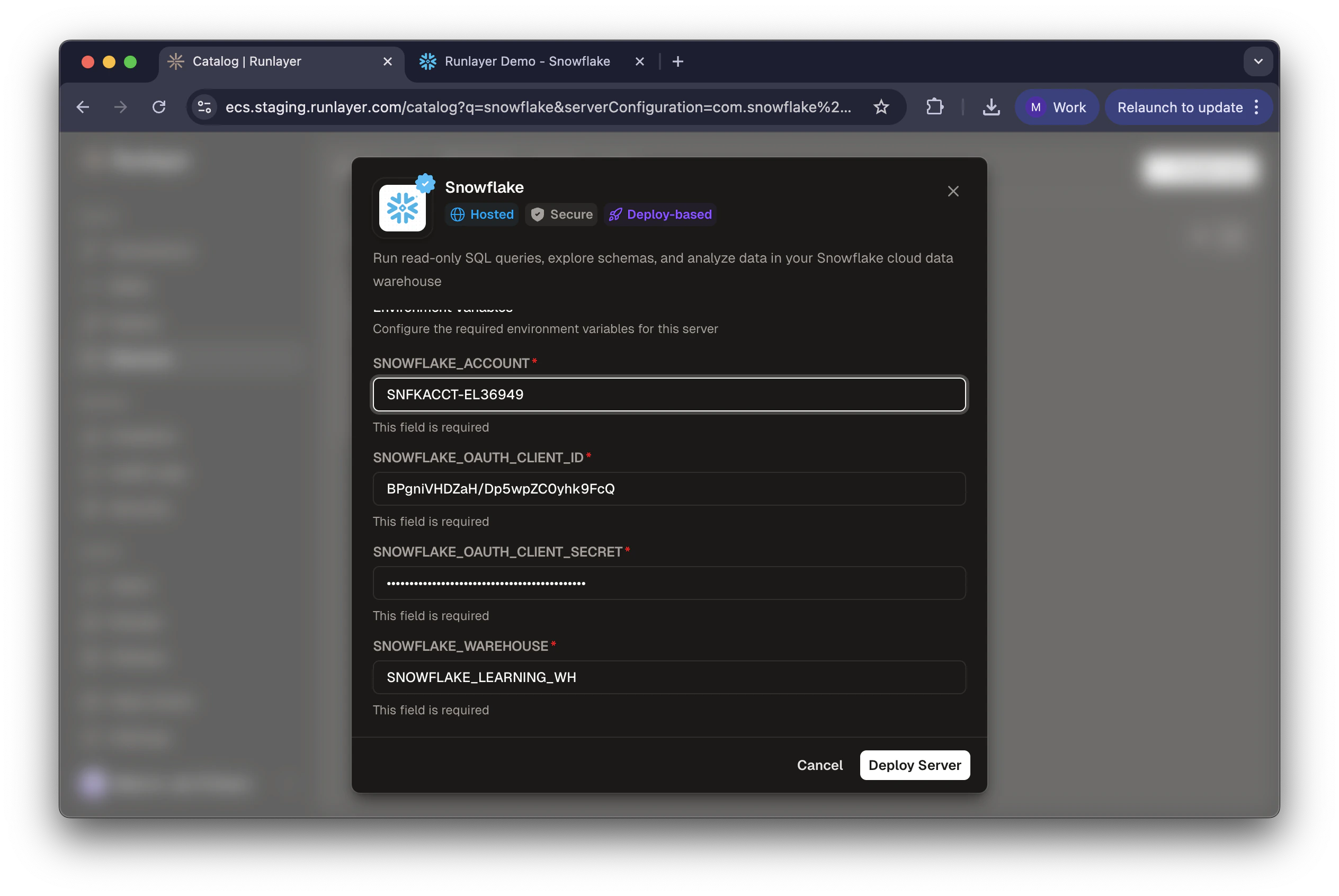
1. In Runlayer, go to **My connectors**, find **Snowflake**, and click **Add connector**
2. Enter:
* **SNOWFLAKE\_ACCOUNT**: Your account identifier (e.g., `SNFKACCT-EL36949`)
* **SNOWFLAKE\_HOST**: Your Snowflake host (e.g., `snfkacct-el36949.snowflakecomputing.com`)
* **SNOWFLAKE\_OAUTH\_CLIENT\_ID**: Client ID from Step 2
* **SNOWFLAKE\_OAUTH\_CLIENT\_SECRET**: Client Secret from Step 2
* **SNOWFLAKE\_WAREHOUSE**: Default warehouse (e.g., `COMPUTE_WH`)
3. Click **Deploy Server**
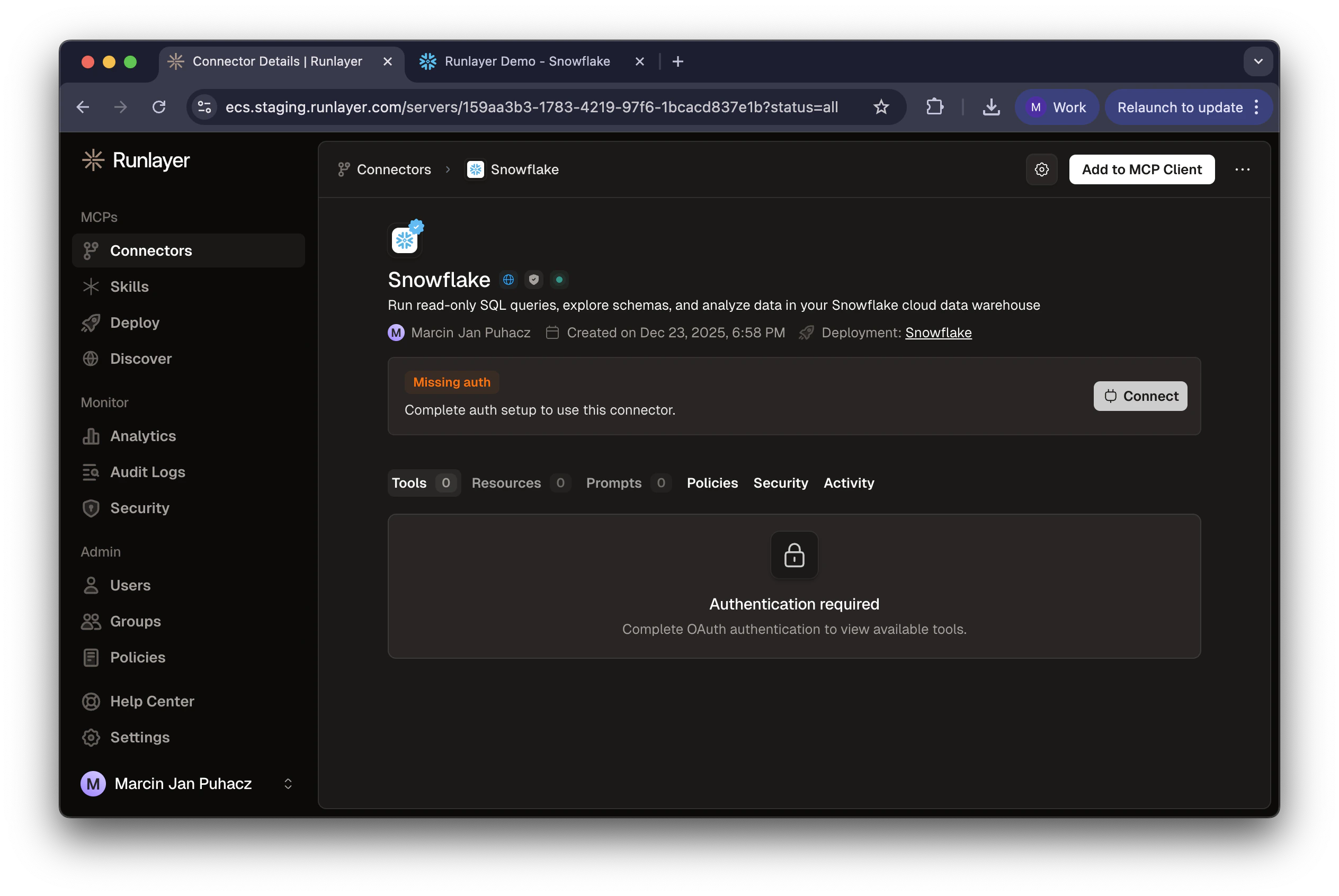
1. Click **Connect** on the server page
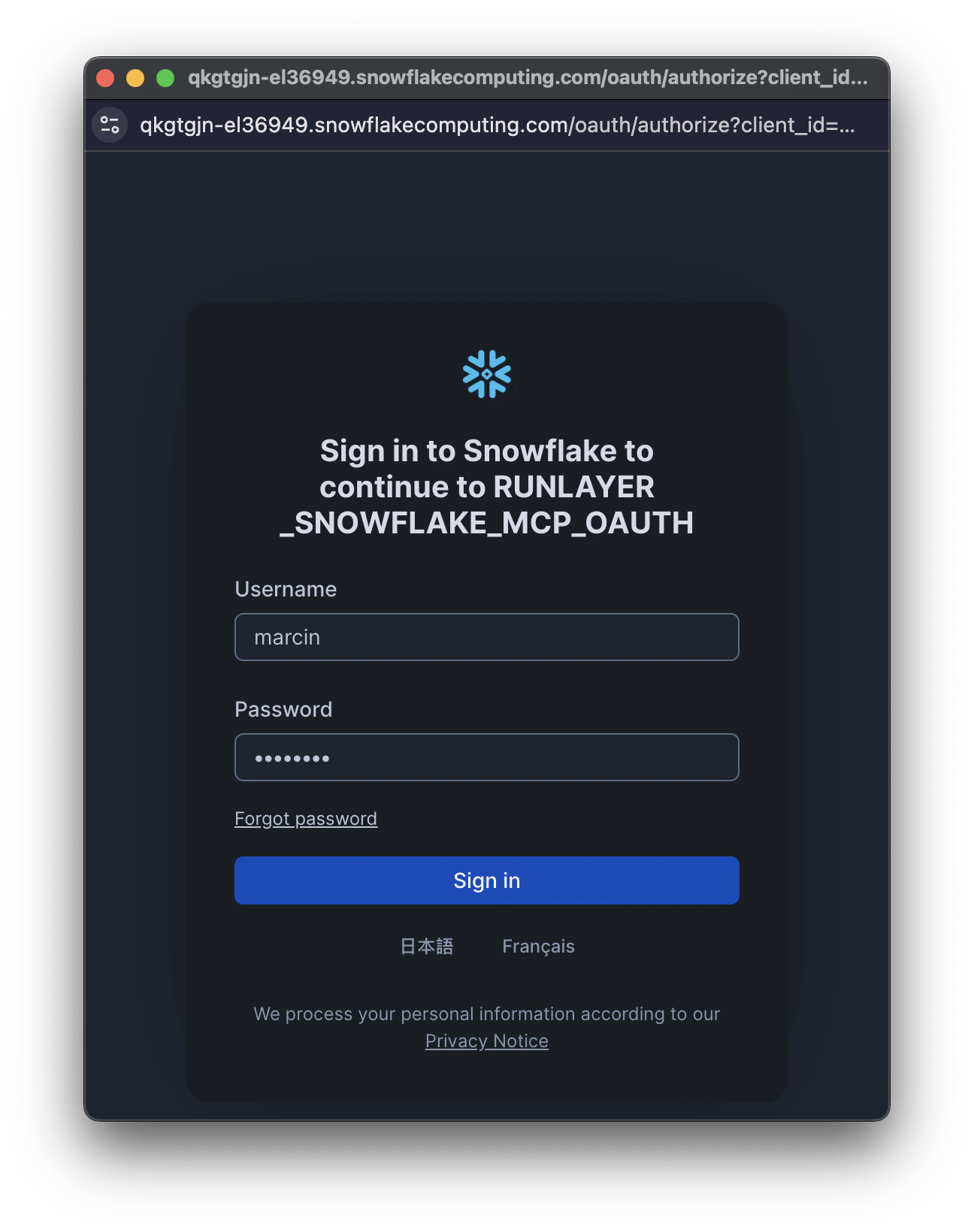
2. Log in with your Snowflake credentials
3. Review permissions and click **Allow**
Each user will need to complete this authorization process with their own Snowflake credentials. This ensures that queries run with each user's individual permissions.
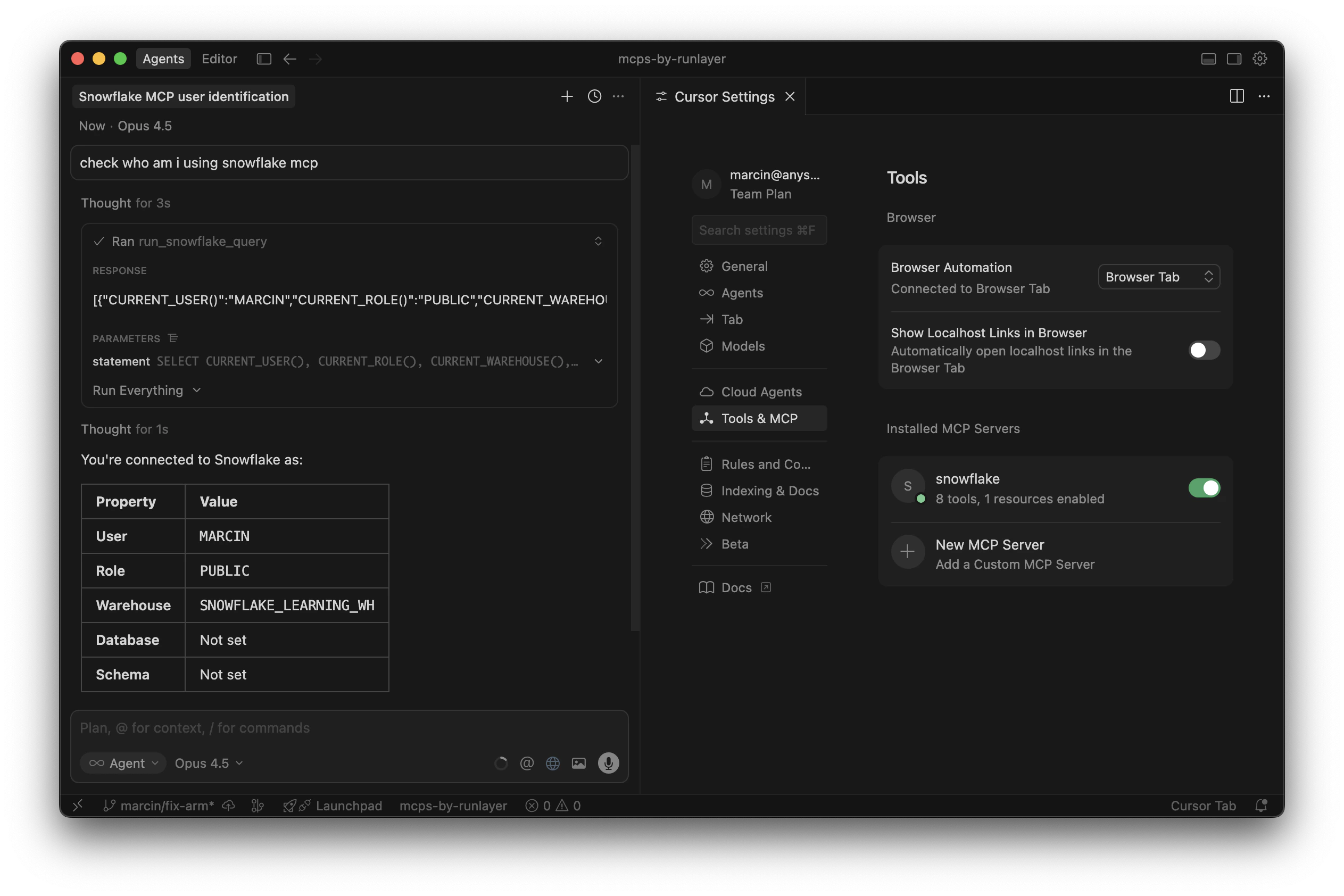
In your MCP client, try asking:
> "Show me who am I using the Snowflake MCP"
The agent will run a query and return your connected user details.
## Configuration Reference
**Required:**
| Variable | Description |
| ------------------------------- | ------------------------------------------------------------------- |
| `SNOWFLAKE_ACCOUNT` | Account identifier (e.g., `SNFKACCT-EL3694` or `myorg-account_xyz`) |
| `SNOWFLAKE_HOST` | Snowflake host (e.g., `myorg-account_xyz.snowflakecomputing.com`) |
| `SNOWFLAKE_OAUTH_CLIENT_ID` | OAuth client ID from security integration |
| `SNOWFLAKE_OAUTH_CLIENT_SECRET` | OAuth client secret from security integration |
| `SNOWFLAKE_WAREHOUSE` | Default warehouse for queries |
**Optional:**
| Variable | Description |
| ---------------- | ---------------------------------------------------- |
| `SNOWFLAKE_ROLE` | Default role for OAuth scopes (defaults to `PUBLIC`) |
### Account vs Host
* **SNOWFLAKE\_ACCOUNT**: Account identifier, required for OAuth URL construction (e.g., `SNFKACCT-EL3694`)
* **SNOWFLAKE\_HOST**: Snowflake hostname — use default (`{account}.snowflakecomputing.com`) or custom for proxy/private endpoints
## Updating Configuration
After initial deployment, you can update configuration options via CLI:
```bash theme={null}
# Pull existing configuration
uvx runlayer deploy pull --deployment-id
# Edit runlayer.yaml locally
# Deploy updated configuration
uvx runlayer deploy
```
## Troubleshooting
Check your Snowflake URL for the correct format. For regional accounts, include the region (e.g., `abc12345.us-east-1`).
Verify the `OAUTH_REDIRECT_URI` in your security integration matches exactly: `https://.runlayer.com/oauth/callback` (no trailing slash).
Ensure the role you authorized has `USAGE` privilege on the warehouse: `GRANT USAGE ON WAREHOUSE TO ROLE ;`
Remove the role from `BLOCKED_ROLES_LIST` or choose a different role during authorization.
 ```sql theme={null}
CREATE SECURITY INTEGRATION RUNLAYER_SNOWFLAKE_MCP_OAUTH
TYPE = OAUTH
ENABLED = TRUE
OAUTH_CLIENT = CUSTOM
OAUTH_CLIENT_TYPE = 'CONFIDENTIAL'
OAUTH_REDIRECT_URI = 'https://
```sql theme={null}
CREATE SECURITY INTEGRATION RUNLAYER_SNOWFLAKE_MCP_OAUTH
TYPE = OAUTH
ENABLED = TRUE
OAUTH_CLIENT = CUSTOM
OAUTH_CLIENT_TYPE = 'CONFIDENTIAL'
OAUTH_REDIRECT_URI = 'https://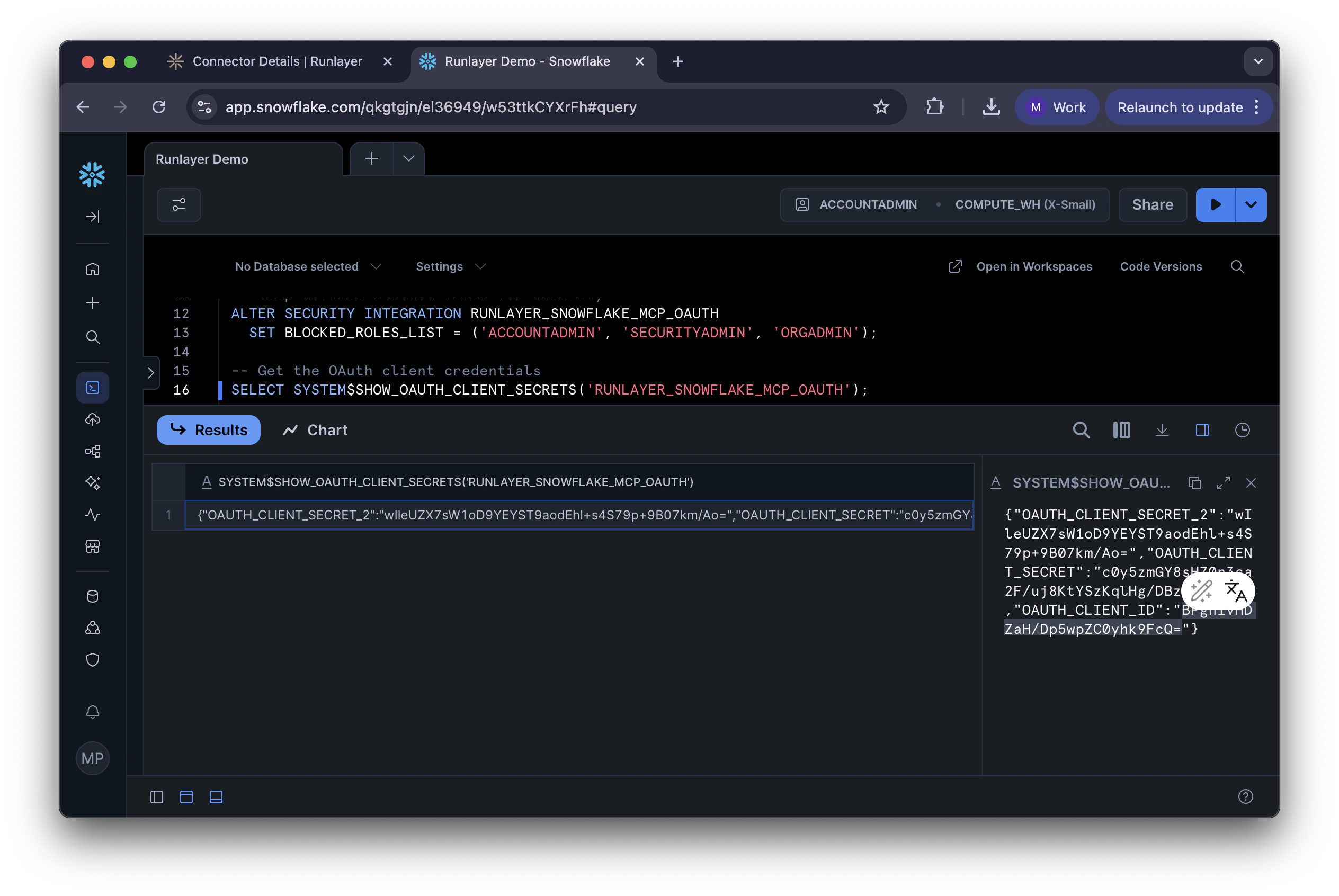
 2. Enter:
* **SNOWFLAKE\_ACCOUNT**: Your account identifier (e.g., `SNFKACCT-EL36949`)
* **SNOWFLAKE\_HOST**: Your Snowflake host (e.g., `snfkacct-el36949.snowflakecomputing.com`)
* **SNOWFLAKE\_OAUTH\_CLIENT\_ID**: Client ID from Step 2
* **SNOWFLAKE\_OAUTH\_CLIENT\_SECRET**: Client Secret from Step 2
* **SNOWFLAKE\_WAREHOUSE**: Default warehouse (e.g., `COMPUTE_WH`)
3. Click **Deploy Server**
2. Enter:
* **SNOWFLAKE\_ACCOUNT**: Your account identifier (e.g., `SNFKACCT-EL36949`)
* **SNOWFLAKE\_HOST**: Your Snowflake host (e.g., `snfkacct-el36949.snowflakecomputing.com`)
* **SNOWFLAKE\_OAUTH\_CLIENT\_ID**: Client ID from Step 2
* **SNOWFLAKE\_OAUTH\_CLIENT\_SECRET**: Client Secret from Step 2
* **SNOWFLAKE\_WAREHOUSE**: Default warehouse (e.g., `COMPUTE_WH`)
3. Click **Deploy Server**
 2. Log in with your Snowflake credentials
 3. Review permissions and click **Allow**