

MCP Approval Workflow
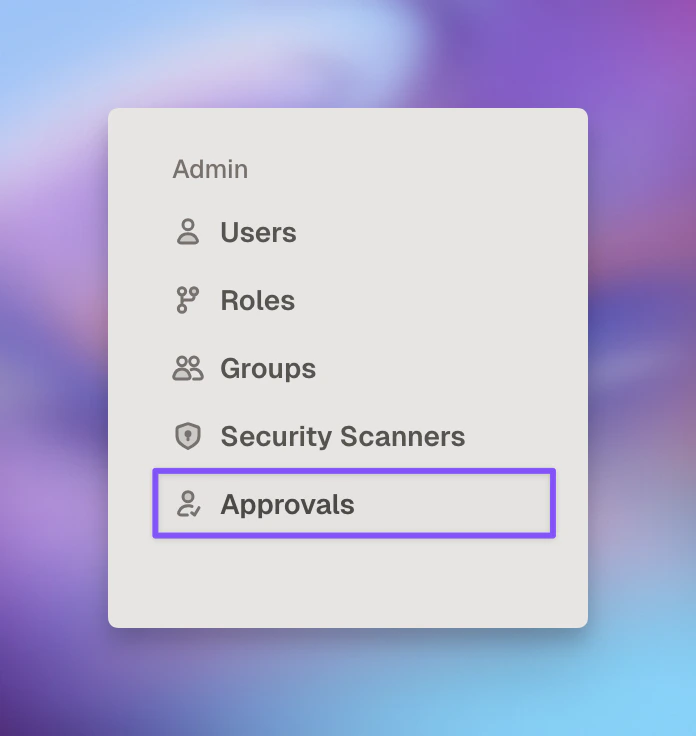
Finding Pending Requests
You’ll receive notifications through multiple channels:- Email alerts for new requests (configurable per admin)
- Slack channel notifications when a new server or access request is submitted
- Slack DMs to the requester when a decision is made
Reviewing Request Details
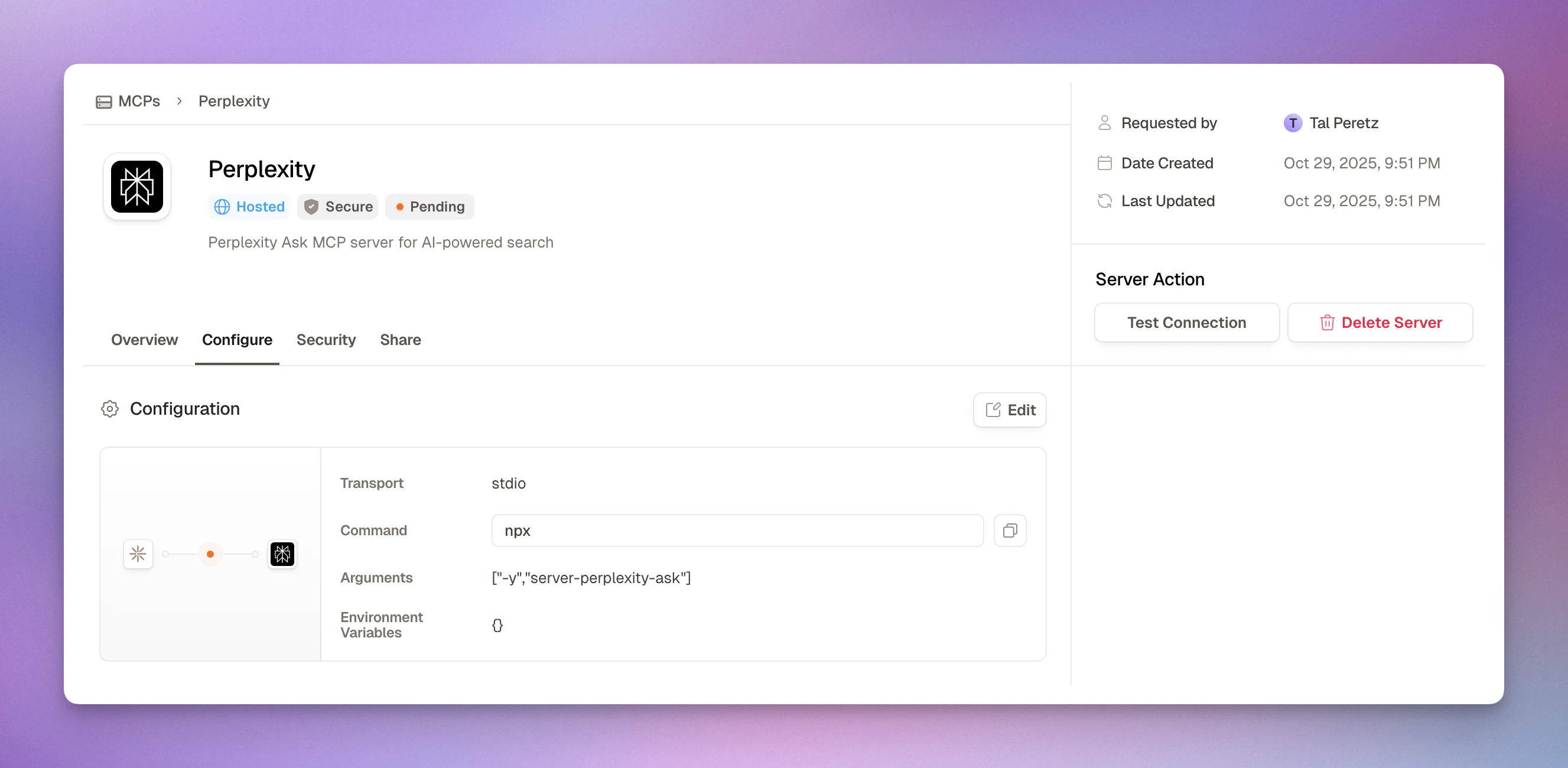
- Requester Information: Name and email
- MCP Configuration: Linked server or catalog item details (URL, transport type, authentication)
- Request Reason: Free-text justification provided by the requester
Approval Actions
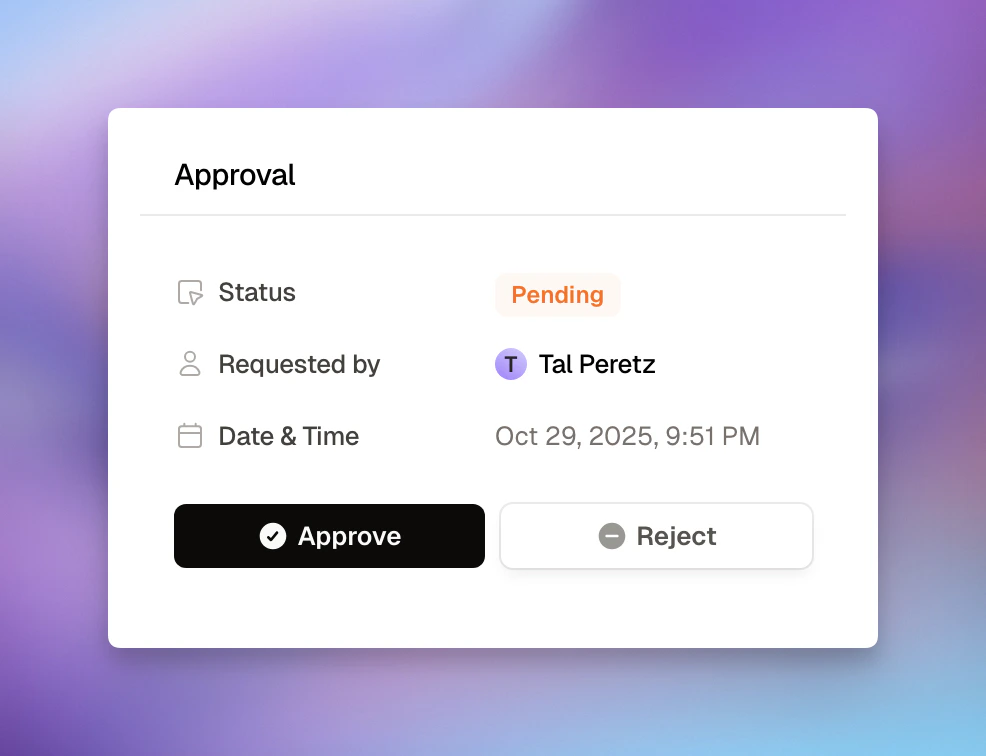
- Click ‘Approve’ button
- Review summary
- Add notes (optional)
- Confirm approval
- Request status changes to “Approved”
- Notification sent to requester via Slack DM
- Audit log entry created
- Click ‘Reject’ button
- Provide a reason (optional)
- Confirm rejection
- Request status changes to “Rejected”
- Notification sent to requester via Slack DM (includes rejection reason if provided)
- Audit log entry created
Viewing Approval History
The pending requests view only shows requests awaiting a decision. Once a request is approved or rejected, the permanent record lives in the audit log, which captures who made the decision, when, and the rejection reason if one was provided. To review past decisions:- Navigate to Audit Logs in the sidebar
- Filter by Action type — approval decisions are logged as
server_request_approved,server_request_rejected,access_request_approved, andaccess_request_rejected(the filter dropdown is searchable, so typing “approved” surfaces them) - Narrow further by user, date range, or resource (a specific MCP server)
- Click any entry for full details, including the approver and the linked request
Audit logs are tamper-proof and retained for compliance, so approval history
can’t be edited or deleted after the fact.
Related Resources
Security Best Practices
Security review checklist
Audit Logs
Filterable, tamper-proof record of all approvals