

What Gets Notified
Channel Notifications
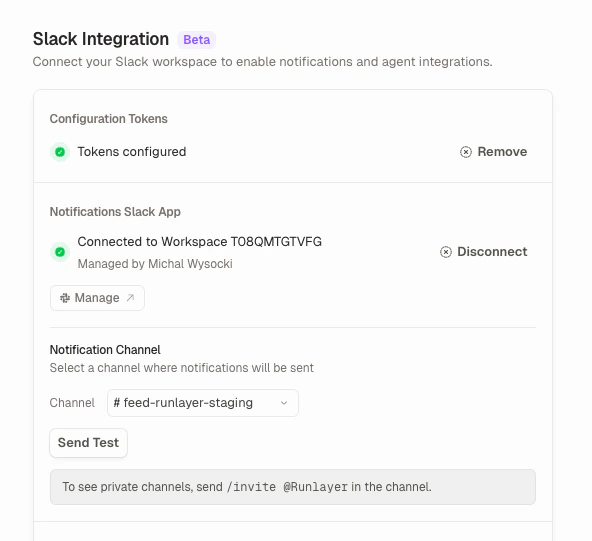
Sent to your configured notification channel:
Each notification includes a direct link to review the event in Runlayer.
Personal Notifications
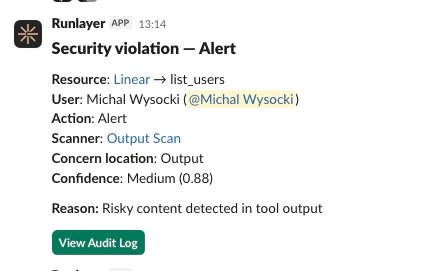
Sent privately to individual users. Most arrive by DM; a disconnected connector notification from a Slack-triggered action can instead appear only to its recipient in the originating thread.When Runlayer has not already matched a user to their Slack identity, their Slack email must match their Runlayer email. Runlayer caches the match for future personal notifications.
Disconnected connector notifications
Beta When an action needs an OAuth connector that is not available, Runlayer sends a personal Slack notification with the connector, failed action, and relevant agent, plugin, or client context. The notification includes a Connect or Reconnect button that opens the connector in Runlayer:
The notification goes to the user who owns the OAuth credential. If an agent or another user was using a shared connection, that credential owner receives it because they are the person who can reconnect it.
For a Slack-triggered agent run where the requester owns the credential, Runlayer first posts a private message visible only to that user in the originating thread. Slack-triggered plugin actions also try the thread, including when another user owns the shared credential. If Runlayer cannot use the thread, it sends a DM. Notifications from agent runs use the agent’s Slack app first and fall back to the shared Runlayer Slack App; other requests use the shared app.
Runlayer sends these notifications only when the connector is needed for a request. It does not notify for background connection checks or broad plugin discovery. Repeated notices for the same recipient and connector are suppressed for ten minutes; Slack-triggered agent runs are scoped separately, so different runs can each send a notification.
Disconnected connector notifications are rolling out gradually behind a feature flag. If your workspace has set up Slack correctly but does not receive them, contact your Runlayer account team to confirm beta access.
Routing High-Risk Events
The Slack integration itself has no severity filter — but you can control alert volume and route by risk level in three ways: Blocked vs. masked violations. Slack alerts fire when ToolGuard blocks a request or detects a violation in alert mode. Violations handled silently by masking (e.g. PII redaction) do not generate channel notifications. Incident-based alerting. By default, per-violation Slack alerts are replaced by incident lifecycle alerts — created, resolved, action taken. Related violations are grouped into a single incident, and each alert carries a severity tier (Critical, High, Medium, Low) plus a link to the incident, so the channel shows ranked, deduplicated signals instead of one message per violation. Teams that triage from the channel can switch back to per-violation alerts — see Security notification format. Agent event triggers. For custom routing logic, use event triggers on agents: an agent can subscribe to platform event types such assecurity_violation or incident_created and add a semantic condition prompt that filters which events start a run — for example, trigger on incident_created with the condition “only critical or high severity incidents”, then have the agent post to a dedicated escalation channel.
To route events into external tools instead of Slack, use SIEM export — every audit event (including security violations and incident lifecycle events) is continuously exported to S3, where your SIEM can apply its own severity-based routing and alerting.
Destination support
Setup
All Slack configuration lives in Settings → Integrations. Some workspaces have the managed Slack app setup; others use Slack configuration tokens while the managed flow rolls out. Follow the setup shown in your Slack Integration card.Managed setup
If you see Agent App Install Target:1
Prepare your existing Slack connector
Managed agent apps use the Official Runlayer app to authorize the Slack
connector. If your existing connector uses a Pre-registered Client, an
admin must upgrade that connector.
Keep using the same connector; there is no second connector to add.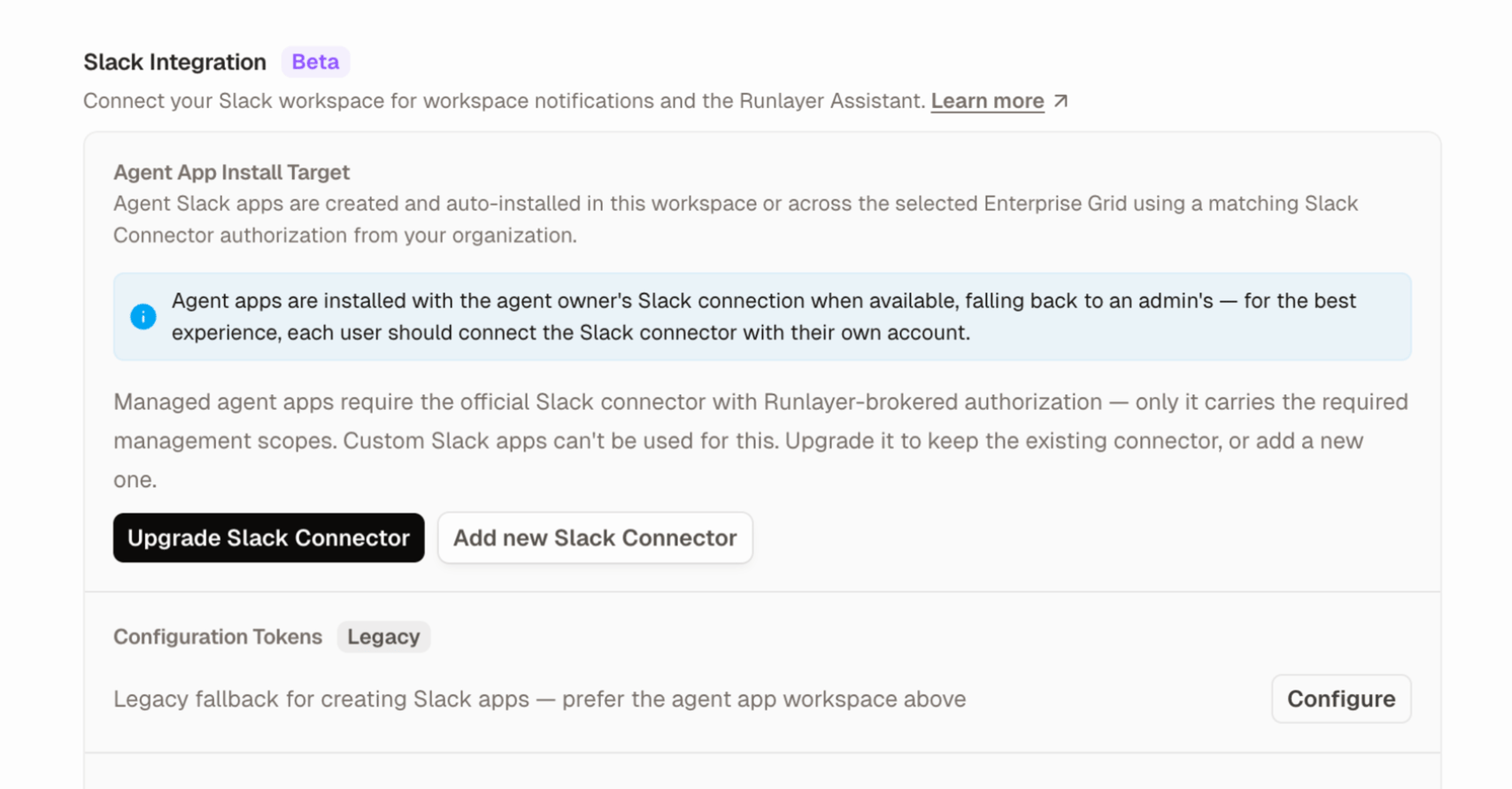
2
Connect Slack
Connect the Slack connector with an account that can install apps in the target workspace or Enterprise Grid organization.
3
Choose the install target
Under Agent App Install Target, confirm the selected Slack workspace or
Enterprise Grid organization. If prompted, select the target and click Save.
4
Create the Runlayer Slack App
For workspace notifications, under Runlayer Slack App, click Create Slack
App. Runlayer creates and installs the shared app. If Slack authorization
opens, review the permissions and click Allow.To set up only a dedicated agent app, continue to the agent’s
Slack settings instead.
Configuration token setup
If you do not see Agent App Install Target, or need the legacy fallback:1
Generate a Configuration Token
Go to api.slack.com/apps, scroll to Your App Configuration Tokens, click Generate Token, and select your workspace. Copy the Refresh Token (starts with 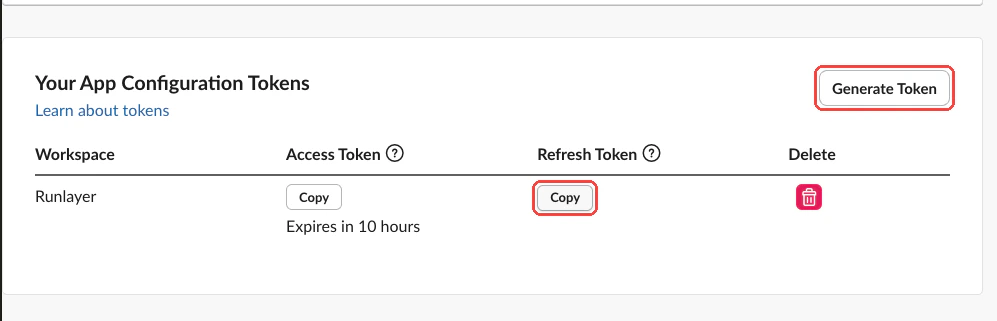
xoxe-).2
Save the token in Runlayer
In Settings → Integrations, expand the Configuration Tokens section, click Configure, paste the refresh token, and click Save Token.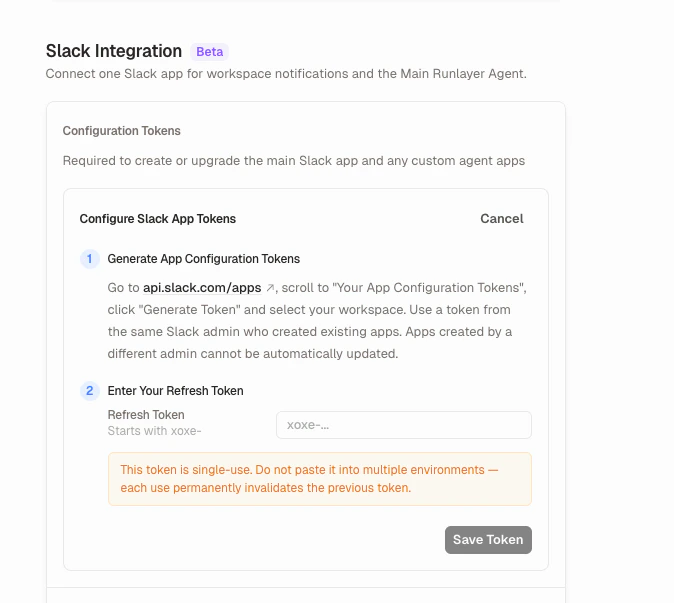
3
Create the Runlayer Slack App
Click Create Slack App under Runlayer Slack App. Runlayer creates a Slack app with the correct permissions and redirects you to Slack for OAuth authorization.
4
Authorize in Slack
Review the permissions and click Allow. You’ll be redirected back to Runlayer.
Finish setup
After using either setup path:1
Select a notification channel
Choose the channel where notifications should be sent. Only channels the Slack app has been invited to will appear.
2
Send a test message
Click Send Test to verify everything works. A test notification will appear in the selected channel.
Selecting a notification channel is required for shared channel alerts and the test message. Personal notifications do not require a notification channel. An agent’s connected Slack app can deliver notifications from that agent; the shared Runlayer Slack App is the fallback and handles notifications outside agent runs.
Enterprise Grid
For Slack Enterprise Grid installations, an additional Workspace selector appears after connecting. Select the workspace first, then choose a channel within it. The notification channel and workspace are saved together.Managing the Integration
Changing the notification channel
Select a different channel from the dropdown at any time. The change takes effect immediately.Security notification format
Under Security Notifications, pick how ToolGuard findings arrive in the channel:
Alerts also support Blocked calls only, which skips findings that were flagged or masked but allowed through — useful when only enforced blocks need review.
Disconnecting
Click Disconnect next to the connection status. This revokes the bot token and stops all notifications. The Slack app itself remains in your workspace — you can reconnect by clicking Connect to Slack again.Removing the Slack app entirely
With a valid configuration token, click Delete App to remove the Slack app from your workspace completely.If the app was created by a different Slack admin than the one who configured the token, Runlayer cannot auto-update or delete the app. You’ll see a warning — manage it directly at api.slack.com/apps.
Runlayer Assistant
The Slack integration can create a managed Runlayer Assistant — a shared Slack bot that can respond to messages in channels and DMs. The assistant is available to all workspaces with agents enabled. Create it from Settings → Integrations by clicking Create Runlayer Assistant. After creating the assistant, reinstall the Slack app to grant the additional scopes. The Runlayer Assistant appears as a regular agent in the Agents list but cannot be renamed or deleted like a custom agent.Agent Slack Apps
Separate from notifications, each agent can have its own Slack app for @mentions and DMs. Configure it on the agent detail page under Slack. With managed setup complete, new agent apps use the Official Runlayer Slack connection and selected install target; no configuration token is needed. Workspaces using the legacy configuration-token flow still need their workspace’s configuration token. Existing apps are not automatically migrated when you complete managed setup. See the Slack Integration section in Settings for a list of all connected agent apps. Admins can open the Slack API management page for an agent’s app directly from the agent Slack settings dialog via the Manage Slack App link. When an agent runs from a Slack trigger, it can post additional messages back to the Slack thread using a built-in messaging tool. This is automatic for Slack-triggered runs and does not require extra configuration. Agent icons are automatically synced to the Slack app’s bot profile image. When you create a Slack app for an agent, or update an agent’s icon, the icon appears in Slack within seconds. If no custom icon is set, the app uses the Runlayer logo.Message identity: as the agent vs as you
Agents can post to Slack through two paths, and they use different identities:
All Slack MCP connector tools run with the connected user’s Slack credentials (the account shown under Account used on the agent’s connector). Anything they send, schedule, or create in Slack is attributed to that user, not to the agent. The Runlayer UI marks these tools with a Sends as you badge and Slack connectors on agents with an Acts as you badge.
To make an agent post only as itself, uncheck the send tools on its Slack connector (the connector’s permissions dialog has a Send only as agent shortcut that does this). The built-in
say reply only needs a connected Slack app on the agent; it works with or without a Slack connector attached.
Outbound messaging controls
Admins can restrict where an agent’s Slack app can send messages. These controls apply to the built-insay tool and any Slack MCP connector tool that sends messages (e.g. send_message). Configure them on the agent detail page under Slack → Blocked channels.
When a blocked action is attempted, the tool call fails with an error and the agent receives feedback that the destination is blocked. These controls are enforced at the Runlayer proxy layer, so they apply regardless of whether the agent uses the built-in
say tool or a Slack MCP connector tool.
Troubleshooting
No channels appear in the dropdown
No channels appear in the dropdown
The Slack app can only see channels it’s been invited to. For public channels, the app should see them automatically. For private channels, send
/invite @Runlayer in the channel first, then refresh the page.Test message fails
Test message fails
Check that:
- The Slack app is still authorized (not uninstalled from Slack)
- A notification channel is selected
- The app hasn’t been removed from the channel
Personal notifications aren't being delivered
Personal notifications aren't being delivered
Check that:
- The Slack app used for the request is connected. Agent runs try the agent’s Slack app first and the shared Runlayer Slack App as a fallback; other requests use the shared app.
- The credential owner is checking both their DMs and, for a Slack-triggered agent or plugin action, the originating thread.
- The credential owner’s Slack email matches their Runlayer email if Runlayer has not matched their Slack identity before.
- Your workspace has beta access if the missing notification is for a disconnected connector.
'Cannot auto-update' warning
'Cannot auto-update' warning
This appears when the Slack app was created by a different admin than the one whose configuration token is currently saved. Runlayer needs the original creator’s token to update app manifests. Either:
- Have the original creator generate a new configuration token, or
- Delete the app and recreate it with the current admin’s token
Configuration token expired
Configuration token expired
Slack configuration tokens expire periodically. When this happens, the admin who configured the token receives a DM (if Slack is still connected) and the token is automatically removed. Generate a new token at api.slack.com/apps and save it in Settings.