

Managing Access Policies
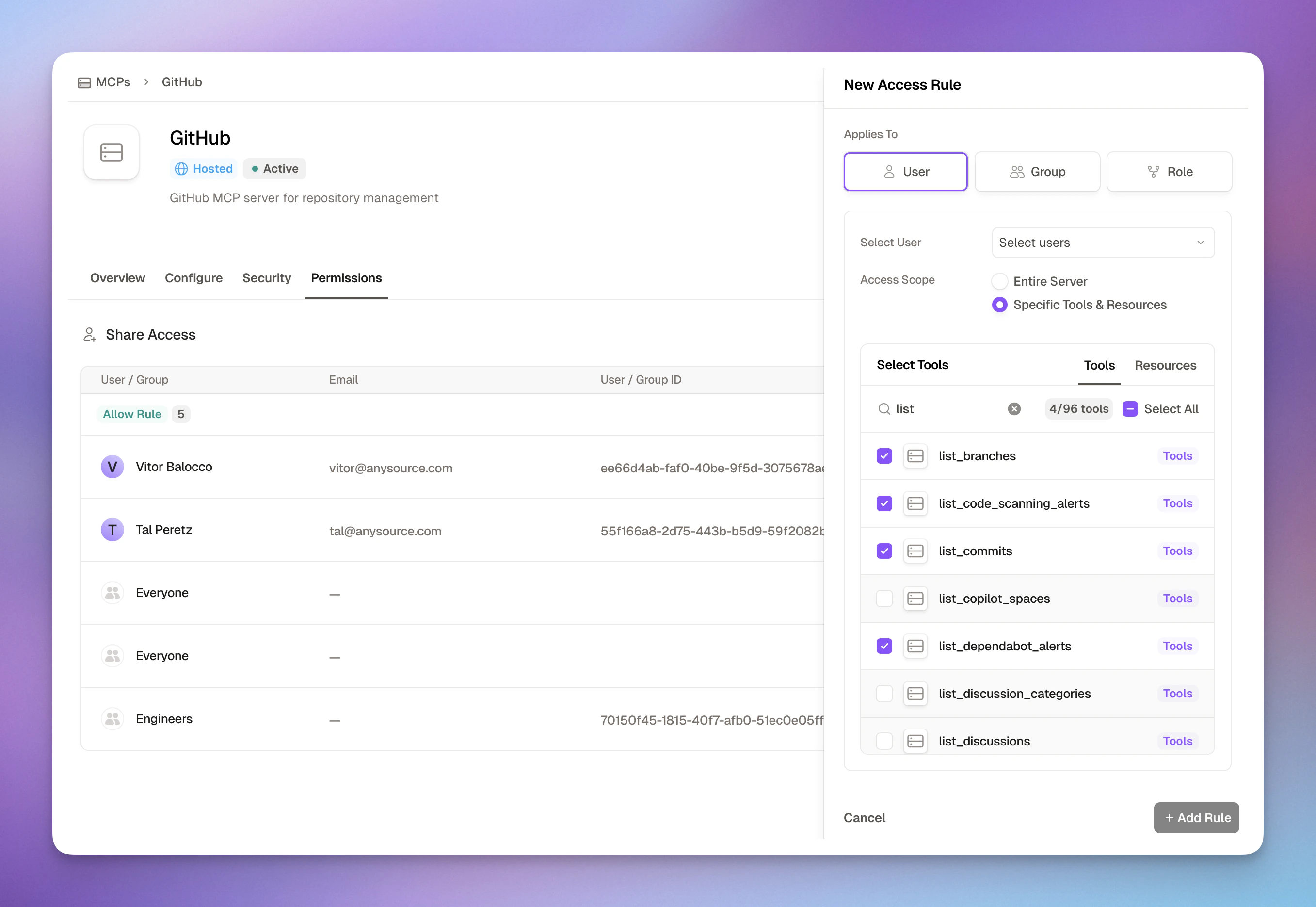
How Access Rules Work
Access rules grant permissions to users, groups, roles, or agent accounts for specific MCP servers. Each rule can include multiple principals of the same type — for example, several users or several groups in one rule. Applies To (Who gets access):- User: One or more individual employees by email/ID
- Group: One or more teams synced from your SSO (Engineering, Marketing, etc.)
- Role: One or more job functions or custom roles
- Agent Account: One or more machine-to-machine identities (see Agent Accounts)
- Attributes: Match users or agent accounts by identity attributes (e.g., department, environment). User attributes sync from your IdP; agent account attributes are admin-managed. Attribute rules are subject-type-agnostic — assigning an attribute to an agent account makes it inherit every existing rule scoped to that attribute
- Everyone: Wildcard principal that matches all subjects, including users and agent accounts (typically used in global deny policies)
- Entire Server: Full access to all tools in the MCP
- Specific Tools & Resources: Fine-grained selection of individual tools
- Add runtime rules based on tool arguments (e.g., restrict SQL queries to specific tables)
- Enforce network restrictions (e.g., corporate IP ranges only)
- Validate OAuth session properties (e.g., require verified accounts)
- Block specific MCP clients
Policy conditions evaluate runtime context — tool arguments (
payload.*), request metadata like IP and client, OAuth session state, tool annotations, and session history (meta.session.*). They do not perform semantic analysis of what the user is trying to accomplish. For intent-level monitoring — detecting when an agent’s behavior diverges from the user’s intent across a session — see AgentGuard.How Runlayer Enforces Least Privilege
Policies are one of several enforcement layers that work together. A request must pass all of them:- Platform roles (FGA) — control who can use platform features at all, like creating policies or managing connectors. See Roles & Permissions.
- Access policies (PBAC) — server-level allow/deny rules and global deny rules, evaluated by the proxy on every tool invocation (this page).
- Identity-scoped tokens — Agent Accounts authenticate with their own credentials; M2M tokens enforce agent-account policies, and OBO tokens enforce the intersection of the agent’s and the delegating user’s policies.
- Runtime conditions — argument, network, OAuth, annotation, and session-history checks applied at invocation time.
list_channels, read_messages, and search_messages on the Slack MCP; the agent’s OBO token limits it to what the delegating user is also allowed; and a global deny with meta.tool.annotations.destructiveHint EQUALS true backstops everything. See also Agents for scoping agent workloads.
Policy Types
Runlayer supports two types of permission policies, plus approval rules that layer on top of them:Server-Level Policies
Manage access to specific MCP servers. Navigate to My connectors → [Server Name] → Policies tab.- Scope: One or more specific servers
- Action: Allow or Deny
- Use for: Granting access, fine-grained tool restrictions
- Example: Allow Finance group to use database query tools
Global Policies
Organization-wide restrictions that apply everywhere. Navigate to Settings → Policies.- Scope: All servers, tools, and resources (*)
- Action: Deny only
- Use for: IP blocks, client restrictions, compliance requirements
- Example: Block all access from outside corporate network
Human approval rules
Human approval rules are in beta. Contact your Runlayer account team to enable them.
- Scope: All connectors, or specific ones
- Action: Requires approval
- Use for: Sensitive tools that should stay available but never run unattended
- Example: Require approval before any tool annotated as destructive runs
Creating Access Rules
1
Navigate to MCP Policies
Go to the MCP you want to grant access to → Policies tab
2
Click 'New Access Rule'
Opens the access rule creation dialog
3
Select Who Gets Access
Choose a principal type (User, Group, Role, Agent Account, or Attributes), then select one or more from the dropdown. A single rule can include multiple principals of the same type.
4
Define Access Scope
Choose between:
- Entire Server: Grant access to all tools (faster, simpler)
- Specific Tools & Resources: Select individual tools (more secure, granular)
5
Add Rule
Click “Add Rule” to save - takes effect immediately
Access Rule Examples
Team-Wide Server Access
Scenario: Give engineering and devops teams access to the GitHub MCP- Multiple teams need comprehensive access
- Server tools are all appropriate for the groups
- Simplicity is preferred over granularity
Fine-Grained Tool Access
Scenario: Give finance analysts read-only access to the Database MCP- Sensitive MCPs require least privilege
- Only specific tools are needed
- Different roles need different capabilities
This is how admins approve or deny individual tools inside an already-approved connector: connector approval decides whether the server is available at all, then server-level rules with Specific Tools scope (allow or deny) control each tool, enforced at invocation time and effective immediately. For a human checkpoint on specific tool calls during agent runs, see human-in-the-loop approvals.
Annotation-Based Access (Read-Only Tools)
Scenario: Give data analysts access to all tools, but only allow read-only ones at invocation time- Restrict access based on tool capabilities (read-only, destructive, etc.)
- Enforce safety boundaries at invocation time
- Works across any server with annotated tools
Individual User Access
Scenario: Give a contractor temporary access to specific Slack tools- Individual exceptions needed
- Temporary access for specific users
- Contractors or external collaborators
- Testing new MCPs with a single user first
Conditional Access by Tool Arguments
Scenario: Allow finance team to query only sales and finance tables- Database access needs table-level restrictions
- File systems need path-based access control
- APIs need parameter validation
- Sensitive data requires fine-grained control
Global Policy: Block External IPs
Scenario: Require all users to access MCPs from corporate network- Compliance requires network-based access control
- Remote work must use VPN
- Sensitive data needs IP restrictions
- Organization-wide security policy
Restrict Gmail to Internal Recipients Only
Scenario: Prevent outgoing Gmail messages to external recipients, allowing only emails sent to your internal domain (e.g.,@runlayer.com)
- Prevent data exfiltration via email in AI agent workflows
- Enforce internal-only communication for sandbox or development environments
- Provide guardrails for agents with Gmail access
- Meet compliance requirements for regulated data
- Test new AI workflows safely before allowing external communication
Block Tools That Accept Sensitive Parameters
Scenario: Prevent any tool that requires apassword parameter from being invoked
- Prevent credential-handling tools from running without approval
- Block tools with dangerous parameter shapes (e.g.,
sql,command) - Works with any
meta.tool.input_schema.*subfield (e.g.,type,required)
input_schema is the tool’s JSON Schema object. Use dot-path subfields
like meta.tool.input_schema.required with the list_contains operator,
or meta.tool.input_schema.type with equals.Block Destructive Tools Organization-Wide
Scenario: Prevent all users from invoking tools that may delete or overwrite data- Enforce safety boundaries across the organization
- Protect production data from accidental deletion
- Compliance requirements for data preservation
- Gradual rollout (start with deny-all, grant exceptions)
readOnlyHint, destructiveHint, idempotentHint, and openWorldHint are standard MCP tool annotations declared by the MCP server author in each tool’s definition. Runlayer reads them from the server’s tool listing and exposes them as meta.tool.annotations.* at invocation time. An annotation-based policy only matches tools whose server actually declares the annotation — for unannotated or untrusted servers, combine with name-based conditions (e.g., meta.tool.name REGEX "delete|remove|drop") or explicit Specific Tools scoping.
Dynamic Value References ($meta.* / $payload.*)
Condition values can reference runtime context dynamically by prefixing with $. This enables policies that compare one context field against another — for example, comparing a tool argument against values recorded earlier in the session.
Supported prefixes:
$payload.<field>— Resolves to the current tool call’s argument value$meta.<path>— Resolves to anymeta.*context field
- If the referenced path doesn’t exist (e.g., the tool argument isn’t present), the rule fails (does not match) — even for negated operators like
not_equalsorlist_not_contains. This prevents accidental allows when data is missing.
repo argument has not been used earlier in the session.
Session Payload Tracking
Runlayer can track which distinct tool argument values an agent uses during a session. Combined with deny policies and dynamic value references, this enables session isolation — once an agent accesses a resource (e.g., a specific repository), it cannot access different ones for the rest of the session. How it works:- A deny policy references
$payload.<field>in its value — this tells Runlayer to track that field - On each allowed tool call, the argument’s value is recorded for the current session
- On subsequent calls,
meta.session.payload_values_used.<field>contains all previously-used distinct values - The deny policy evaluates against that list to block divergent values
Tracking is limited to the argument names your active policies reference, and records distinct values only (no counts or ordering).
Repository Isolation (Need-to-Know)
Scenario: Once an agent accesses a repository, block all other repositories for the rest of the session. Prevents context leakage across repos in shared agent sessions.
Both rules must match (AND) for the deny to activate. On the first call, the second rule fails (no previous values), so the call is allowed and the repo is recorded. On subsequent calls with the same repo, the first rule fails (it IS in the list), so the deny doesn’t activate. On calls with a different repo, both rules match and the call is denied.
Condition Field Reference
Every field you can use in a condition, with sample values. Fields marked invoke-only are evaluated at tool-invocation time and are not available during tool discovery (listing).Tool Arguments (payload.*)
Server-scoped payload conditions cannot be used with connectors that have Skip Tool Input Validation enabled (global wildcard policies can still use them).
Request Context (meta.request.*)
Subject Attributes (meta.subject.*)
Acting Agent (meta.actor.*)
Set only when an Agent Account is making the call. For OBO (on-behalf-of) tokens, meta.subject.* stays the delegating user while meta.actor.* is the agent — so one rule can constrain both identities (e.g., require meta.actor.attributes.environment = production AND meta.subject.attributes.department = Finance). For non-agent subjects these fields are absent: positive operators (equals, contains, …) never match, but negative operators treat the absent value as satisfied — a deny with meta.actor.attributes.environment not_equals production fires for every plain-user call too. Pair negative meta.actor.* rules with meta.subject.type = agent to scope them to agent traffic.
Server Attributes (meta.server.*)
OAuth Context (meta.oauth.*)
Tool Context (meta.tool.*) — invoke-only
Session Context (meta.session.*) — invoke-only
Resource Context (meta.resource.*)
Common recipes:
- Block access from outside the corporate network:
meta.request.ipnot_ip_range10.0.0.0/8 - Only allow read-only tools:
meta.tool.annotations.readOnlyHintequalstrue - Restrict a connector to one Claude client:
meta.request.user_agentcontainsclaude - Deny tools that accept credentials:
meta.tool.input_schema.requiredlist_containspassword - Pin an agent session to a single repo: see Repository Isolation
Available Operators
Conditions use operators in snake_case. All operators are listed below:String operators (
contains, begins_with, ends_with, and their negations) accept a single string or a list of strings. With a list, positive operators match if any pattern matches; negated operators match only if none do.Negated operators (
not_* and list_not_*) evaluate to true when the field is missing or unavailable, following the principle that an absent value cannot satisfy the positive condition.The regex operators (
regex, not_regex, list_regex, list_not_regex, list_any_not_regex) use RE2 syntax. RE2 is linear-time and immune to ReDoS, but does not support lookahead ((?=...)), lookbehind ((?<=...)), or backreferences (\1). Literal patterns with unsupported syntax are rejected at save time; a dynamic pattern (e.g. $payload.pattern) is only checked at evaluation time; if it can’t compile the condition is indeterminate, so a deny or approval rule built on it enforces restrictively and an allow rule does not grant — see Condition Value Matching. Existing policies that used lookahead patterns from the Quick Start templates continue to work during a transition period — they are automatically rewritten to equivalent RE2 patterns. If you have custom patterns with unsupported syntax, update them to use RE2-compatible alternatives (e.g., replace a negative lookahead deny with a list_any_not_regex complement).See Regular Expression Syntax for the full set of supported features and the differences from Python re (notably that \d, \w, \s are ASCII-only — use \p{Nd} / [\p{L}\p{N}_] for Unicode).Condition Value Matching
When writing conditions, keep these matching rules in mind:Best Practices
Start with Specific Tools, Not Entire Server
Start with Specific Tools, Not Entire Server
When in doubt, grant access to specific tools first. You can always expand later if needed.Why?
- Easier to add permissions than remove them
- Users won’t miss tools they didn’t know existed
- Reduces attack surface if credentials are compromised
Use Groups, Not Individual Users
Use Groups, Not Individual Users
Create access rules for groups whenever possible, even if the group only has one member initially.Why?
- Scales better as teams grow
- Easier to audit (who’s in “Engineering” vs 50 individual rules)
- Syncs automatically with SSO changes
- Simplifies onboarding/offboarding
Leverage SCIM for Automatic Group Sync
Leverage SCIM for Automatic Group Sync
Runlayer automatically syncs groups from your identity provider (IDP) via SCIM, mirroring your org structure.What this means:
- Groups from Okta, Azure AD, or Google Workspace sync automatically
- New employees added to groups get access immediately
- Employees removed from groups lose access instantly
- No manual group management needed
- Create access rules using your existing IDP groups
- Engineering, Sales, Finance groups work out of the box
- Changes in your IDP reflect in Runlayer instantly
Regularly Audit Access
Regularly Audit Access
Review access rules quarterly:
- Who has access to sensitive MCPs?
- Are there users who no longer need access?
- Can we tighten tool permissions?
- Prevents scope creep
- Maintains least privilege
- Required for compliance
Use Conditions for Fine-Grained Control
Use Conditions for Fine-Grained Control
Add conditions when scope alone isn’t enough:Good use cases:
- Restrict database queries to specific tables
- Limit file access to certain paths
- Validate API parameters
- Enforce network restrictions
payload.*), request metadata (meta.request.*), subject identity (meta.subject.*), server and OAuth attributes, tool annotations, and session history (meta.session.*). See the Condition Field Reference for every field with sample values.Start simple: Begin without conditions, add them only when needed for sensitive data or compliance.Use Global Policies for Organization-Wide Rules
Use Global Policies for Organization-Wide Rules
Apply security controls across all resources:Common use cases:
- Block access from outside corporate network
- Restrict access to approved clients only (e.g., allow only Cursor)
- Require OAuth verification
- Enforce compliance requirements
- Global policies can only DENY (not allow)
- They apply to all servers, tools, and resources
- Manage them in Settings → Policies
- Test with small groups before applying to everyone
Related Resources
Approvals
Review MCP requests
Security Best Practices
Security guidelines