

Managed force installation is available for Chrome 120+, Edge 120+, and
Firefox 140+ on macOS through Jamf Pro, Intune for macOS, Iru/Kandji,
SimpleMDM, Mosyle, Workspace ONE, and the generic macOS MDM flow, and on
Windows through Intune. Chrome and Firefox on
macOS require AI Watch
0.29.6 or newer. Edge on macOS and every browser on
Windows require AI Watch 0.30.13 or newer. The Linux AI Watch package does
not install the browser extension.What it does
For a supported web chat, the extension can:- capture submitted prompts and assistant responses
- record web conversations in Sessions
- send prompt input through your configured security scanners
- mask sensitive prompt input before it reaches the provider
- block a denied prompt before it reaches the provider
Deploy the extension
1
Confirm the AI Watch version
Open Settings → AI Watch and confirm the target devices run AI Watch
0.29.6 or newer for Chrome and Firefox on macOS, or 0.30.13 or newer
for Edge and for Windows devices. If they do not, update the AI Watch
policy under Settings → Client updates and allow the managed updater to
install the selected version before continuing.2
Enable the browser extension
In Settings → AI Watch, find the existing deployment under
Configurations, select Manage settings, and open the Browser
extension tab. Turn on Install browser extension, then select Save
changes.
3
Let AI Watch reconcile the browsers
AI Watch reads the setting and installs the managed Chrome, Edge, and
Firefox policies during its next reconcile, within about 15 minutes: the
bootstrap daemon on macOS, or the SYSTEM
AIWatchHooks task on Windows.
Restart each browser after the policy is applied. No change or
redeployment of the existing MDM profile or MSI is required.4
Enable browser hook processing
In Settings → Agent session monitoring, enable Full session scanning
APIs and the Browser extension Hook client. Both are required for
browser monitoring and prompt scanner decisions, including Mask and Block.
The deployment’s Collect browser session data setting separately
controls whether conversations are recorded in Sessions.
com.runlayer.aiwatch.mobileconfig or the MSI install command to enable the browsers.
Managed configuration is read-only inside the extension. Users cannot override the tenant host, organization API key, mode, or Sessions setting from the extension options page.
Browser requirements
Chrome and Edge force-install an extension from outside their stores only on managed devices. On macOS, the Mac must be MDM-managed. On Windows, the device must be joined to Active Directory or Microsoft Entra ID; Chrome also accepts Chrome Enterprise Core enrollment. Microsoft Entra registered devices do not qualify.Install the Chrome extension from your own policy
If you already manage Chrome extensions in Google Admin, Chrome Enterprise Core, or your MDM, you can install the Runlayer extension from that policy instead. Why this option exists. Chrome reads each extension policy (ExtensionInstallForcelist, ExtensionSettings) from only one source: the highest-priority one wins, and Chrome does not combine the values from different sources. Settings written on the Mac itself rank above per-user MDM profiles and Google Admin user policy. So whenever AI Watch writes its own Chrome extension policy, it can hide the same policy you deliver from somewhere else. For example, after AI Watch added its force-install, customers’ Okta extensions were removed and reinstalled, signing users out each time. Installing Runlayer from your own policy removes the conflict, because then only your policy exists.
To turn it on, go to Settings → AI Watch → Manage settings → Browser extension and turn on Chrome extension installed by your policy. AI Watch then writes nothing to Chrome’s machine policy on macOS, so it never overrides your extension policies. It still delivers the extension’s tenant settings. On a Mac shared by users with different policy rules, AI Watch keeps its own force-install unless every user’s rule has this option on.
The option needs AI Watch 0.31.20 or later on each Mac. Older versions ignore it and keep their own force-install. If your MDM installs a fixed AI Watch package, update that package too, or the MDM may reinstall the older version.
With the option on, the same tab shows the extension ID and your organization’s update URL, each with a copy button, followed by the ExtensionSettings entry for MDM profiles:
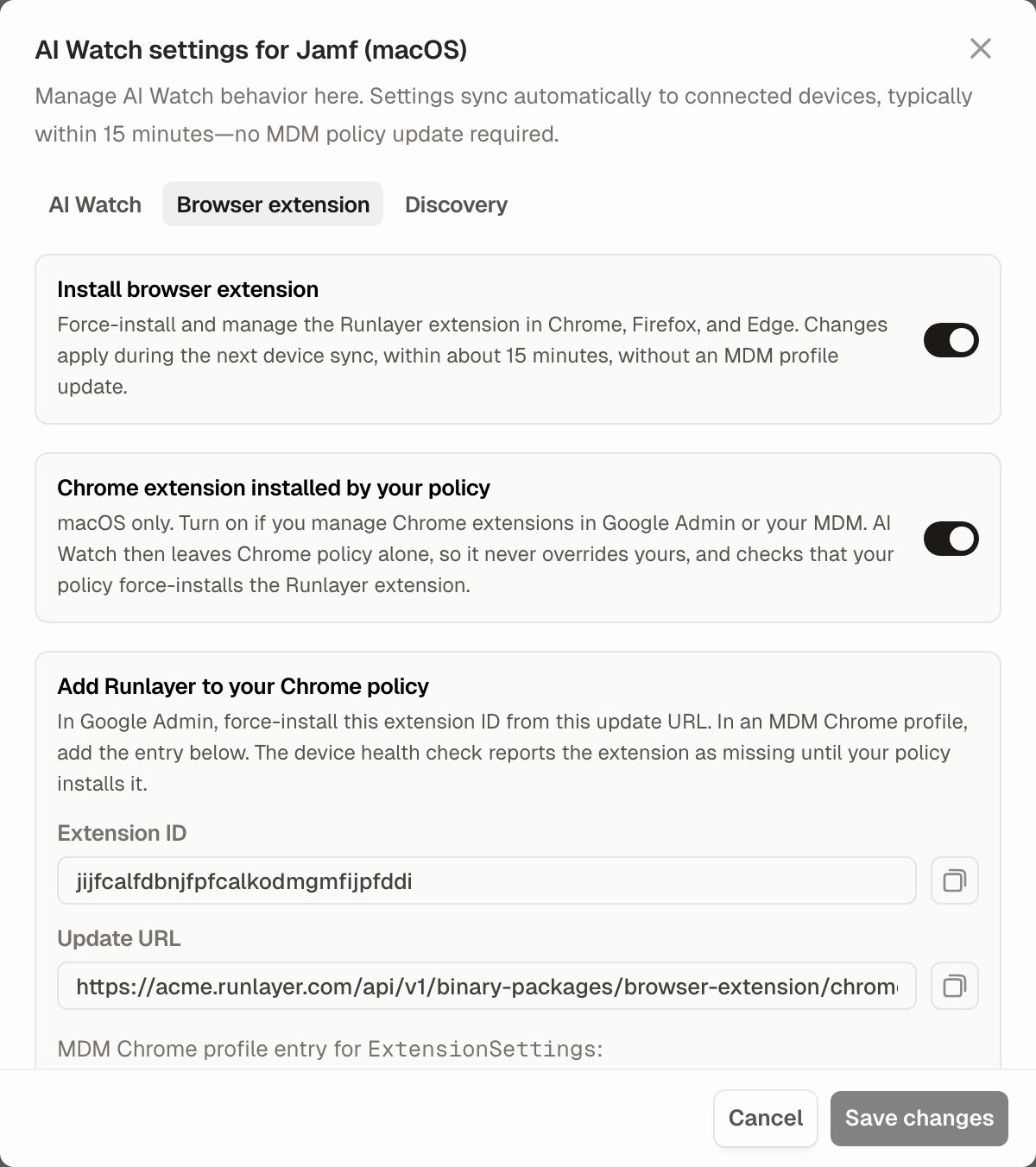
- Google Admin or Chrome Enterprise Core: force-install the extension by ID from the update URL (From a custom URL).
- MDM Chrome profile (Jamf, Iru, and others): add this entry to the profile’s
ExtensionSettings. Useforce_installed; users can turn off anormal_installedextension.
https://clients2.google.com/service/update2/crx) that other extensions’ entries use. Chrome can’t install Runlayer from a Web Store entry, and because Chrome applies ExtensionSettings over ExtensionInstallForcelist, that entry also stops AI Watch’s own force-install from working.
If your MDM installs the Chrome profile at the computer level, use ExtensionSettings rather than ExtensionInstallForcelist. A computer-level profile writes the same /Library/Managed Preferences/com.google.Chrome.plist that AI Watch manages, and with this option on AI Watch removes any forcelist entry for its extension ID from that file, because earlier AI Watch versions wrote one there. Google Admin policy and user-level MDM profiles are never changed, so a forcelist entry is fine there.
Deliver each policy from one place. If Google Admin and your MDM both set ExtensionSettings, for example Google Admin pins Okta to the toolbar while your MDM profile force-installs Runlayer, Chrome uses only the higher-priority one (by default the MDM’s) and ignores the other’s settings, and chrome://policy shows the policy as conflicting. Add Runlayer wherever that policy already comes from, or move all of its entries to one place.
Add Runlayer to your policy before you turn the option on. Once AI Watch removes its own force-install, Chrome uninstalls the extension wherever your policy doesn’t install it, after its next policy reload (within about 15 minutes, or right away after Reload policies in chrome://policy). The device health check reports any Chrome profile where your policy has not installed the extension.
Supported browsers
Limited: the extension installs, but AI Watch registers its identity host for Island only on macOS, so Runlayer cannot resolve the user behind Island activity on Windows and prompt scanning and Sessions attribution do not apply there. See Island Enterprise Browser.
Island Enterprise Browser
Island manages its extensions from the Island Management Console. AI Watch also writes the extension policy to Island’s macOS managed preferences and registers its identity host for Island, but Island may apply only console policy, so an Island administrator should add the extension in the console once:1
Open the Island setup
In Settings → AI Watch, select Manage settings on the deployment
and open the Browser extension tab. With Install browser extension
on, select Set up Island in the Using Island Enterprise Browser?
notice. The setup shows the extension ID, your organization’s update URL,
and the extension configuration policy. Replace
<organization API key>
with the deployment’s organization API key, which is in the deployment
profile you uploaded to your MDM. New deployments show the same notice on
the final setup step, with the key filled in.2
Force-install the extension in Island
In the Island Management Console, open Device Management → Extensions →
Extension Policy. Add the extension ID as a force-installed extension
with the update URL, then paste the configuration into its Extension
configuration policy. Save, then apply the pending changes.
3
Allow the identity host
Under Browser Hardening → Native Messaging Hosts, allow hosts
installed with administrator permissions. On macOS, the extension uses the
AI Watch native messaging host to resolve the device’s user; without it,
prompt scanning and Sessions attribution do not apply to Island activity.
Set up one browser manually
Use this flow for a test browser profile or one-off validation. For a fleet rollout, use the managed deployment above so installation, configuration, and updates remain enforced. This flow covers Chrome and Firefox; Edge is supported only through the managed deployment.1
Download the selected browser package
In Settings → Client updates, open Browser extension, select and save
the version policy you want to test, then download the package for the
browser:
- Chrome:
runlayer-aiwatch-browser-extension-<version>-unpacked.zip - Firefox:
runlayer-aiwatch-browser-extension-firefox-<version>.xpi
2
Install the package
- Chrome
- Firefox
Unzip the downloaded file. Open
chrome://extensions, turn on
Developer mode, select Load unpacked, and choose the unzipped
folder. Keep the folder in place: Chrome loads the extension from it.
Unpacked installs don’t update automatically, so download and load the
new zip for each release.If your organization blocks Developer mode, use the
managed deployment. Chrome on macOS and Windows
rejects a downloaded .crx opened directly
(CRX_REQUIRED_PROOF_MISSING).3
Configure the extension
Open Runlayer AI Watch → Manage extension → Extension options. Enter your
Runlayer tenant URL as Backend host. In Settings → Personal API keys,
create a personal API key for the user running the test, then enter it as
API key. Leave prompt-input scanner actions off for Monitor, or enable
them for Protect or Enforce. Select Save, then Test connection.A personal API key attributes activity directly to its owner, so a manual
installation does not need the managed device identity that the AI Watch
package provides. If the
connection test reports Device identity unresolved, replace the
organization API key with a personal API key and retry.
4
Enable browser hook processing
In Settings → Agent session monitoring, enable Full session scanning
APIs and the Browser extension Hook client. Both are required for
browser monitoring and prompt scanner decisions.
Configure browser mode and Sessions
Open Settings → AI Watch. Under Configurations, select Manage settings for the deployment, then choose the Browser extension tab. By default, the browser extension inherits the deployment’s AI Watch mode and Sessions setting. Turn on Use independent protection mode only when browser traffic needs a different mode or Sessions setting from local AI clients.
Protect and Enforce are distinct endpoint modes for local client hooks, but they intentionally share the same scanner-driven prompt behavior in the browser. Endpoint MCP-source allowlists, denylists, and local file/shell policy do not apply to web-chat page requests.
Turning off Collect browser session data suppresses browser lifecycle and transcript events. Prompt scanner checks remain active in Protect and Enforce as long as Full session scanning APIs and the Browser extension Hook client remain enabled.
Supported web pages
Status labels:- ✅ Supported — validated prompt, response, and Sessions behavior for the current release
- Monitor only — capture is supported, but the page has no safe pre-send rewrite and cannot Mask or Block
- Heuristic — best-effort capture through the generic composer detector; the page is not validated for the current release
- — — intentionally unsupported for that page
Prompt protection and Sessions
These pages have a precise provider adapter and support prompt-input Mask and Block before provider send.Observation-only pages
These pages support monitoring and Sessions, but cannot safely rewrite or stop the provider request.Scanner outcomes
Scanner actions are configured under Settings → Security Scanners. Per-client overrides for Web Browser take precedence over the global scanner action.
The provider UI may display its own generic network or retry error when a request is blocked. Use the corresponding security finding in Incidents or Audit Logs as the policy evidence. When browser Sessions is enabled, the session’s Blocked status provides additional evidence.
Verify a deployment
- Confirm the device runs a supported AI Watch version:
0.29.6or newer for Chrome and Firefox on macOS, or0.30.13or newer for Edge and for Windows devices. - In Chrome, open
chrome://extensions; in Edge, openedge://extensions. Confirm the Runlayer extension appears as managed. If it is missing, openchrome://policyoredge://policyand confirm the Runlayer extension policy is applied without errors. - In Firefox, open
about:policies, confirm the Runlayer extension policy is active, then openabout:addonsand confirm the extension is installed. A Firefox account is not required. - Open the extension popup in each browser and confirm the expected Monitor, Protect, or Enforce badge.
- Confirm Full session scanning APIs is enabled and Browser extension is enabled under Settings → Agent session monitoring → Hook clients.
- On a response-capable supported page, submit a harmless unique prompt and confirm its prompt and response appear in Sessions. For NotebookLM, verify the prompt and session lifecycle only because response capture is intentionally unsupported.
- Test Mask or Block only with a dedicated test organization and a pre-approved scanner test value. Confirm the provider receives the masked value or does not receive the blocked prompt.
Troubleshooting
The extension is installed, but no browser sessions appear
The extension is installed, but no browser sessions appear
Confirm Collect browser session data is enabled, Full session scanning
APIs is on, and the Browser extension Hook client is enabled. Restart
the browser after the first managed deployment or a policy change.
Prompts are recorded but not masked or blocked
Prompts are recorded but not masked or blocked
Confirm the page is listed under Prompt protection and Sessions, the
browser mode is Protect or Enforce, and the relevant scanner action or Web
Browser override is Mask or Block. Observation-only pages never modify the
provider request.
A blocked prompt shows a provider error
A blocked prompt shows a provider error
Some providers surface a generic network, retry, or send error when the
extension stops their request. Confirm the security finding in Incidents or
Audit Logs. When browser Sessions is enabled, also confirm the corresponding
session is marked Blocked.
Related resources
Deploy AI Watch
Create the MDM deployment that force-installs and configures the extension
Sessions
Review captured browser prompts, responses, and scanner outcomes
Endpoint modes
Understand Monitor, Protect, and Enforce across local clients
Security scanners
Configure scanner actions and per-client overrides