

Documentation Index
Fetch the complete documentation index at: https://docs.runlayer.com/llms.txt
Use this file to discover all available pages before exploring further.
What is an Admin?
Runlayer uses granular roles to control what each admin can do on the platform. Roles like Super Admin, Security Admin, IT Admin, and others grant specific capabilities — from managing MCPs to viewing audit logs. For a full overview of roles, capabilities, and how to assign them, see Roles & Permissions. As an admin, depending on your role you may be able to:- Review and approve MCP requests from employees
- Create access policies controlling who can use which MCPs
- Monitor security alerts for suspicious activity
- Manage users and permissions across your organization
- View analytics to understand usage patterns
- Configure system settings for your organization
Understanding the Approval Workflow
MCP servers can access sensitive company data and perform actions on behalf of users. The approval process ensures:- Security: MCPs are vetted for potential risks
- Compliance: Usage aligns with company policies
- Data Protection: Sensitive data access is controlled
- Audit Trail: All access is documented
How Requests Flow
Reviewing MCP Requests
Finding Pending Requests
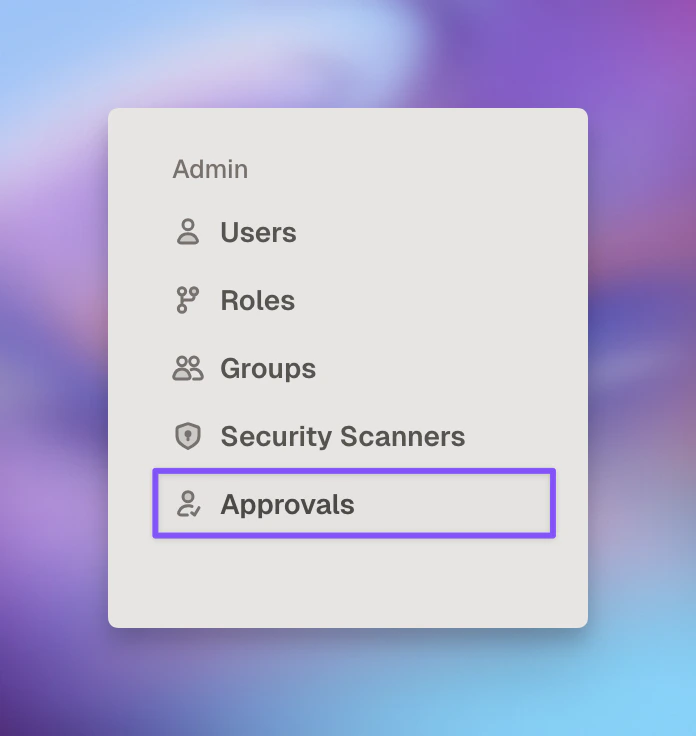
- Email alerts for new requests (if you’ve enabled them in email settings as an admin)
- (Coming Soon) Unified Inbox experience with in-app notifications
Reviewing Request Details
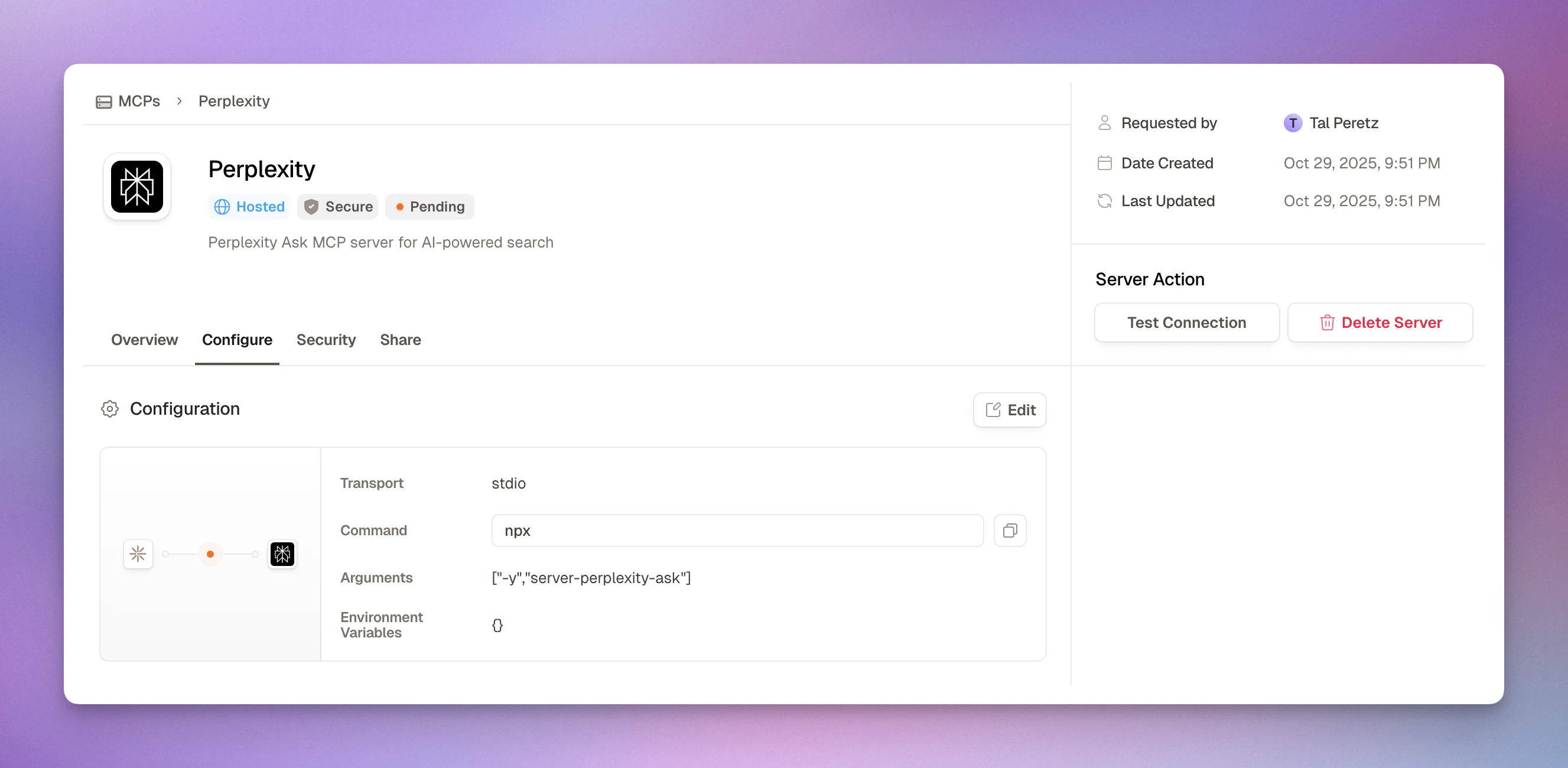
Requester Information
Requester Information
- Who: Name, email, department
- Role: Job title and team
- Previous requests: History of approved/rejected MCPs
- Current access: What MCPs they already use
MCP Configuration
MCP Configuration
- Name and description: What the employee named it
- Server URL: Where the MCP is hosted
- Transport type: Streamable HTTP, SSE, or stdio
- Authentication: OAuth, API key, or none
- Environment variables: Configuration settings
Business Justification
Business Justification
- Why needed: Employee’s explanation
- Use case: What problem it solves
- Expected value: Business impact
- Alternatives considered: Why existing MCPs don’t work
Technical Details
Technical Details
- Tools available: What the MCP can do
- Resources exposed: What data it can access
- Connection status: Test results
- OAuth scopes: Permissions requested (if OAuth)
Security Review Checklist
Before approving any MCP request, complete this comprehensive security assessment:Is the MCP from a trusted source?
Is the MCP from a trusted source?
- Uses a known Runlayer connector template
- Generally safe to approve for appropriate use cases
- Known vendor or internal development team
- Documentation is available and legitimate
- Source code can be audited (if possible)
- No known security vulnerabilities
- Vendor has good security reputation
- Recent updates and maintenance
Do the tools match expectations?
Do the tools match expectations?
- Tool names and descriptions are clear
- No suspicious or obfuscated tool names
- Tools match the MCP’s stated purpose
- No unexpected permissions or capabilities
- Tool metadata doesn’t contain risky instructions
- Parameter requirements are reasonable
- No tools for shell execution or file system access (unless justified)
What data can this MCP access?
What data can this MCP access?
- Data access scope is clearly defined
- Access level is appropriate for the use case
- No access to overly sensitive data (PII, financial, health)
- Complies with data handling policies
- Data retention is understood
- No data exfiltration risks
- Read-only access when possible
Is authentication properly configured?
Is authentication properly configured?
- Auth method is appropriate (OAuth, API key, none)
- OAuth scopes are minimal and necessary
- Credentials are stored securely
- Token refresh is handled properly
- No credentials in plain text
- MFA required for sensitive MCPs
Can Runlayer reach the MCP server?
Can Runlayer reach the MCP server?
- Server URL is valid and reachable
- Firewall rules allow connection
- TLS/SSL is properly configured (for external servers)
- No proxy issues
- Network path is secure
- Connection test succeeds
Is there a legitimate business need?
Is there a legitimate business need?
- Use case is clearly explained
- Requester’s role justifies the need
- No existing MCP can fulfill the need
- Expected business value is reasonable
- Not for personal use
- Aligns with job responsibilities
Does this comply with company policies?
Does this comply with company policies?
- Aligns with data governance policies
- Meets compliance requirements (GDPR, SOC 2, HIPAA, etc.)
- Follows least-privilege principles
- Will be documented in MCP inventory
- No regulatory concerns
- Legal has approved if needed
Testing the Connection
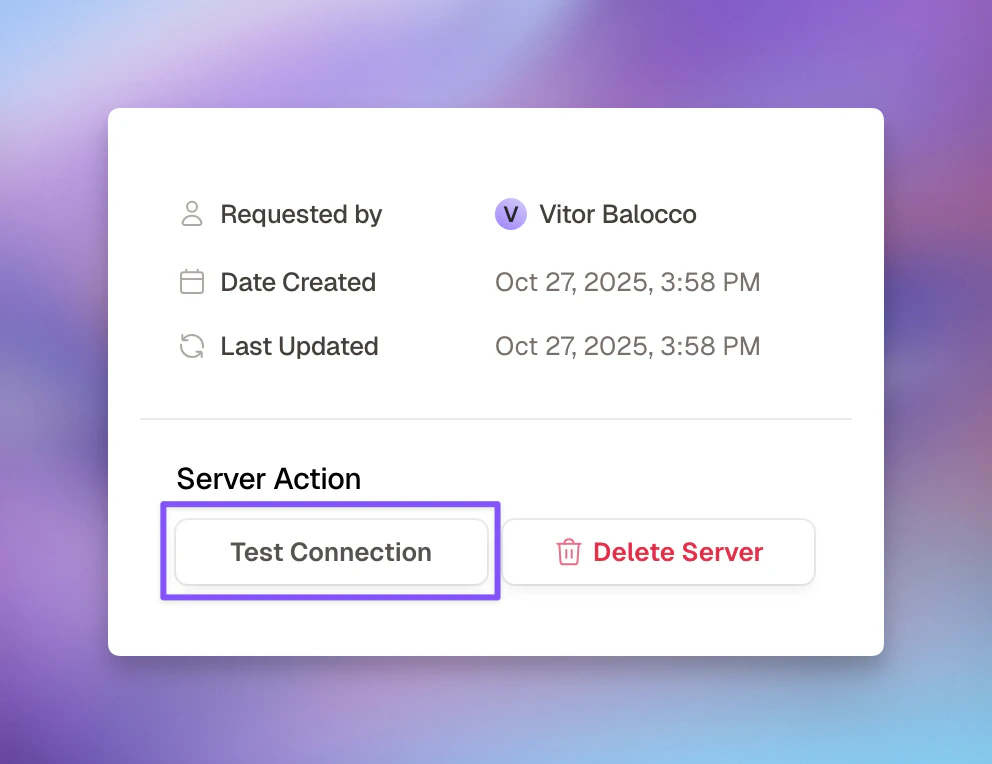
Review Test Results
- ✅ Connection successful
- ✅ Server responded correctly
- ✅ MCP protocol validated
- ✅ Tools list populated
- ❌ Connection timeout (network issue)
- ❌ Authentication failed (credential issue)
- ❌ Invalid response (protocol issue)
- ❌ No tools found (configuration issue)
Approval and Rejection Actions
Approving a Request
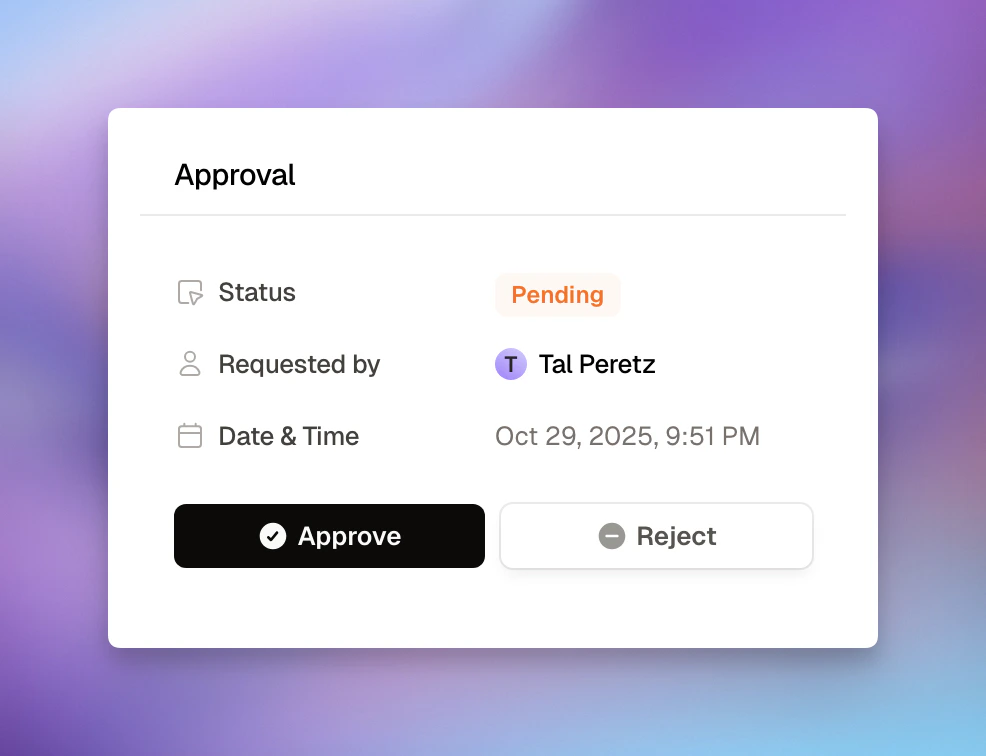
- Status changes to “Approved” - Request is marked as approved
- Notification sent - User receives a Slack DM notification
- Audit log created - Approval is permanently logged
Rejecting a Request
When a request doesn’t meet security or policy requirements:Provide Detailed Reason (Required)
- ❌ Bad: “Security concerns”
- ✅ Good: “This MCP requests access to all customer data without clear justification for needing that scope. Please resubmit with a specific use case and narrower data access.”
- What the specific issue is
- What needs to be fixed (if resubmittable)
- Alternatives if available
Suggest Next Steps
- How to resubmit with fixes
- Existing MCPs that might work
- Who to contact for questions
- Status changes to “Rejected”
- User receives detailed notification with your reason
- Audit log created for compliance
- User can submit a new request after addressing issues
Common Approval Scenarios
Scenario 1: Standard Connector ✅
Request: Marketing analyst requests Brave Search through Connectors Review:- ✅ Known connector template
- ✅ Employee needs web search for market research
- ✅ Clear business justification
- ✅ Standard permissions
- ✅ No sensitive data access
Scenario 2: Custom Internal MCP ⚠️
Request: Support engineer requests custom customer database MCP Review:- ⚠️ Custom MCP needs deeper review
- ✅ Internal server, known development team
- ✅ Test connection successful
- ⚠️ Provides access to customer PII
- ✅ Requester has legitimate need (support role)
- ✅ Strong business justification
- Create policy limiting to support team only
- Set up security alerts for unusual activity
- Monitor usage patterns weekly
- Document in high-risk MCP list
Scenario 3: Unknown Third-Party MCP ❌
Request: Developer requests third-party code analysis MCP Review:- ❌ Unknown vendor with no documentation
- ❌ Cannot verify legitimacy
- ❌ Tool descriptions are vague
- ⚠️ Requests broad file system access
- ❌ Test connection fails
- ⚠️ Could access proprietary code
Scenario 4: Redundant MCP ❌
Request: Employee requests GitHub MCP (already exists) Review:- ✅ Safe, known MCP
- ❌ GitHub MCP already active in organization
- ❌ Requester just needs access, not new server
- Create access policy granting user access to existing GitHub MCP
Managing Access Policies
How Access Rules Work
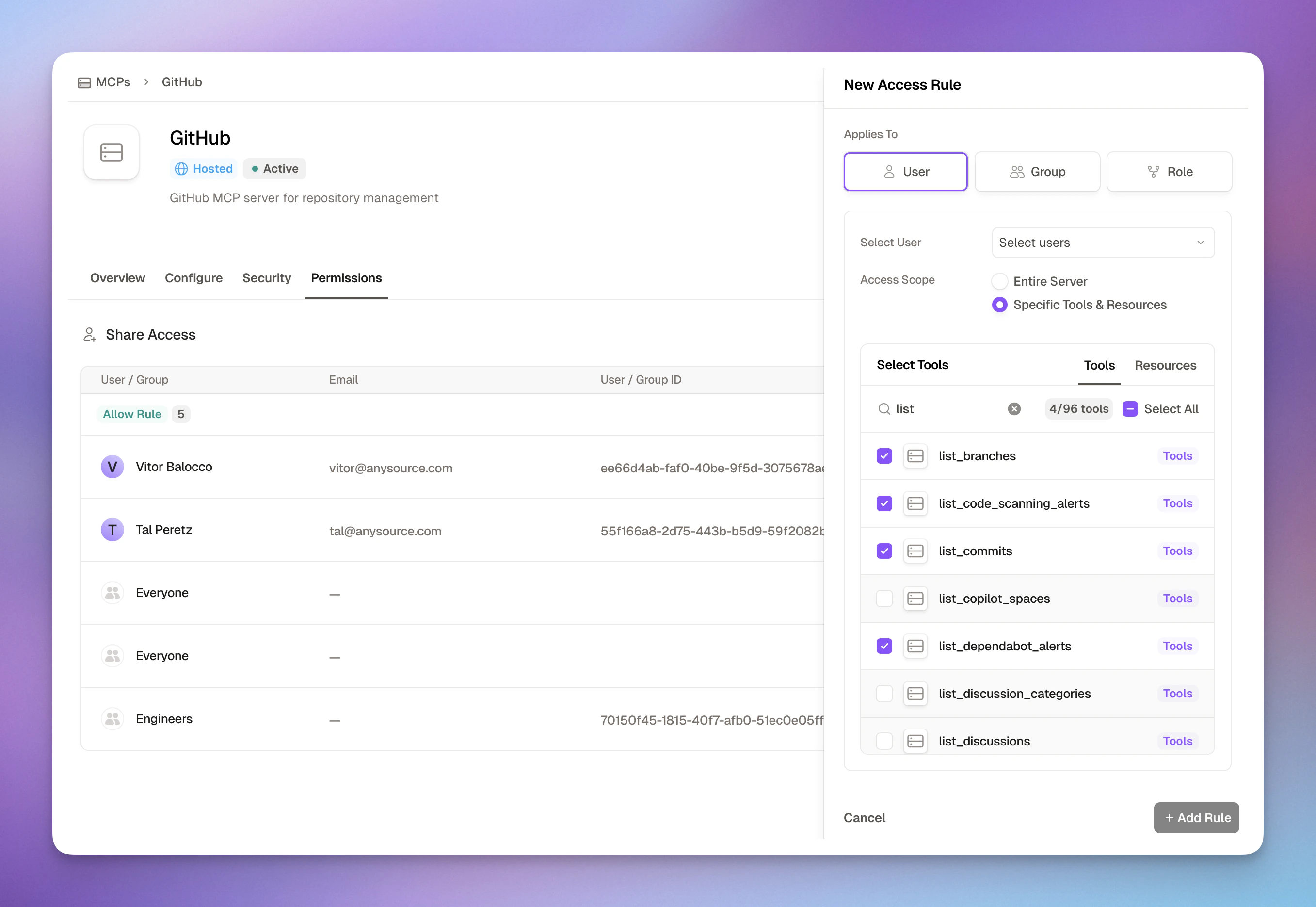
Access rules grant permissions to users, groups, roles, or agent accounts for specific MCP servers. Each rule can include multiple principals of the same type. Applies To (Who gets access):- User: One or more individual employees by email/ID
- Group: One or more teams synced from your SSO (Engineering, Marketing, etc.)
- Role: One or more job functions or custom roles
- Agent Account: One or more machine-to-machine identities
- Entire Server: Full access to all tools in the MCP
- Specific Tools & Resources: Fine-grained selection of individual tools
- Restrict SQL queries to specific tables (
payload.tablevalidation) - Enforce IP-based access (
meta.request.ipchecks) - Restrict by client application (
meta.request.user_agentchecks)
Creating Access Rules
Select Who Gets Access
Define Access Scope
- Entire Server: Grant access to all tools (faster, simpler)
- Specific Tools & Resources: Select individual tools (more secure, granular)
Access Rule Examples
Example 1: Team-Wide Server Access
Scenario: Give all engineers access to the GitHub MCP- Teams need comprehensive access
- Server tools are all appropriate for the group
- Simplicity is preferred over granularity
Example 2: Fine-Grained Tool Access
Scenario: Give finance analysts read-only access to the Database MCP- Sensitive MCPs require least privilege
- Only specific tools are needed
- Different roles need different capabilities
Example 3: Individual User Access
Scenario: Give a contractor temporary access to specific Slack tools- Individual exceptions needed
- Temporary access for specific users
- Contractors or external collaborators
- Testing new MCPs with a single user first
Example 4: Role-Based Access
Scenario: Give all users with “Support” role access to customer database- Access tied to job function, not department
- Roles managed centrally in your SSO
- Dynamic team membership
Best Practices
Start with Specific Tools, Not Entire Server
Start with Specific Tools, Not Entire Server
- Easier to add permissions than remove them
- Users won’t miss tools they didn’t know existed
- Reduces attack surface if credentials are compromised
Use Groups, Not Individual Users
Use Groups, Not Individual Users
- Scales better as teams grow
- Easier to audit (who’s in “Engineering” vs 50 individual rules)
- Syncs automatically with SSO changes
- Simplifies onboarding/offboarding
Leverage SCIM for Automatic Group Sync
Leverage SCIM for Automatic Group Sync
- Groups from Okta, Azure AD, or Google Workspace sync automatically
- New employees added to groups get access immediately
- Employees removed from groups lose access instantly
- No manual group management needed
- Create access rules using your existing IDP groups
- Engineering, Sales, Finance groups work out of the box
- Changes in your IDP reflect in Runlayer instantly
Regularly Audit Access
Regularly Audit Access
- Who has access to sensitive MCPs?
- Are there users who no longer need access?
- Can we tighten tool permissions?
- Prevents scope creep
- Maintains least privilege
- Required for compliance
Advanced Scenarios
Session Isolation Policies
Prevent agents from accessing multiple resources of the same type within a single session. This is critical for need-to-know enforcement — once an agent touches one repository/database/workspace, it stays confined there. Setup: Repository IsolationCreate a Deny rule
- Applies To: Agent Account (or Everyone)
- Action: Deny
- Scope: Entire Server (or specific tools like
get_file,push_files)
repo argument, any subsequent call with a different repo value is denied for the rest of that session.
repo with whatever argument name your MCP server uses (repository, project, database, workspace, etc.). The same pattern works for any tool argument.$ resolve dynamically at evaluation time:
$payload.repo→ the current tool call’srepoargument$meta.server.id→ the current server’s ID
Emergency Access Revocation
If you detect suspicious activity:- Go to the MCP’s Permissions tab
- Identify the user’s access rule
- Delete the rule immediately
- User’s active sessions are terminated
- Investigate in Audit Logs
Temporary Contractor Access
When contractors need temporary access:- Create individual user rule (not group)
- Use specific tools only
- Set calendar reminder to revoke after project
- Document end date in rule notes
- Review in weekly admin checklist
Global Policies for Organization-Wide Security
For organization-wide restrictions that apply to all servers, use global policies (Admin → Policies): Common scenarios:-
Corporate Network Only
-
Restrict Access to Specific MCP Client Only
-
Restrict by OAuth Provider
- Scope: All servers/tools/resources (*)
- Action: Deny only (cannot grant access)
- Location: Admin → Policies (not per-server)
- Use for: Security, compliance, risk mitigation
Monitoring Security Alerts
Dashboard Components
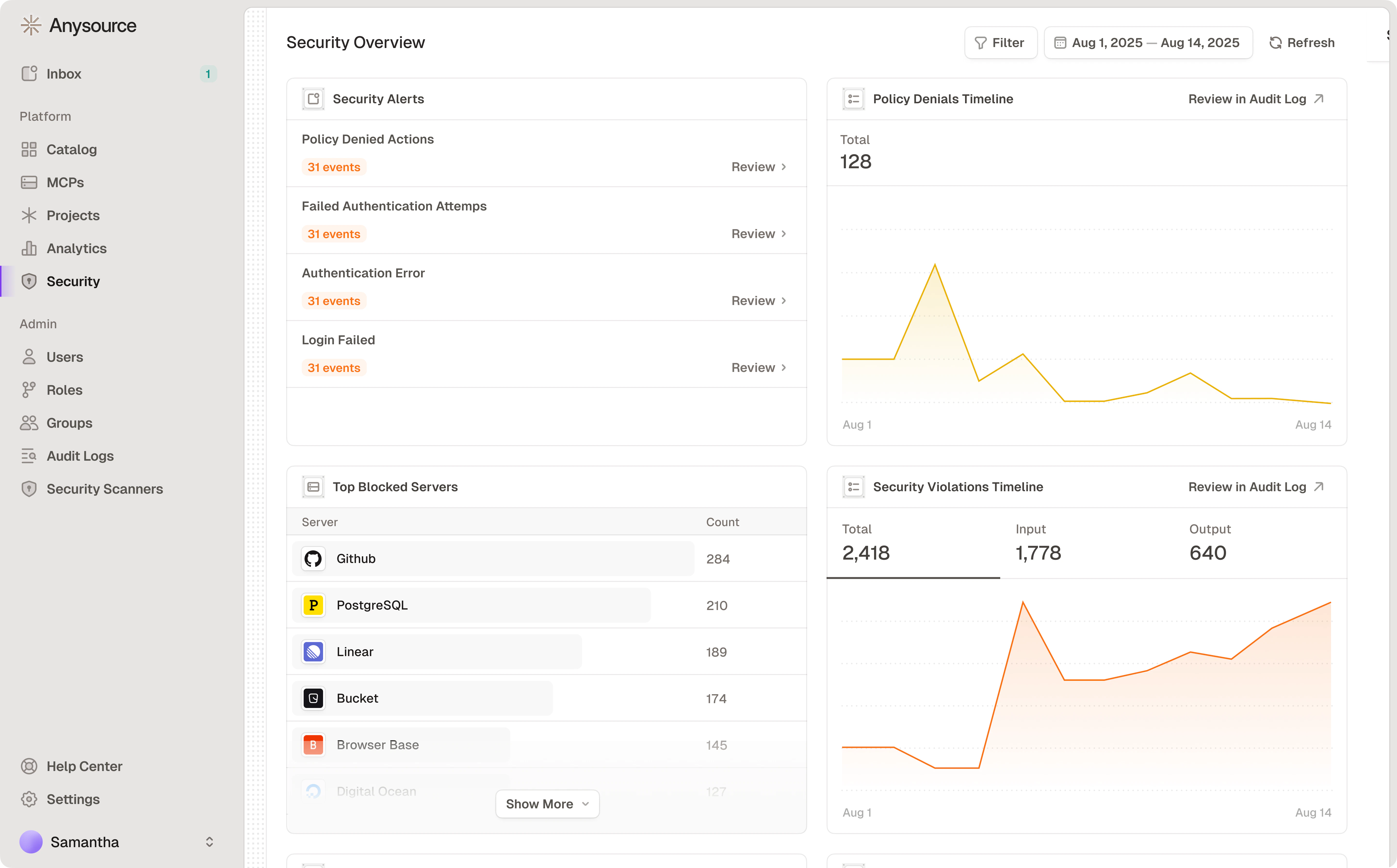
Security Alerts - Click “Review” to see details in Audit Logs:- Policy Denied Actions
- Failed Authentication Attempts
- Authentication Error
- Login Failed
- High counts may indicate missing access policies
- May need access or training
- Input: Suspicious requests to MCPs
- Output: Suspicious responses from MCPs
Responding to Issues
High blocks for one user: Grant access or investigate unauthorized attempts High blocks for one server: Review if team needs access Spike in violations: Potential security incident - escalate Repeated auth failures: Fix credentials or detect attackManaging Users and Permissions
Viewing Users
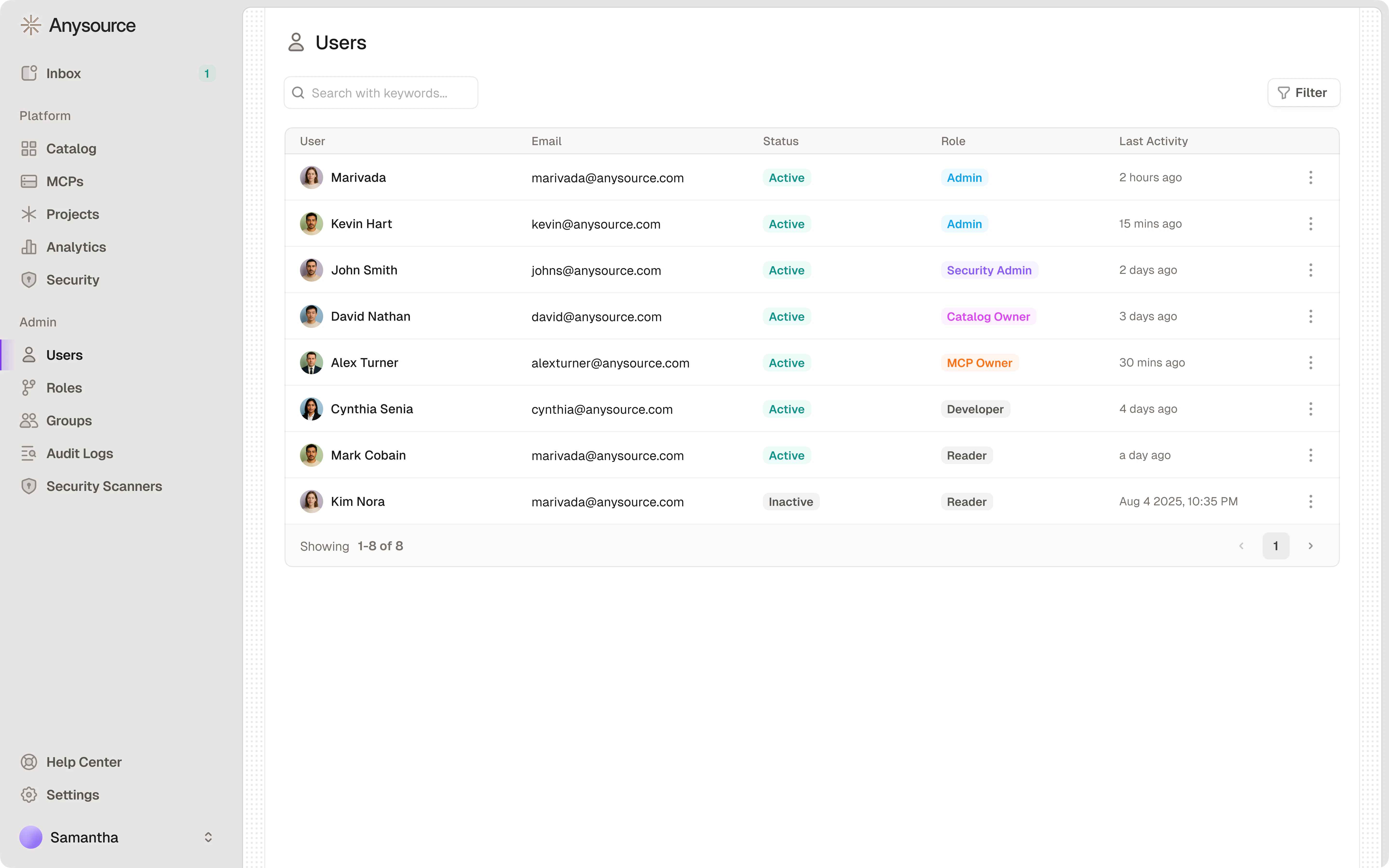
Navigate to Users to see:- All users in your organization (synced from SSO)
- User roles: One or more granular roles per user
- User status: Active, inactive, or suspended
- Last login: When they last accessed Runlayer
- MCP access: Which MCPs each user has permission to use
Managing Roles
Runlayer supports granular admin roles. See Roles & Permissions for the full role list, capability matrix, and assignment instructions.Managing Agent Accounts
Agent accounts are M2M (machine-to-machine) identities that allow AI applications to interact with MCP servers programmatically. As an administrator, you manage the full agent account lifecycle.Creating Agent Accounts
Fill in Agent Account Details
- Name: A descriptive name (e.g., “CI/CD Automation Agent”)
- Description: What the agent account does and who maintains it
Rotating Credentials
Rotate agent account credentials periodically or after security events: When to rotate:- Every 90 days (recommended)
- After a security incident or suspected exposure
- When team members with access leave the organization
- If unusual API activity is detected
- Navigate to Admin → Agent Accounts
- Select the agent account
- Click Rotate Credentials
- Confirm the action
- Save the new client secret immediately
- Update your application with new credentials
Managing Delegations
Delegations grant agent accounts permission to act on behalf of users. View and manage delegations from the agent account detail page. Viewing delegations:- Navigate to Admin → Agent Accounts
- Select an agent account
- View the Delegations tab
- Delegator: The user who granted permission
- Expiration: When the delegation expires (if set)
- Status: Active, expired, or revoked
- Select the delegation
- Click Revoke
- Confirm revocation
Managing Session Grants
Session grants control which OAuth credentials an agent account uses when calling OAuth-protected servers. View and manage session grants from the agent account detail page. Each session grant shows:- Grantor: The user sharing their OAuth credentials
- Server: The OAuth-protected MCP server
- Type: Personal or shared
- Status: Active or revoked
- Navigate to Admin → Agent Accounts
- Select the agent account
- Find the session grant
- Click Revoke
Creating Policies for Agent Accounts
Agent accounts are PBAC (Policy-Based Access Control) subjects, just like users. Create policies to control what agent accounts can do. To create an agent account policy:- Navigate to Admin → Policies
- Click Add Policy
- Set Principal Type to
Agent Account - Select the agent account from the dropdown
- Configure scope (servers, tools, resources)
- Add conditions if needed
- Save the policy
| Policy | Configuration |
|---|---|
| Allow agent account to call all GitHub tools | Principal: Agent Account “CI Agent”, Scope: GitHub MCP (all tools), Action: Allow |
| Deny agent account from modifying data | Principal: Agent Account “Read-Only Agent”, Scope: Database MCP (write_* tools), Action: Deny |
| Allow agent account only specific tools | Principal: Agent Account “Slack Bot”, Scope: Slack MCP (send_message only), Action: Allow |
Viewing Agent Account Activity
Monitor agent account activity through audit logs:- Navigate to Admin → Audit Logs
- Filter by:
- Subject Type: Agent Account
- Agent Account Name: Select specific agent account
- Event Type: Token exchange, OBO calls, etc.
| Event | Description |
|---|---|
agent_account_token_exchange_success | Agent account successfully obtained OBO token |
agent_account_token_exchange_denied | Agent account OBO token exchange was denied (see reason field for details) |
agent_account_credentials_rotated | Agent account credentials were rotated |
session_grant_created | A session grant was created for an agent account |
session_grant_updated | A session grant was updated (e.g., changed from personal to shared) |
session_grant_revoked | A session grant was revoked |
- High volume of
token_exchange_deniedevents may indicate misconfiguration - Spikes in
access_deniedevents may indicate policy issues or unauthorized access attempts - Failed authentication attempts may indicate compromised credentials
Workspace Settings
Navigate to Settings → Workspace to configure organization-wide preferences.Setup Instructions Visibility
By default, non-admin users see a simplified connect-only setup guide when adding connectors to their MCP clients. Enable Show admin setup instructions to all users to display the full admin-facing setup steps (e.g., all configuration steps for Claude, Cursor, etc.) to every user in the workspace.Viewing Analytics and Usage Patterns
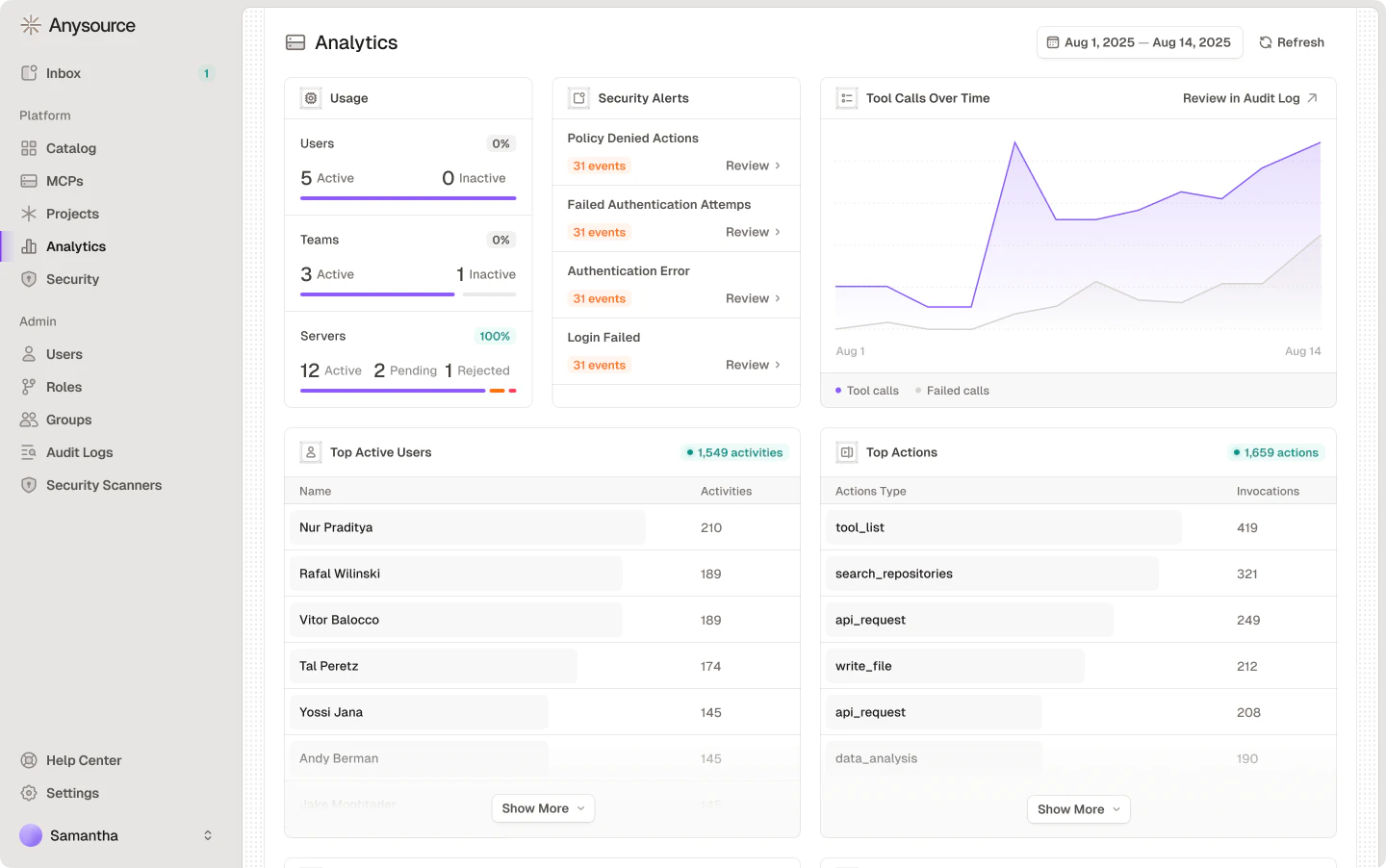
- Users: Active vs inactive
- Teams: Active vs inactive
- Servers: Active, pending, and rejected counts
- Total tool calls trend
- Failed calls overlay
- Filter by date range
- Identify power users and adoption leaders
- See which tools provide most value
Admin Best Practices
Approval Timelines
Set and communicate clear expectations:| MCP Type | Target Timeline | Priority |
|---|---|---|
| Standard connectors | 4-8 hours | High |
| Custom internal MCPs | 1-2 business days | Medium |
| Third-party custom MCPs | 2-3 business days | Medium |
| High-risk/sensitive MCPs | Up to 1 week | Review carefully |
| Urgent business need | Same day | Coordinate escalation |
- Respond to all requests within 1 business day (even if just acknowledging)
- Set auto-reply if you’ll be unavailable
- Delegate to backup admin when on vacation
- Flag urgent requests in your notification settings
Security Practices
Protect Your Admin Account
Protect Your Admin Account
- Enable MFA (required)
- Use strong unique password
- Don’t share admin credentials
- Log out when not in use
- Use separate account for admin vs regular work (if possible)
Regular Audits
Regular Audits
- Review all active connectors quarterly
- Audit policies semi-annually
- Check for unused connectors monthly
- Review admin access list quarterly
Stay Updated
Stay Updated
- Monitor MCP security advisories
- Track new vulnerabilities
- Update approval criteria as threats evolve
- Participate in security training
- Share learnings with other admins
Principle of Least Privilege
Principle of Least Privilege
- Grant minimum necessary access
- Review and tighten policies over time
- Remove access when no longer needed
- Use tool-specific restrictions when possible
- Use conditions for sensitive data (table-level, path-based restrictions)
Choose Server-Level vs Global Policies
Choose Server-Level vs Global Policies
- Grant access to specific servers/tools
- Allow or Deny actions
- User/group/role-specific rules
- Organization-wide security controls
- Deny-only (no grants)
- IP blocks, client restrictions, compliance
- Global: Block all non-VPN IPs
- Server-level: Allow Finance to query specific tables
- Result: Finance accesses from VPN with table restrictions
Continuous Improvement
Monthly reviews:- What MCPs are most requested?
- What are common rejection reasons?
- Where are approval bottlenecks?
- Are timelines being met?
- Add commonly-requested connectors to the workspace
- Streamline approval for low-risk connectors
- Update security checklists
- Train new admins
- Review MCP strategy with leadership
- Plan for new capabilities
- Budget for additional resources
- Update policies for new regulations
Related Documentation
Employee Handbook
Security Best Practices
Adding Custom MCPs
Quick Start
Support
- Email: support@runlayer.com
- Documentation: Full docs at your Runlayer instance
- Audit Logs: Track all admin actions and decisions
- Security Team: Escalation contact for incidents