

Hosted by a third party. This MCP server is built and hosted by the
vendor, not Runlayer. This guide covers connecting it through Runlayer for
governance, policies, and audit.
- OAuth Broker — the default on Runlayer-hosted instances. GitHub works automatically with no setup.
- Pre-Registered Client — for self-hosted deployments (where the broker isn’t available) or when you want to bring your own GitHub OAuth app.
OAuth Broker
On Runlayer-hosted instances, GitHub works automatically through the OAuth Broker — no OAuth app, client ID, or secret required. The broker handles all OAuth flows transparently using an allow-listed redirect URI.1
Add the GitHub connector
- In your Runlayer instance, go to Connectors → Add Connector → GitHub → Create New
- Leave Registration set to OAuth Broker (the default) — no credentials are required
- Click Create Hosted MCP
2
Authorize GitHub Access
- After creating the server, you’ll be redirected to the server details page
- Under Missing Authorization, click Connect
- This opens GitHub’s OAuth authorization page
- Review the requested permissions and select repositories
- Click Authorize to complete the flow
3
Verify Connection
After successful authorization, you’ll be redirected back to Runlayer. The server will now show:
- Active status
- List of available tools (e.g.,
create_branch,add_issue_comment, etc.) - Revoke access option in the server settings
Pre-Registered Client
Use this path if you self-host Runlayer (where the broker isn’t available) or you want to bring your own GitHub OAuth app for dedicated rate limits, custom scopes, or organization-specific compliance.Prerequisites
- Access to your Runlayer instance
- GitHub organization admin permissions
- Admin permissions in Runlayer (to add servers)
Setup Steps
1
Create GitHub OAuth Application
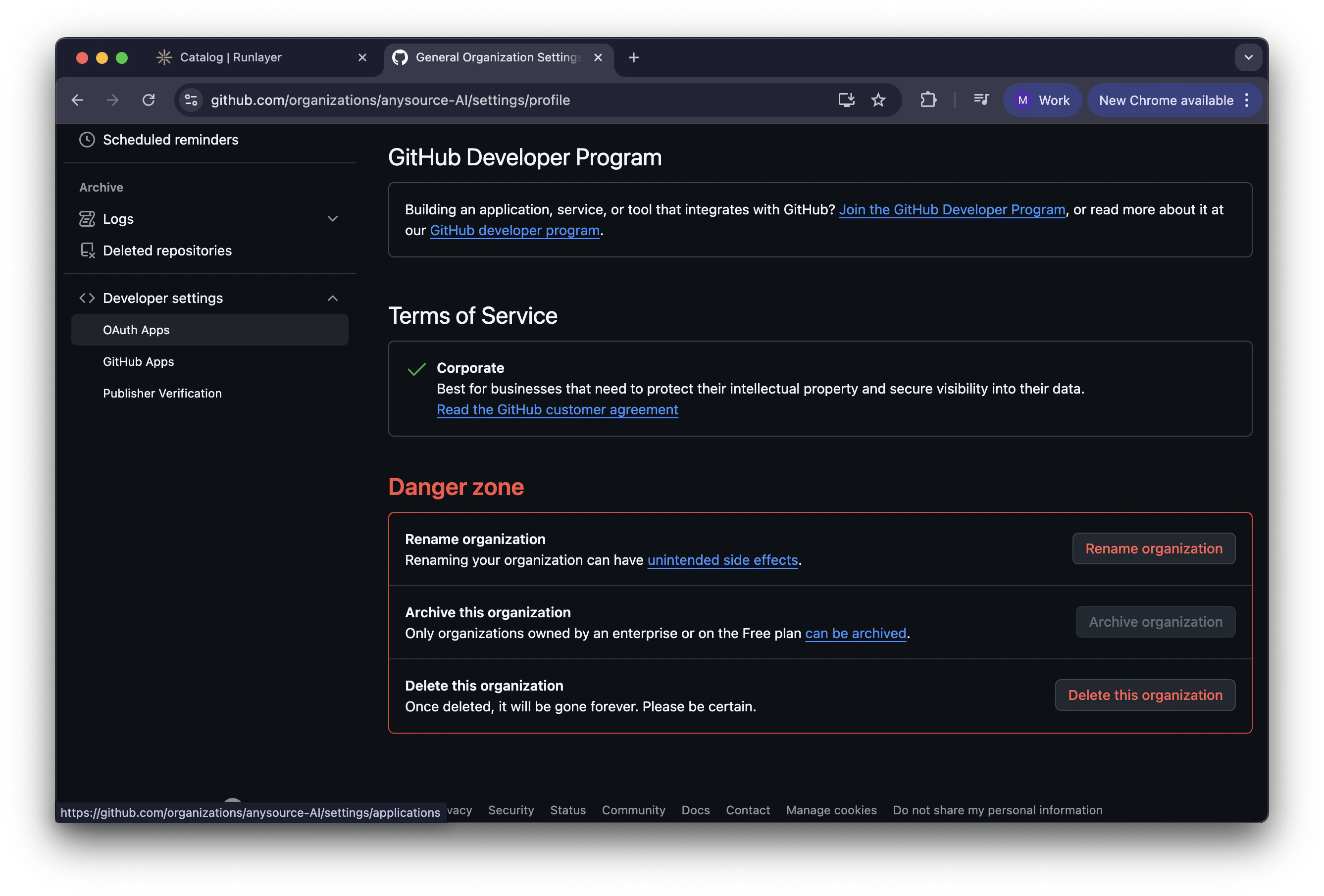
- Go to your organization’s Developer Settings
- Navigate to Settings → Developer settings → OAuth Apps → New OAuth app
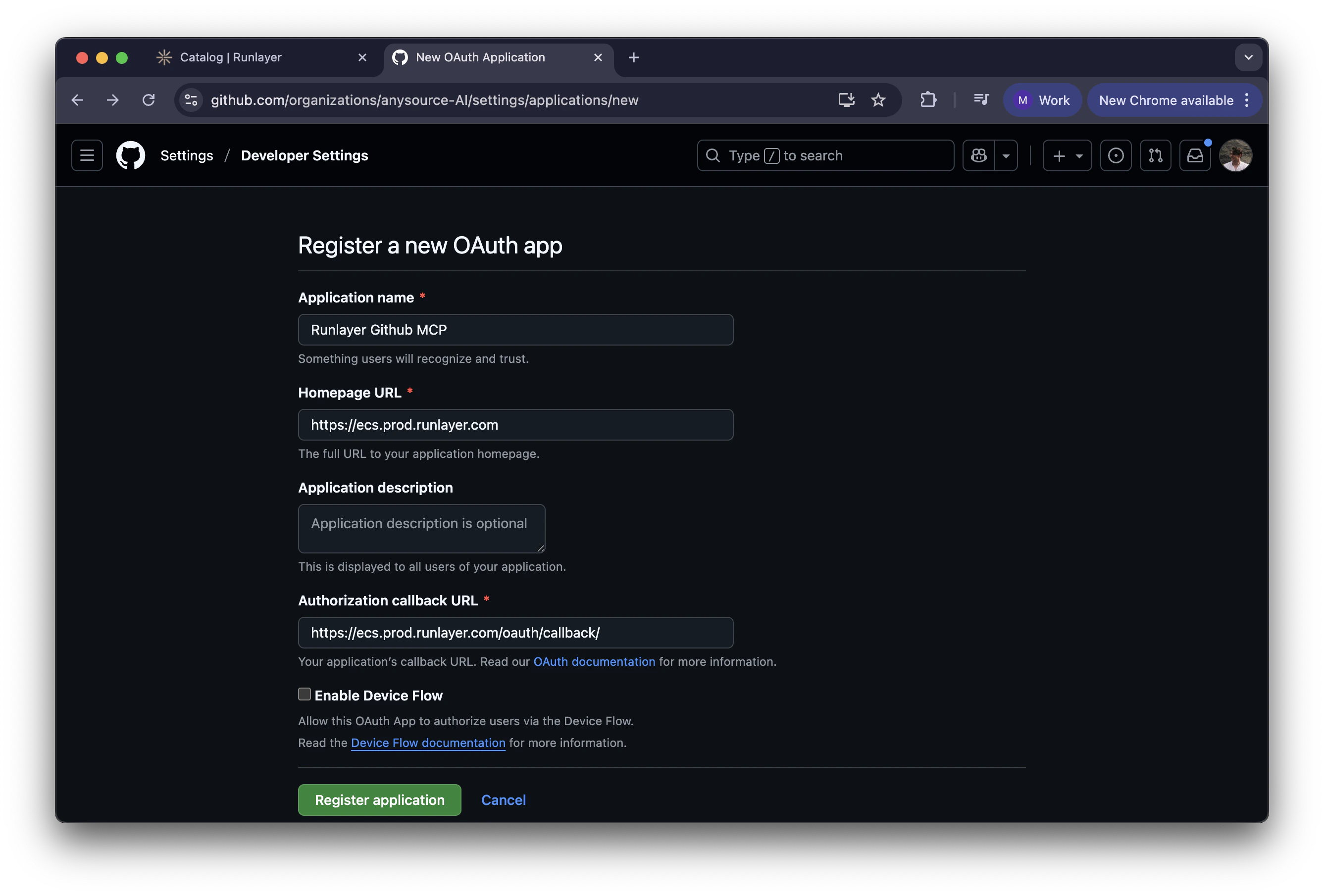
- Fill in the details:
- Application name: Choose a name (e.g.,
Runlayer MCP) - Homepage URL: Your Runlayer instance URL
- Authorization callback URL:
https://<your-tenant-url>.runlayer.com/oauth/callback/- For self-hosted: Use your exact tenant URL
- Application name: Choose a name (e.g.,
- Click Register application
2
Generate Client Secret
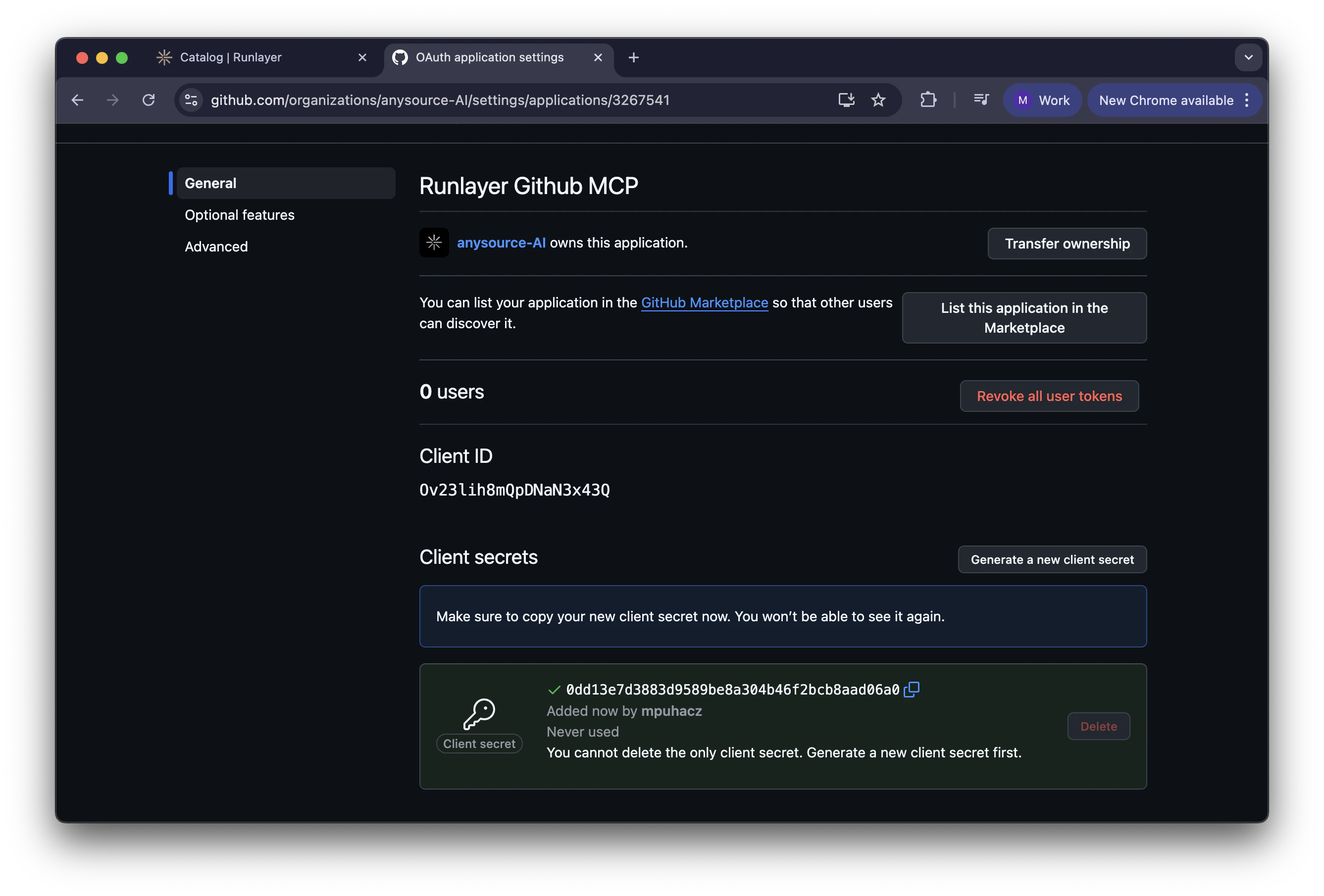
- After creating the app, you’ll see the Client ID (save this)
- Click Generate a new client secret
- Copy the Client Secret immediately (it’s only shown once)
- Save both credentials temporarily in a secure location
3
Add GitHub Server in Runlayer
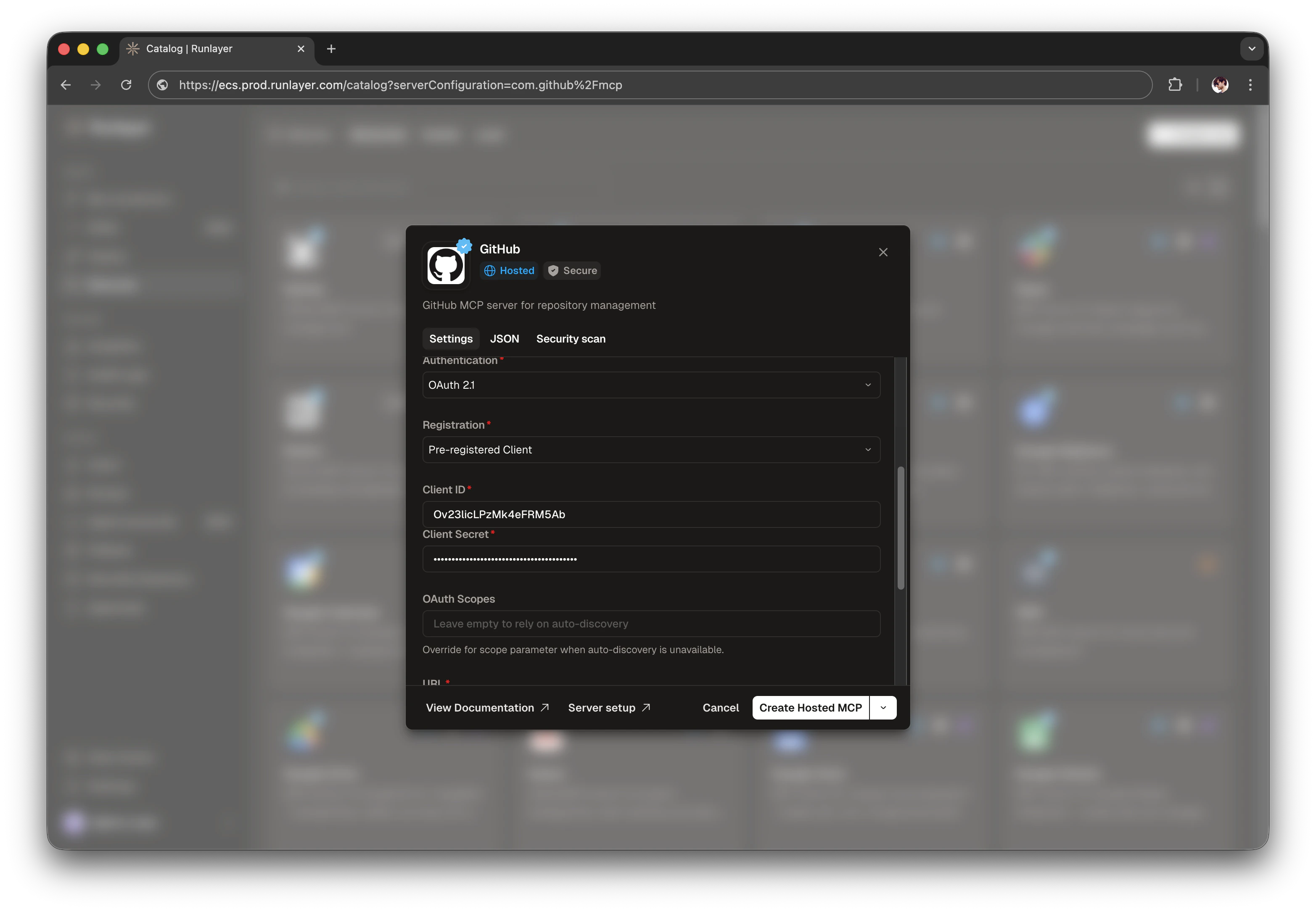
- In your Runlayer instance, go to Connectors → Add Connector → GitHub → Create New
- In the server configuration form:
- Expand advanced settings
- Select Pre-registered Client in Registration
- Enter your Client ID and Client Secret
- Click Create Hosted MCP
4
Authorize GitHub Access
- After creating the server, you’ll be redirected to the server details page
- Under Missing Authorization, click Connect
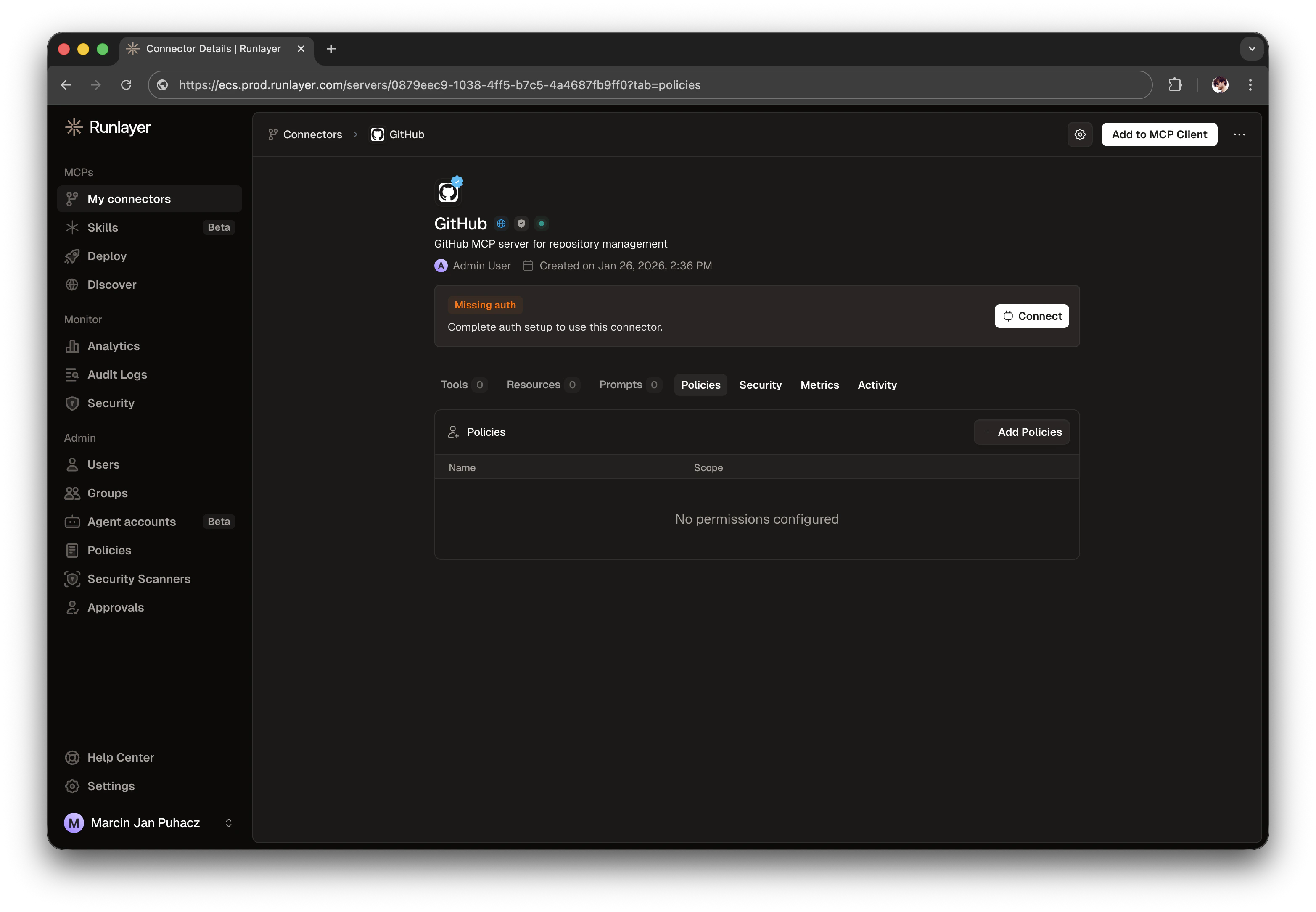
- This opens GitHub’s OAuth authorization page
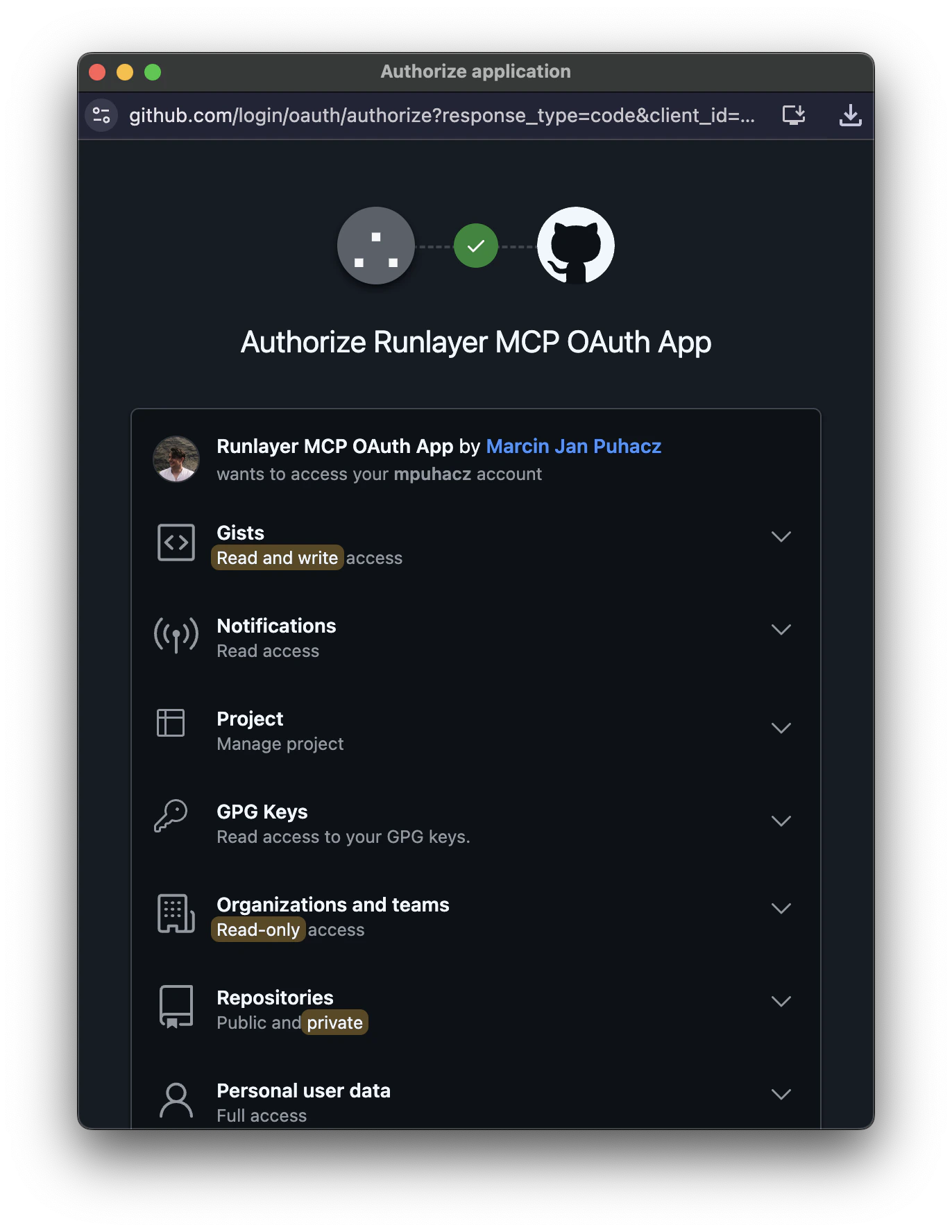
- Review the requested permissions and select repositories
- Click Authorize to complete the flow
5
Verify Connection
After successful authorization, you’ll be redirected back to Runlayer. The server will now show: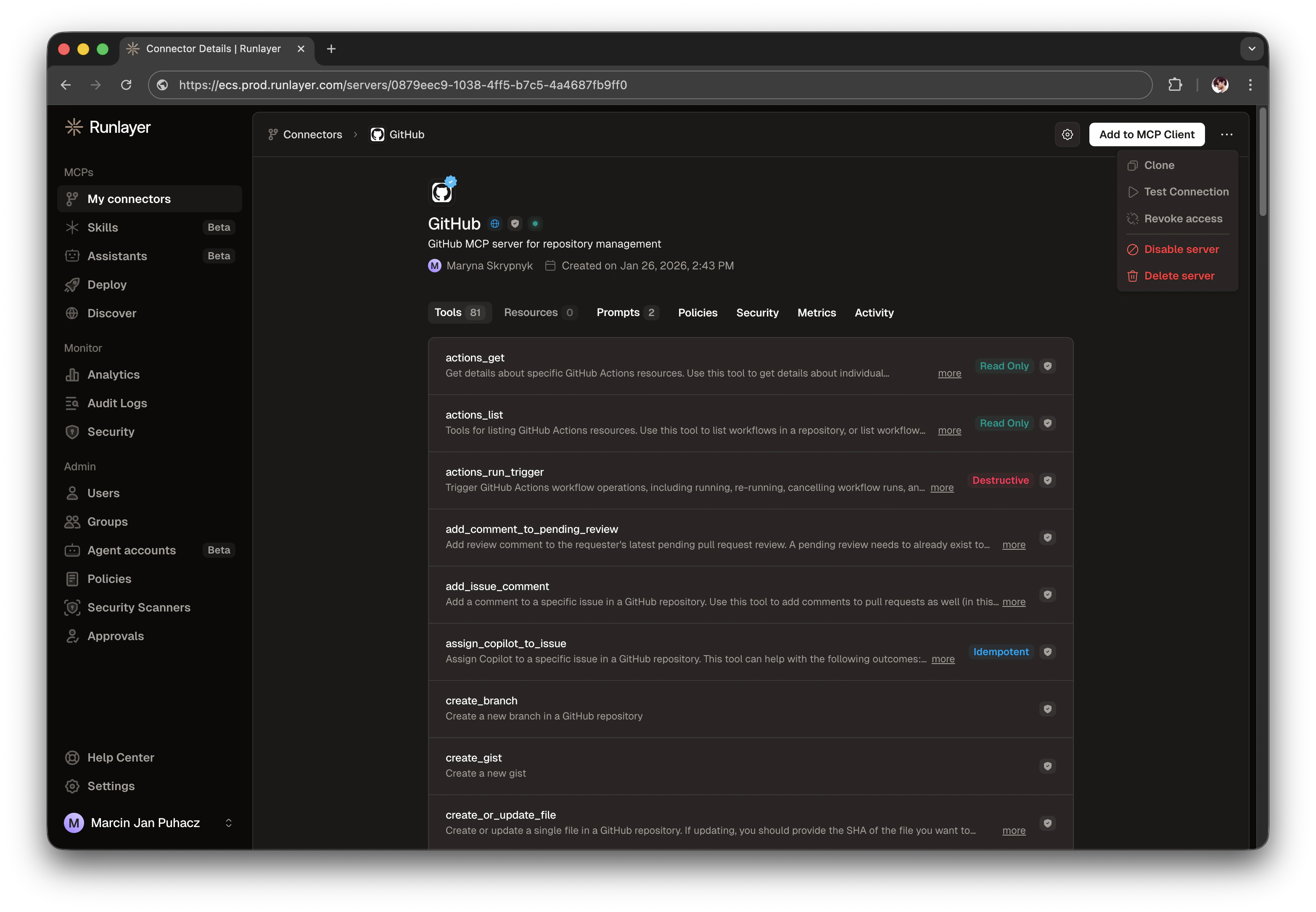
- Active status
- List of available tools (e.g.,
create_branch,add_issue_comment, etc.) - Revoke access option in the server settings
Troubleshooting
Redirect URI mismatch error
Redirect URI mismatch error
Error: “The redirect_uri is not associated with this application.”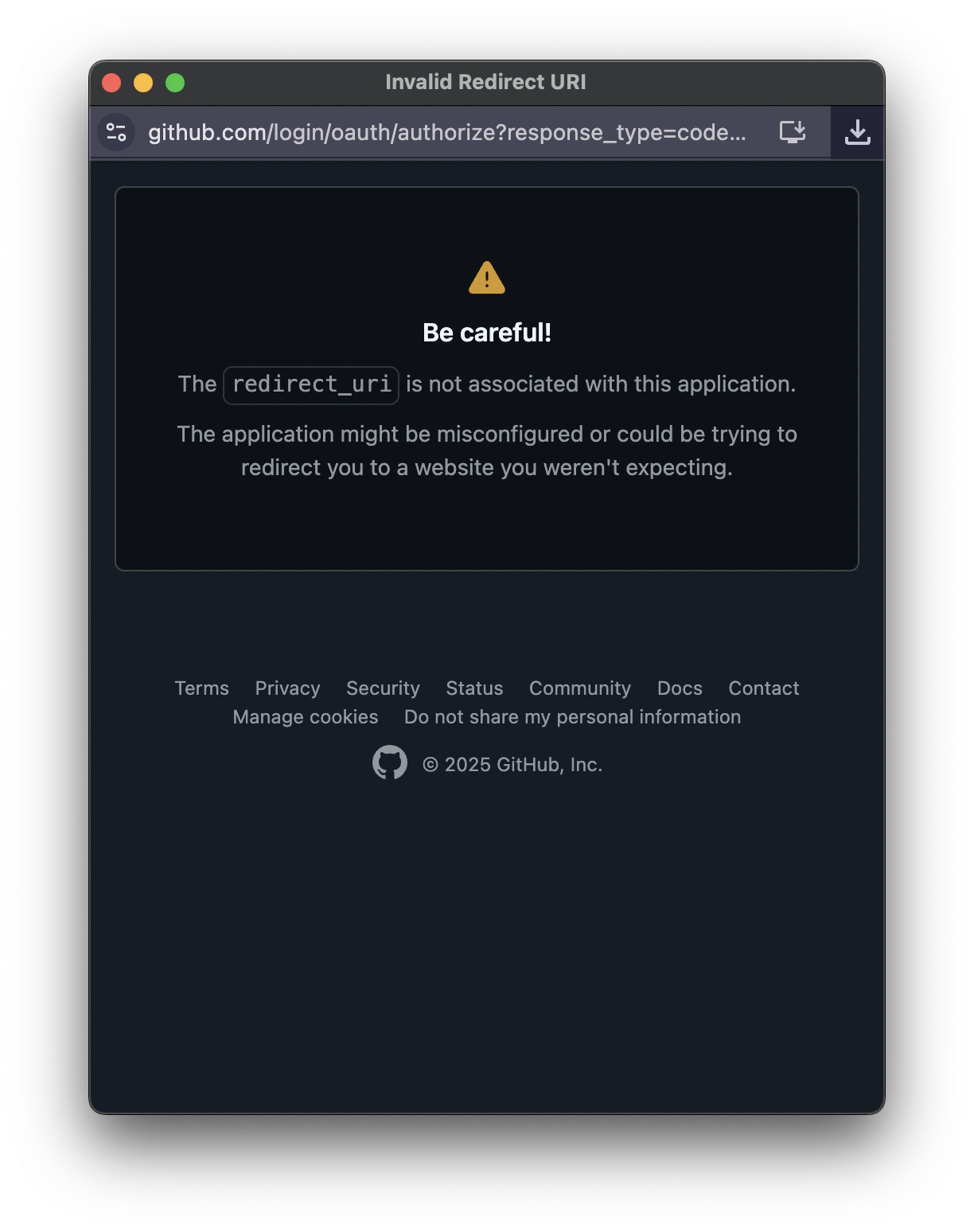
- Verify the callback URL in your GitHub OAuth app matches exactly:
https://<your-tenant-url>.runlayer.com/oauth/callback/ - For self-hosted instances, ensure you’re using the exact tenant URL
- The URL must include the trailing slash
Issue: Authorization popup completes successfully, but you see a “Failed to Connect” error in Runlayer.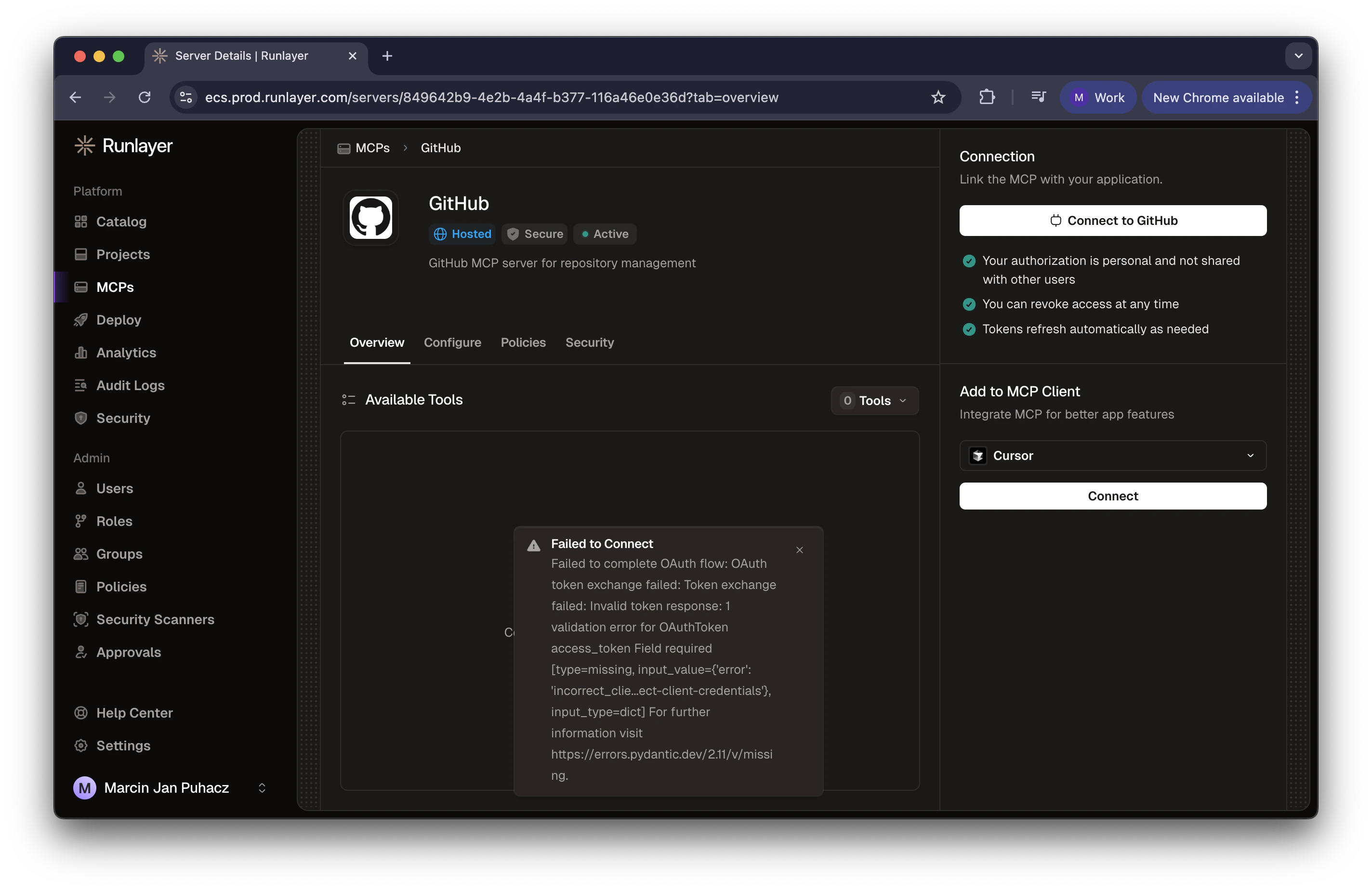
- Verify your Client ID and Client Secret are correct in the server configuration
- Check that you copied the Client Secret correctly (it’s only shown once)
- Regenerate the Client Secret in GitHub if needed
- Ensure the credentials match the OAuth app you’re using
- Try disconnecting and reconnecting the server with updated credentials
Invalid client credentials
Invalid client credentials
Error: “Invalid client credentials” or authentication failsSolution:
- Double-check your Client ID and Client Secret are correct
- Ensure the Client Secret hasn’t expired (regenerate if needed)
- Verify the OAuth app is active in your organization’s Developer Settings
Next Steps
Once your GitHub MCP server is set up and authorized:- Connect to your MCP client: Use the “Add to Client” section to integrate with Cursor, VS Code, or other supported clients
- Review available tools: Browse the 40+ GitHub tools available for repository management, issue tracking, and more
- Manage permissions: You can revoke access at any time from the Connection section
OAuth Broker Guide
Learn more about OAuth Broker and BYOC
MCP Custom Servers
Create other custom MCP servers