

Prerequisites
- Microsoft Intune admin access
- Enrollment key from Runlayer
- Devices running Windows 10 1607+ or Windows 11, Microsoft Entra joined
- The signed Runlayer CLI MSI deployed to target devices
Creating an Enrollment Key
Creating an Enrollment Key
Enrollment keys allow devices to automatically register with Runlayer and obtain API credentials.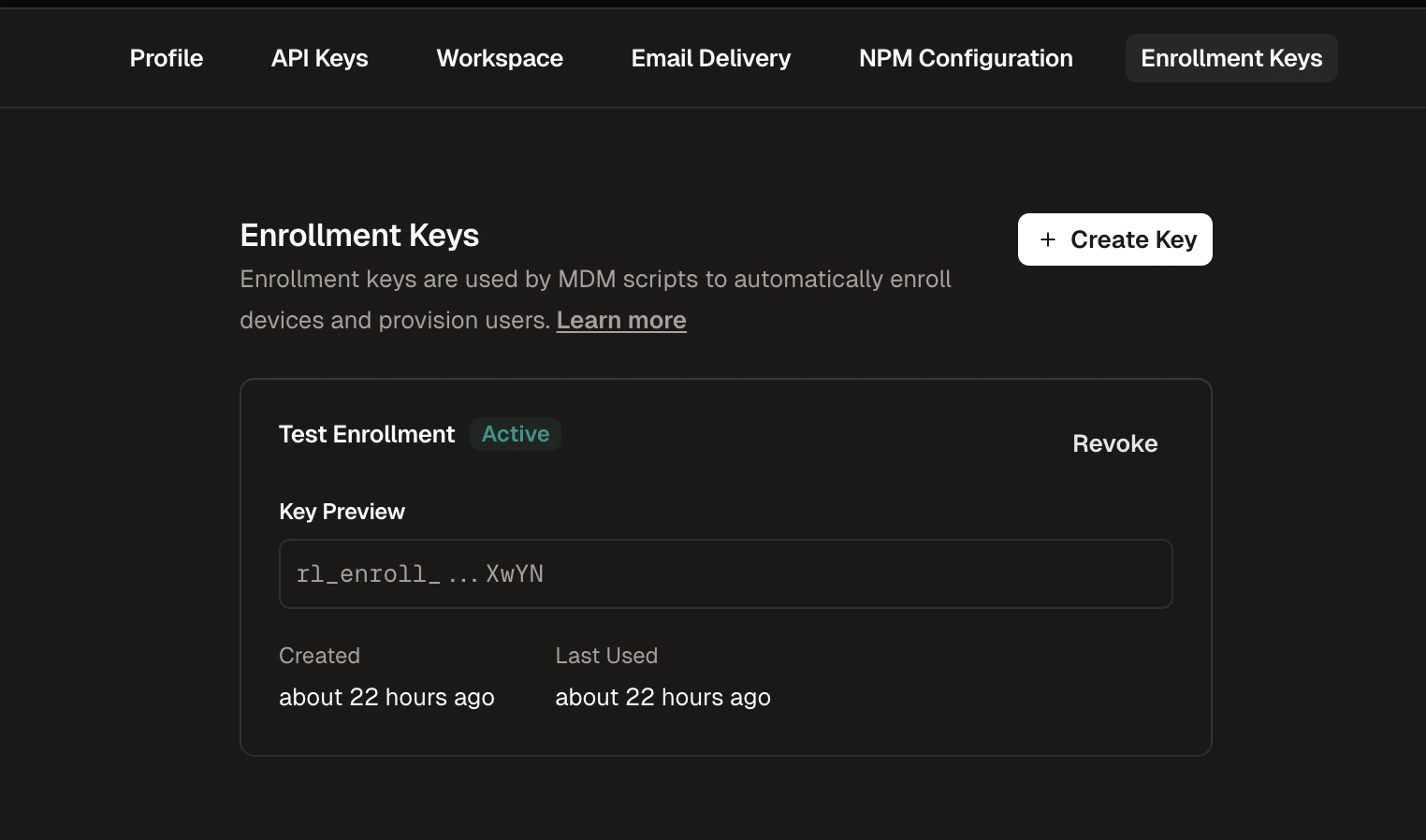
1
Navigate to Enrollment Keys
Go to Settings in the Runlayer dashboard and select the Enrollment Keys tab
2
Create a New Key
Click + Create Enrollment Key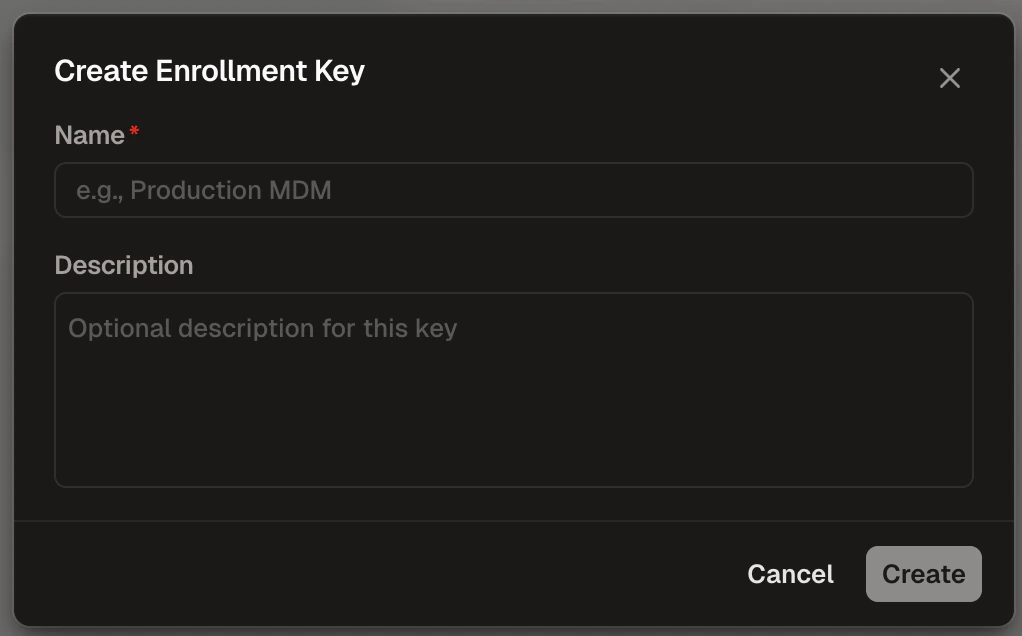
3
Configure the Key
- Name (required): Enter a descriptive name (e.g., “Production MDM”)
- Description (optional): Add context about the key’s purpose
4
Copy the Key
Copy the generated key (starts with 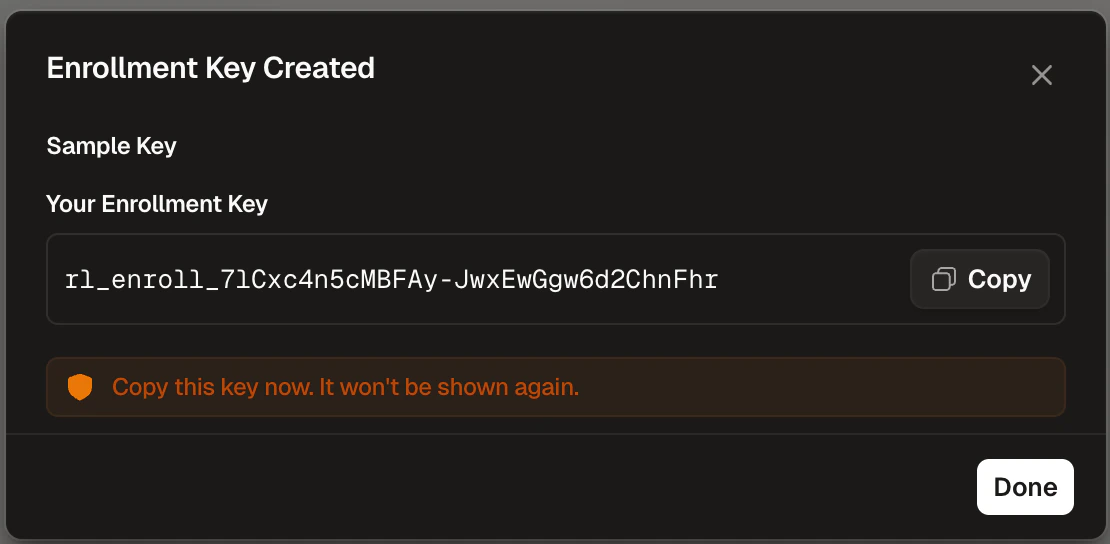
rl_enroll_) and store it securelyWindows Home and S mode are not supported.
Deployment Methods
Intune supports two deployment methods. Choose based on your license:- Platform Script — available with all Intune licenses. Creates a Windows Scheduled Task for recurring sync.
- Remediation — requires Intune P2 (or add-on). Intune handles scheduling natively; no scheduled task is created on the device.
Deployment Steps
1
Generate the Script
Fill in your settings below to generate a deployment script. Select your deployment method (Platform Script or Remediation). The generated script uses
C:\Program Files\Runlayer\CLI\runlayer.exe and exits with an error if the MSI prerequisite is missing.ENROLLMENT_USERNAME: Leave empty to use%USERNAME%.ENROLLMENT_DEVICE_NAME: Leave empty to use%COMPUTERNAME%.
2
Add Script in Intune
- Platform Script
- Remediation
- Open the Intune admin center
- Go to Devices > Scripts and remediations > Platform scripts
- Click Add > Windows 10 and later
- Upload the generated script
- Set Run this script using the logged on credentials to Yes
- Set Run script in 64-bit PowerShell host to Yes
3
Assign to Groups
- Platform Script
- Remediation
Select the device groups that should receive configuration sync, then click Add.
How It Works
- Platform Script
- Remediation
The Intune platform script runs once per device and acts as a bootstrapper:
- Verifies the packaged Runlayer CLI is installed and enrolls the device
- Runs the config sync immediately
- Creates a Windows Scheduled Task for recurring execution
RunlayerConfigSync task runs the packaged binary on the configured interval (default: 60 minutes). CLI updates are handled separately by the package-owned \Runlayer\CLIUpdate task when its managed update configuration is present; the sync task does not install or update the CLI.The scheduled task runs as the logged-on user. Scans and syncs only occur while a user is signed in.
Verification
- Platform Script
- Remediation
Monitor script status in Devices > Scripts and remediations > Platform scripts. On a target device, open a client (e.g., Cursor) and confirm the synced MCP servers appear.To verify the scheduled task is running, open Task Scheduler on the device and look for
RunlayerConfigSync. Logs are at %ProgramData%\Runlayer\auto_provisioning.log.Troubleshooting
Script not running
Script not running
- Ensure the device is Microsoft Entra joined (not just registered)
- Check that the Intune Management Extension service is installed
- Verify the packaged CLI exists at
C:\Program Files\Runlayer\CLI\runlayer.exe - Verify the device can reach your Runlayer host
Script reports success but no config changes
Script reports success but no config changes
- Check
%ProgramData%\Runlayer\auto_provisioning.logfor errors - Verify the enrollment API key is correct and not revoked
- Confirm connectors or plugins have auto-sync enabled in the Runlayer dashboard
Enrollment fails with 401
Enrollment fails with 401
- Verify the enrollment API key is correct
- Check if the key has been revoked in Settings > Enrollment Keys
Scheduled task not running (Platform Script only)
Scheduled task not running (Platform Script only)
- Open Task Scheduler and check
RunlayerConfigSyncstatus - Verify the recurring script exists at
C:\ProgramData\Runlayer\Scripts\ - Check logs at
%ProgramData%\Runlayer\ - The task only runs while the user is logged in
Remediation shows non-compliant
Remediation shows non-compliant
- Check
%ProgramData%\Runlayer\auto_provisioning.logfor errors - A non-compliant status means the sync or a prerequisite failed — check the packaged CLI, network connectivity, and credentials
- Verify the device can reach your Runlayer host