

If your MDM has a dedicated guide (SimpleMDM, Jamf Pro, Intune, Mosyle, or Iru/Kandji), use that instead for provider-specific instructions.
Prerequisites
- Admin access to your MDM solution
- Enrollment key from Runlayer
- Your MDM must support running shell scripts on managed devices
- The signed Runlayer CLI macOS package deployed to target devices
Creating an Enrollment Key
Creating an Enrollment Key
Enrollment keys allow devices to automatically register with Runlayer and obtain API credentials.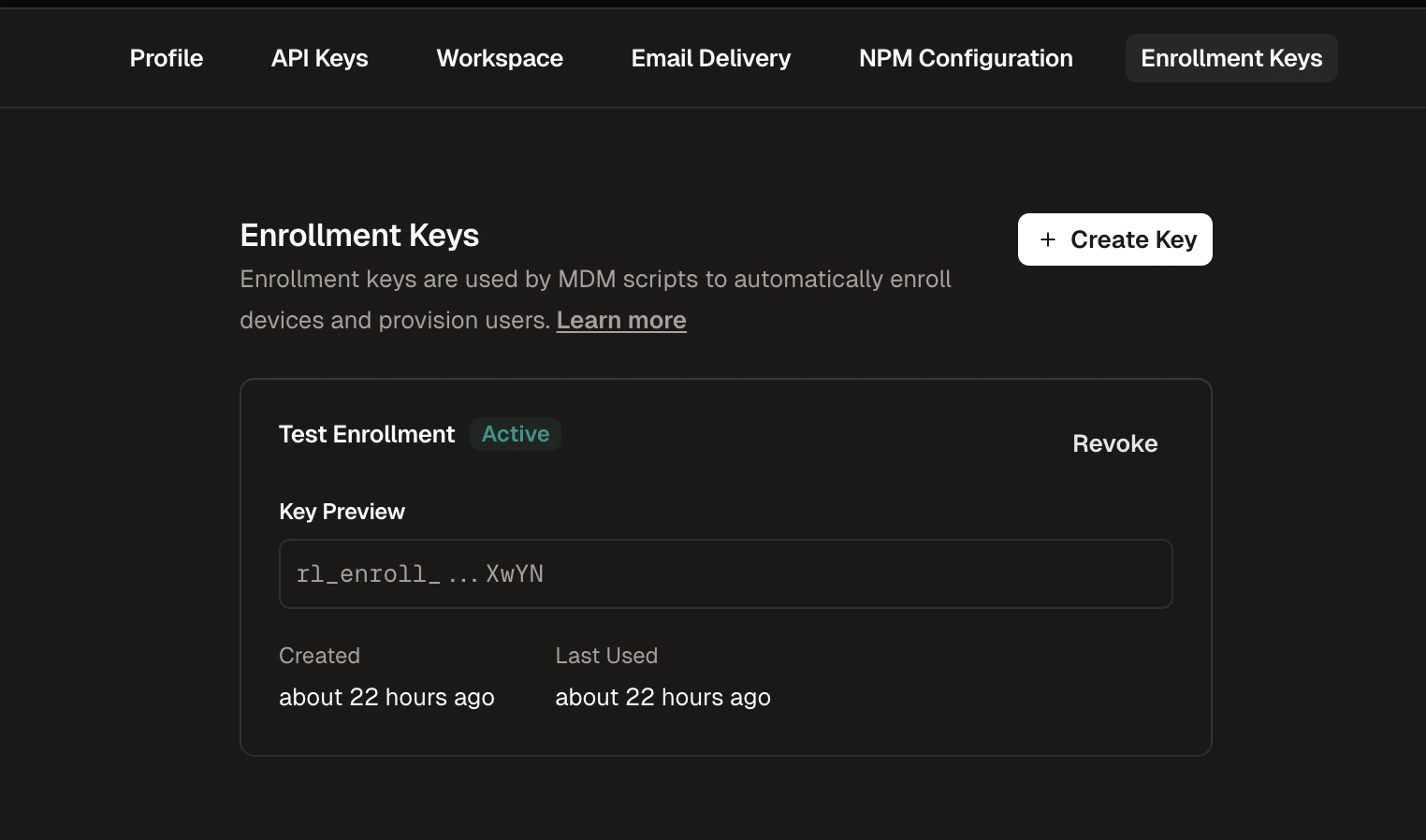
1
Navigate to Enrollment Keys
Go to Settings in the Runlayer dashboard and select the Enrollment Keys tab
2
Create a New Key
Click + Create Enrollment Key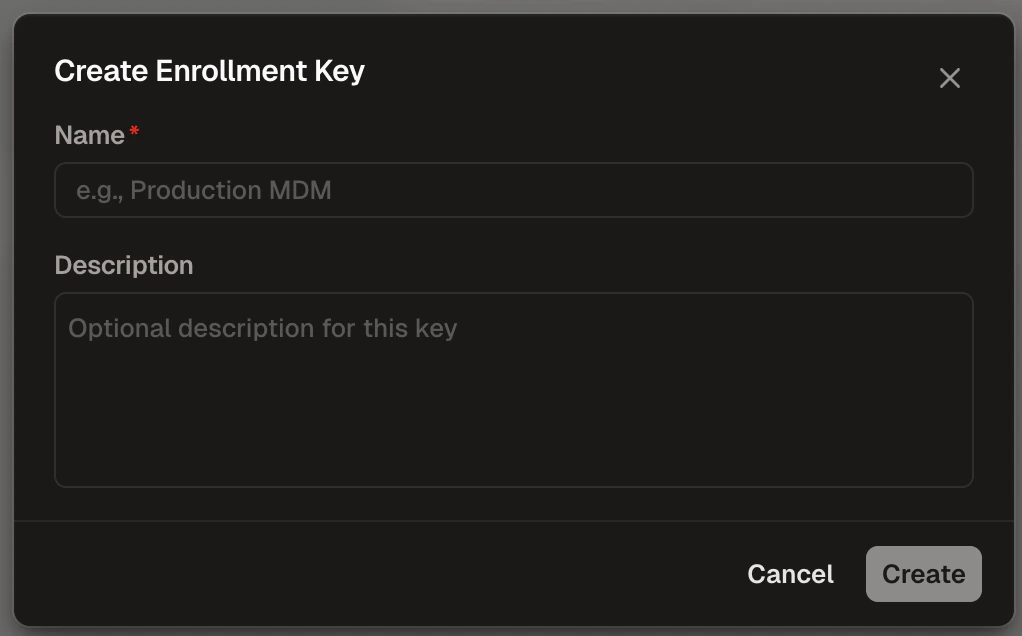
3
Configure the Key
- Name (required): Enter a descriptive name (e.g., “Production MDM”)
- Description (optional): Add context about the key’s purpose
4
Copy the Key
Copy the generated key (starts with 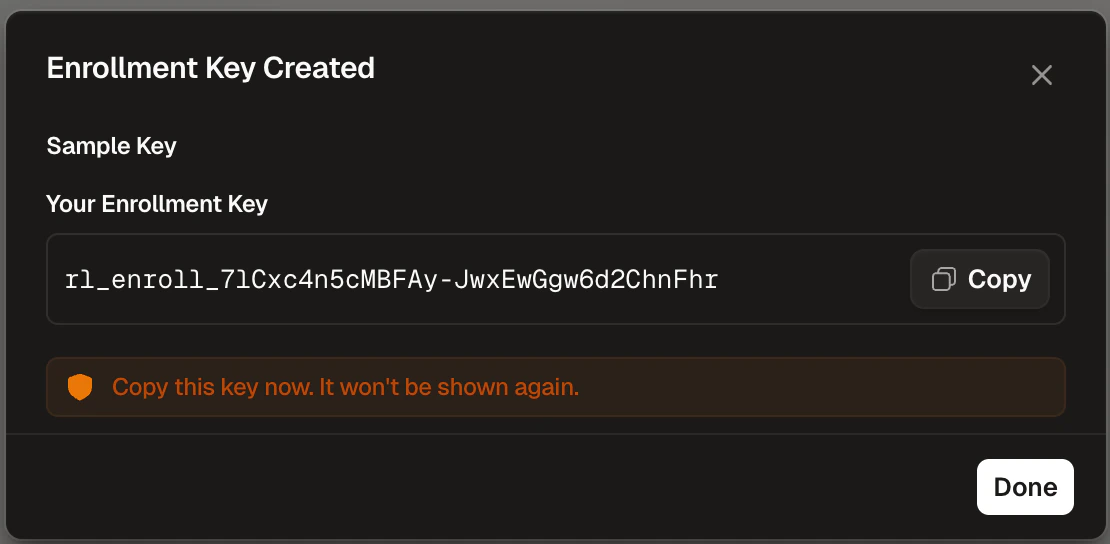
rl_enroll_) and store it securelyDeployment Steps
1
Generate the Script
Fill in your settings below to generate a deployment script.Configuration tips:
ENROLLMENT_USERNAME: Use your MDM’s variable for the user’s email or identity (e.g.,$EMAIL,%Email%). Leave empty to use the device username.ENROLLMENT_DEVICE_NAME: Use your MDM’s variable for the device name or serial number (e.g.,$DEVICE_NAME,%DeviceName%). Leave empty to use the computer name.
2
Deploy the Script
Use your MDM’s script or command execution feature:
- Create a new script/command in your MDM console
- Paste the generated script contents
- Configure a recurring execution schedule (at least daily recommended)
- Assign to target devices
- Save and deploy
MDM scripts typically run as root. The generated script handles this by detecting and running operations as the logged-in user where needed.
Verification
Open a client application (e.g., Cursor) on a target device and confirm the synced MCP servers appear. If something went wrong, check/var/log/runlayer/auto_provisioning.log on the device.