

What OneLayer is
OneLayer is a dynamic Runlayer plugin that automatically includes the connectors and skills a user can already access. Instead of exposing every tool up front, OneLayer uses a search-first flow:search_toolsfinds relevant tools across the user’s accessible connectorsexecute_toolruns the selected tool through the correct underlying connector
OneLayer does not grant new permissions. It only exposes the tools, skills,
and platform capabilities the user already has access to through Runlayer.
What it enables
- One MCP entrypoint for users instead of a long list of separate connector installs
- Dynamic tool discovery across many connectors without flooding the model with schemas
- Central policy enforcement because tool calls still flow through Runlayer controls
- Auditability because usage stays inside the Runlayer path instead of bypassing it
- Org-wide rollout for supported clients so admins can standardize setup
- Org-level
/runlayerskill available to every user in supported clients once OneLayer is enabled, so they can invoke Runlayer skills directly from a slash command without per-user setup
Why teams use it
OneLayer is useful when your team wants a default, opinionated way to use MCP safely at scale. Without it, users often end up with fragmented client setup, duplicate connectors, inconsistent tool availability, and unclear security boundaries. OneLayer fixes that by giving the organization a single approved layer for tool discovery and execution. In practice, that means:- admins can standardize the MCP experience across teams
- users get a simpler setup and fewer things to configure
- models can search for the right tool when needed instead of carrying every tool definition in context
- Runlayer policies, approvals, and audit logs stay in the loop
How it works
When a user connects OneLayer in their AI client, the model sees a compact interface instead of hundreds of raw tools.- The model calls
search_toolswith the task it wants to accomplish. - OneLayer searches across the user’s accessible connectors and returns the most relevant tools.
- The model calls
execute_toolon the selected tool, and Runlayer routes it to the correct connector.
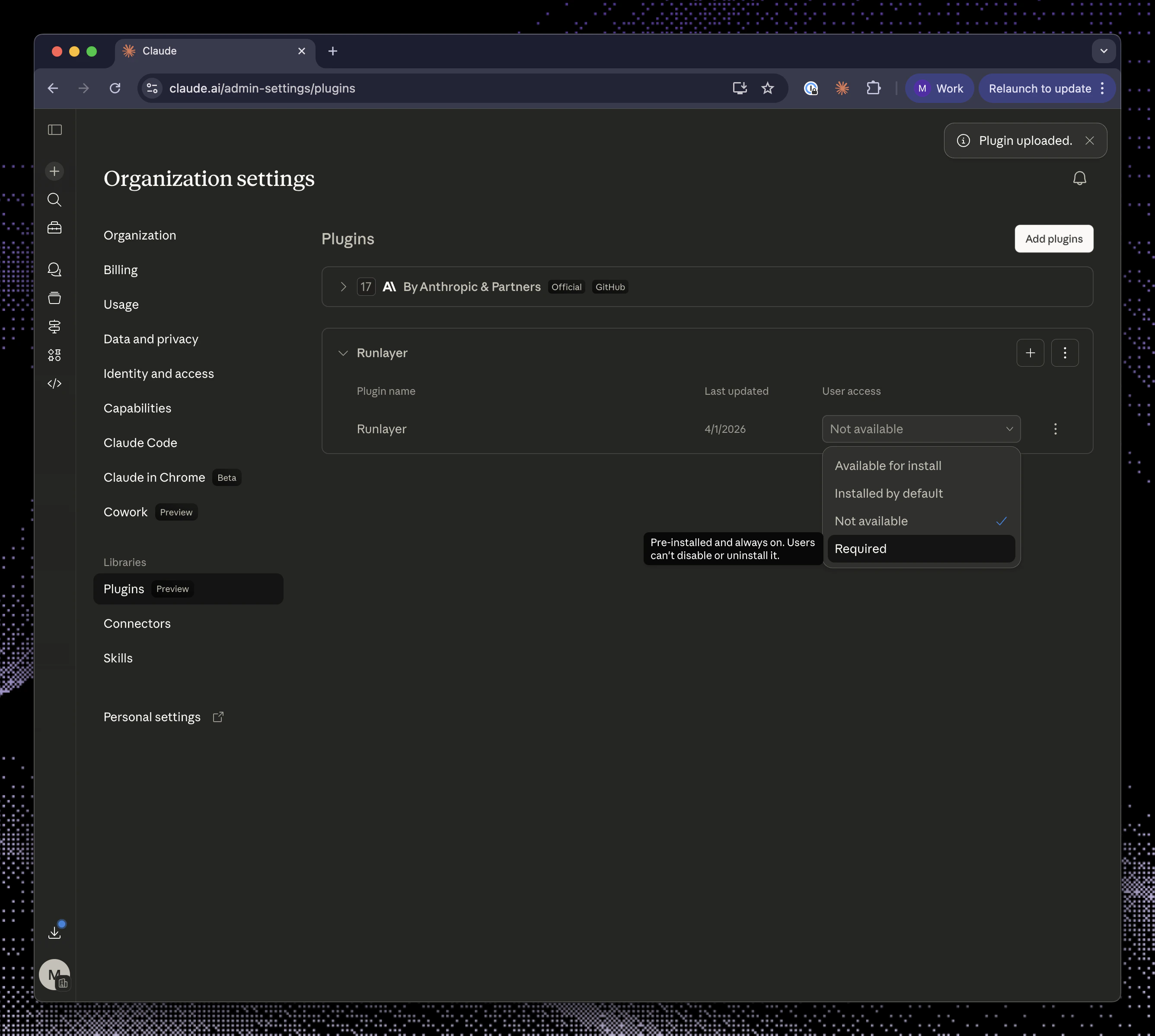
Org-wide install
Open the OneLayer plugin page in Runlayer and click Add to Organization. Choose your provider — Anthropic or OpenAI — then follow the steps below. The dialog also includes an Auto Sync toggle. When enabled, the plugin is included when users runuvx runlayer setup sync, pushing the configuration to detected MCP clients automatically. See Automatic Configuration Provisioning for details.
Anthropic
Open Claude admin plugin settings
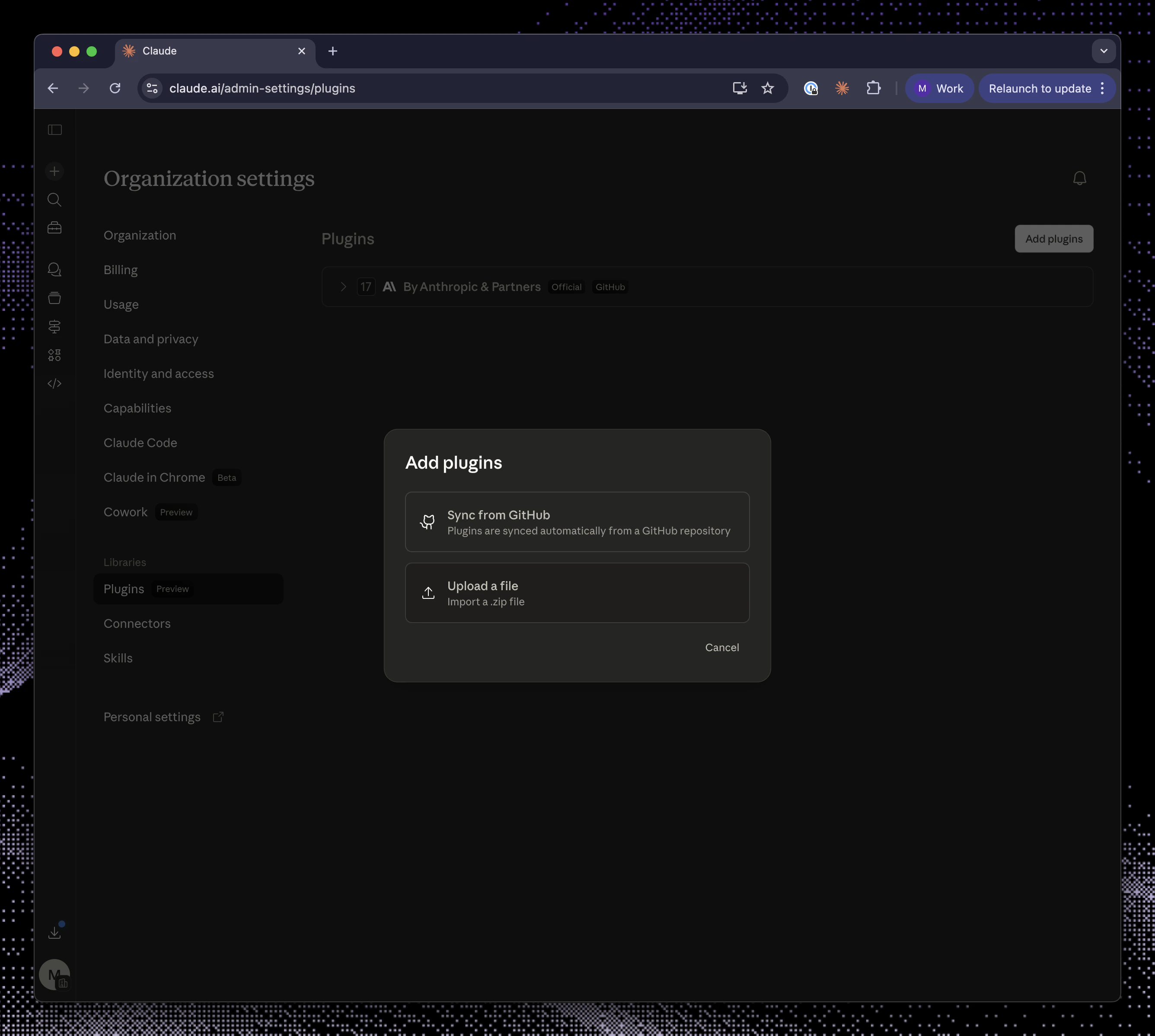
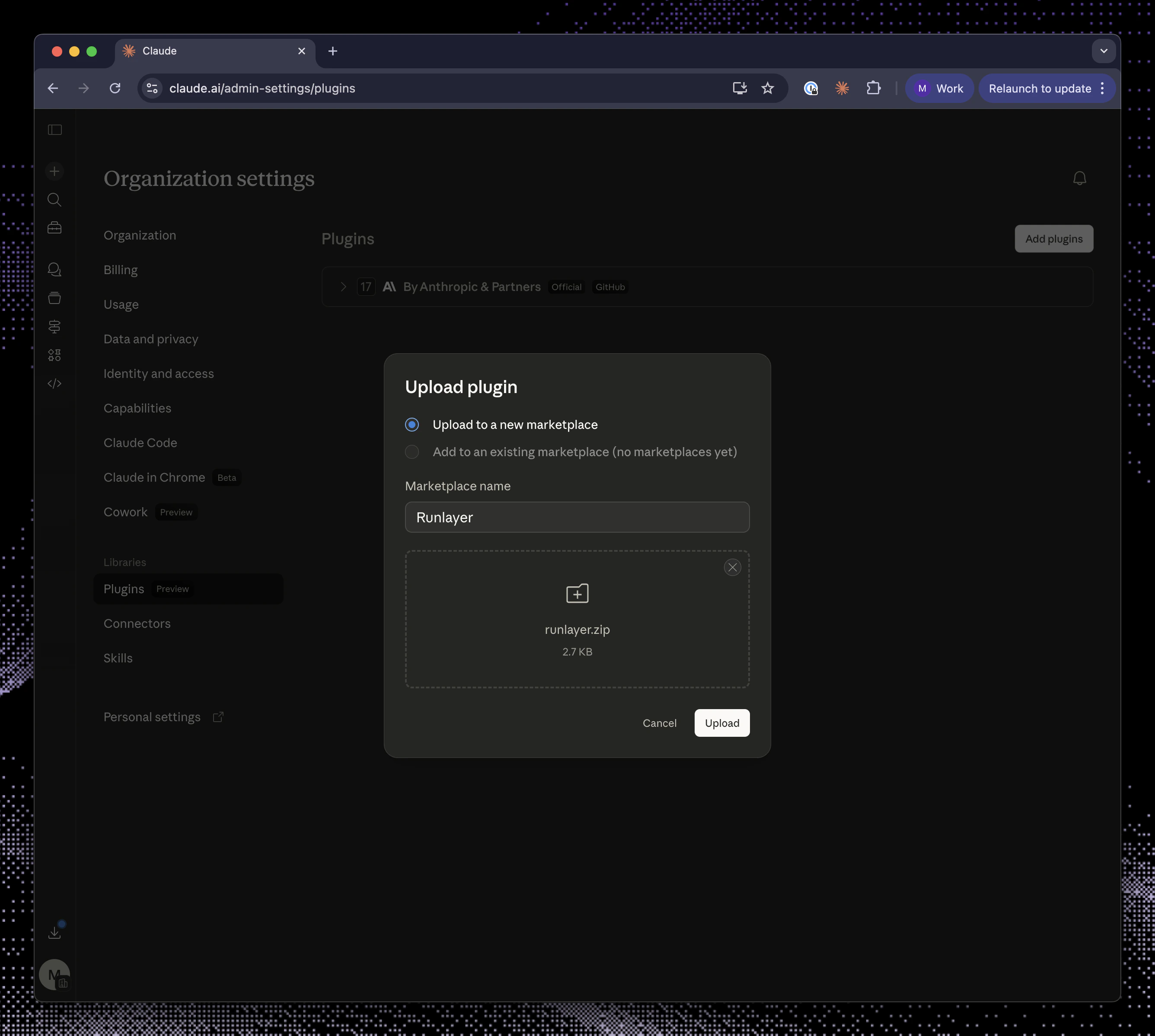
Go to Claude admin plugin settings and click Add plugin.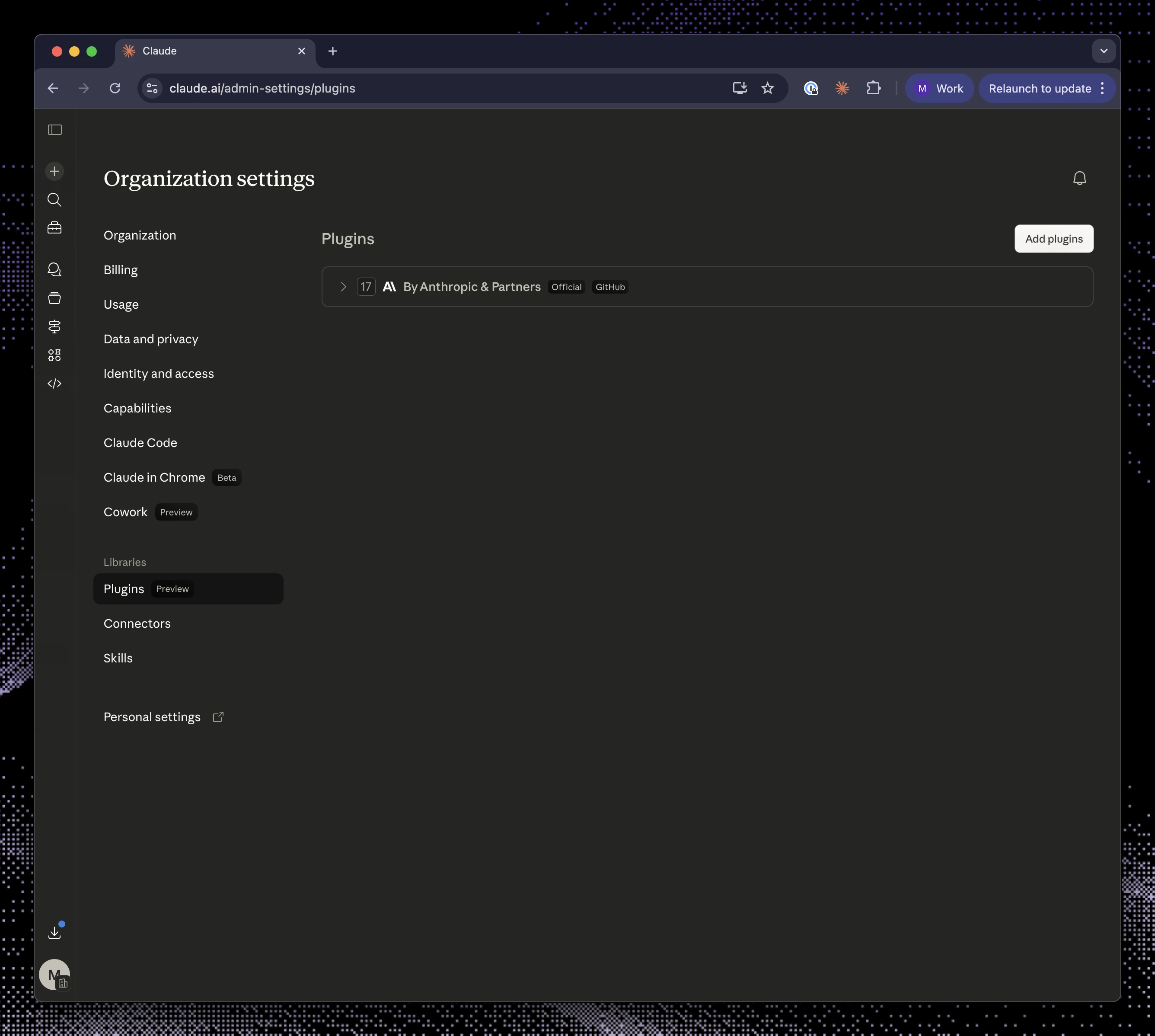
OpenAI (ChatGPT / Codex)
Open Admin Connectors settings
Navigate to ChatGPT Admin Connectors and enable developer mode. In the Apps and Connectors section, click Create.
Register the MCP connector
Enter the MCP Server URL shown in the Runlayer dialog, provide a name (e.g. “OneLayer”), and click Create. Complete the OAuth authorization when prompted.
Publish the connector
After creation, publish the connector so it is available to your organization.
Upload skills
Click Download zip in the Runlayer dialog. Go to chatgpt.com/skills, upload
runlayer.zip, and set sharing to Installed for everyone.