

If your MDM has a dedicated guide (SimpleMDM, Jamf Pro, or Mosyle), use that instead for provider-specific instructions.
Prerequisites
- Admin access to your MDM solution
- Configured enrollment key from Runlayer (see below)
- Your MDM must support running shell scripts on managed devices
Creating an Enrollment Key
Creating an Enrollment Key
Enrollment keys allow devices to automatically register with Runlayer and obtain API credentials.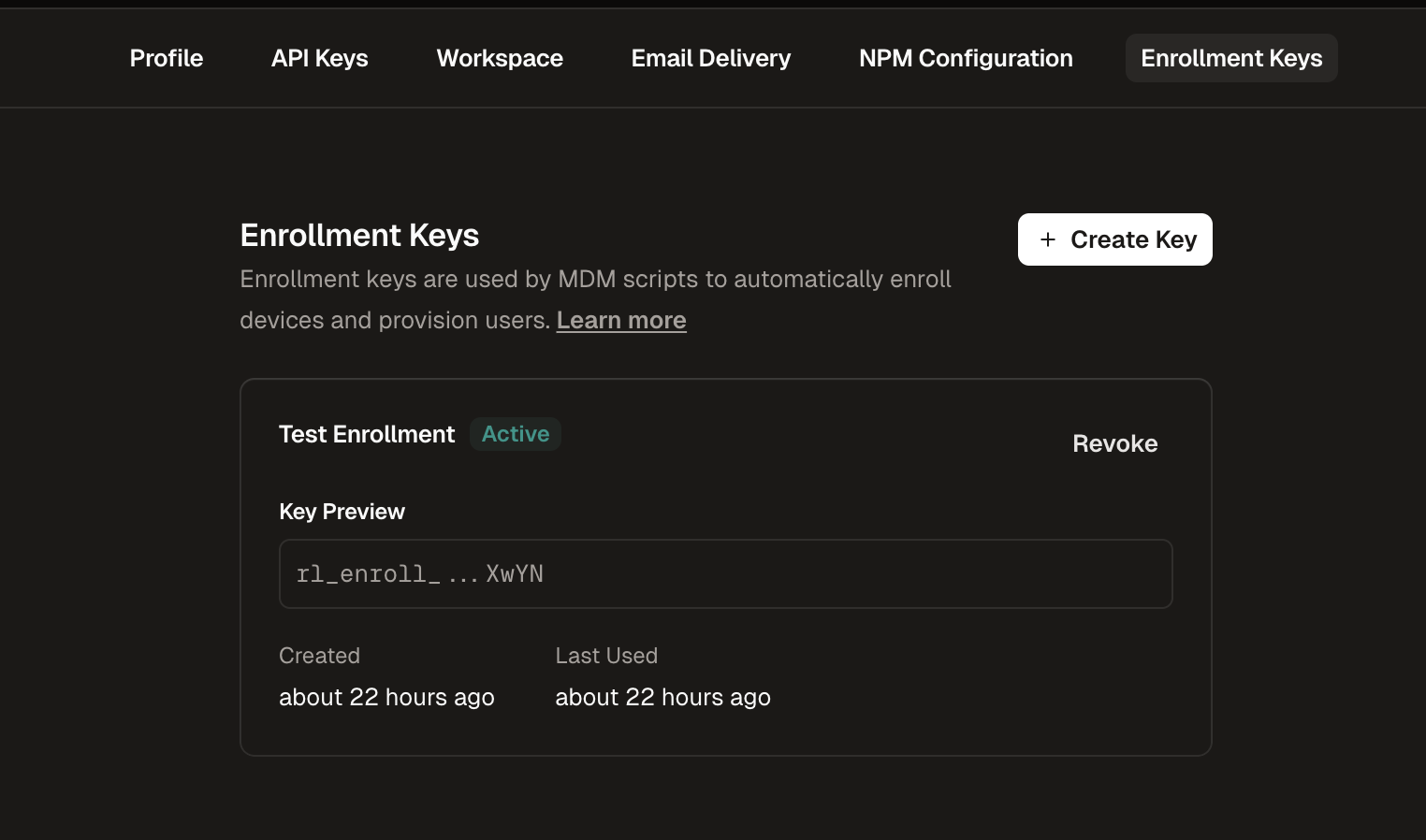
Navigate to Enrollment Keys
Go to Settings in the Runlayer dashboard and select the Enrollment Keys tab
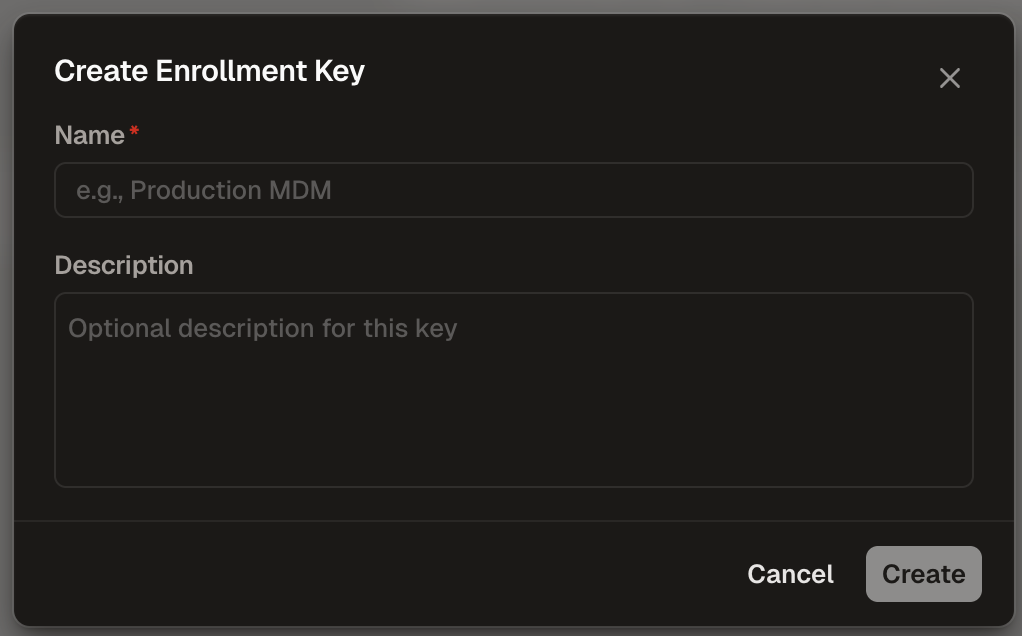
Configure the Key
- Name (required): Enter a descriptive name (e.g., “Production MDM”)
- Description (optional): Add context about the key’s purpose
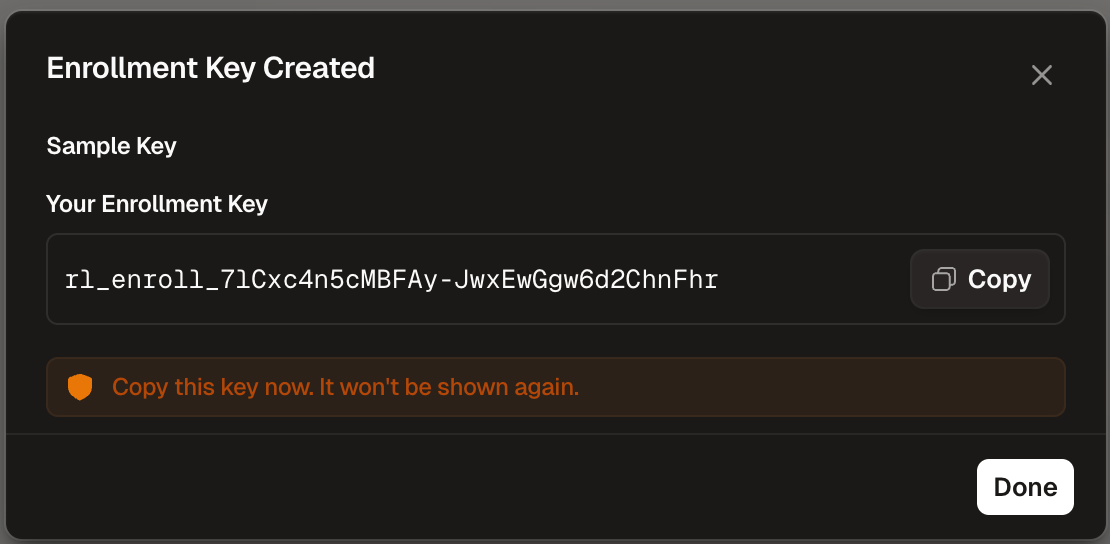
Deployment Steps
Generate the Script
Fill in your organization’s settings below to generate a customized deployment script.Configuration tips:
ENROLLMENT_USERNAME: Use your MDM’s variable for the user’s email or identity. Most MDMs support variables like$EMAIL,%Email%, or similar — check your MDM’s documentation.ENROLLMENT_DEVICE_NAME: Use your MDM’s variable for the device name or serial number. Common variables include$DEVICE_NAME,%DeviceName%,$SERIAL_NUMBER, etc.
Deploy the Script
Use your MDM’s script or command execution feature to deploy the generated script:
- Create a new script/command in your MDM console
- Paste the generated script contents
- Configure the execution frequency
- Assign to the target devices
- Save and deploy
MDM scripts typically run as root. The generated script handles this by detecting and running operations as the logged-in user where needed.
Verification
Log Locations
| Platform | Log Location |
|---|---|
| macOS | /var/log/runlayer-hooks.log |
Exit Codes
| Code | Meaning |
|---|---|
| 0 | Success |
| 1 | General failure (missing config, enrollment failed) |
| 2 | Network failure |
| 3 | Installation failure |