

Installation Options
| Option | Best For | Description |
|---|---|---|
| Manual Execution | Testing, individual devices | Run CLI commands directly on a device |
| MDM Integration | Enterprise deployment | Deploy via SimpleMDM, Jamf Pro, or Intune |
| Custom Integration | Custom infrastructure, unsupported MDMs | Build your own integration with modular components |
Manual Installation
For testing or individual device setup, you can manually install and run MCP Watch.Installing the Runlayer CLI
The Runlayer CLI is distributed via PyPI and runs usinguvx (part of the uv package manager).
macOS/Linux:
Configuring Credentials
Use thelogin command to authenticate with Runlayer:
~/.runlayer/config.yaml (macOS/Linux) or %USERPROFILE%\.runlayer\config.yaml (Windows).
Alternatively, you can pass credentials directly to commands using --secret:
Running a Scan
Viewing Results
After a scan, view discovered servers in the Runlayer dashboard:- Navigate to Analytics
- The MCP Watch section shows:
- Total devices scanned
- Managed vs. shadow servers
- Newly discovered shadow servers
MDM Integration
For enterprise-wide deployment, use your MDM (Mobile Device Management) solution to deploy MCP Watch to all devices. We provide step-by-step guides for popular MDM platforms:macOS Full Disk Access: The macOS deployment script includes an embedded executable (
runlayer-scan) that receives Full Disk Access and Application Data access via a PPPC profile deployed through your MDM. This wrapper binary is specifically designed to bypass macOS TCC permission dialogs and enable silent scanning for shadow MCP servers on enrolled devices. By granting FDA only to this wrapper binary (not to general-purpose tools like uvx), permissions are scoped exclusively to MCP Watch scans.Creating an Enrollment Key
Enrollment keys allow devices to automatically register with Runlayer and obtain API credentials for scanning. You’ll need one before deploying via MDM.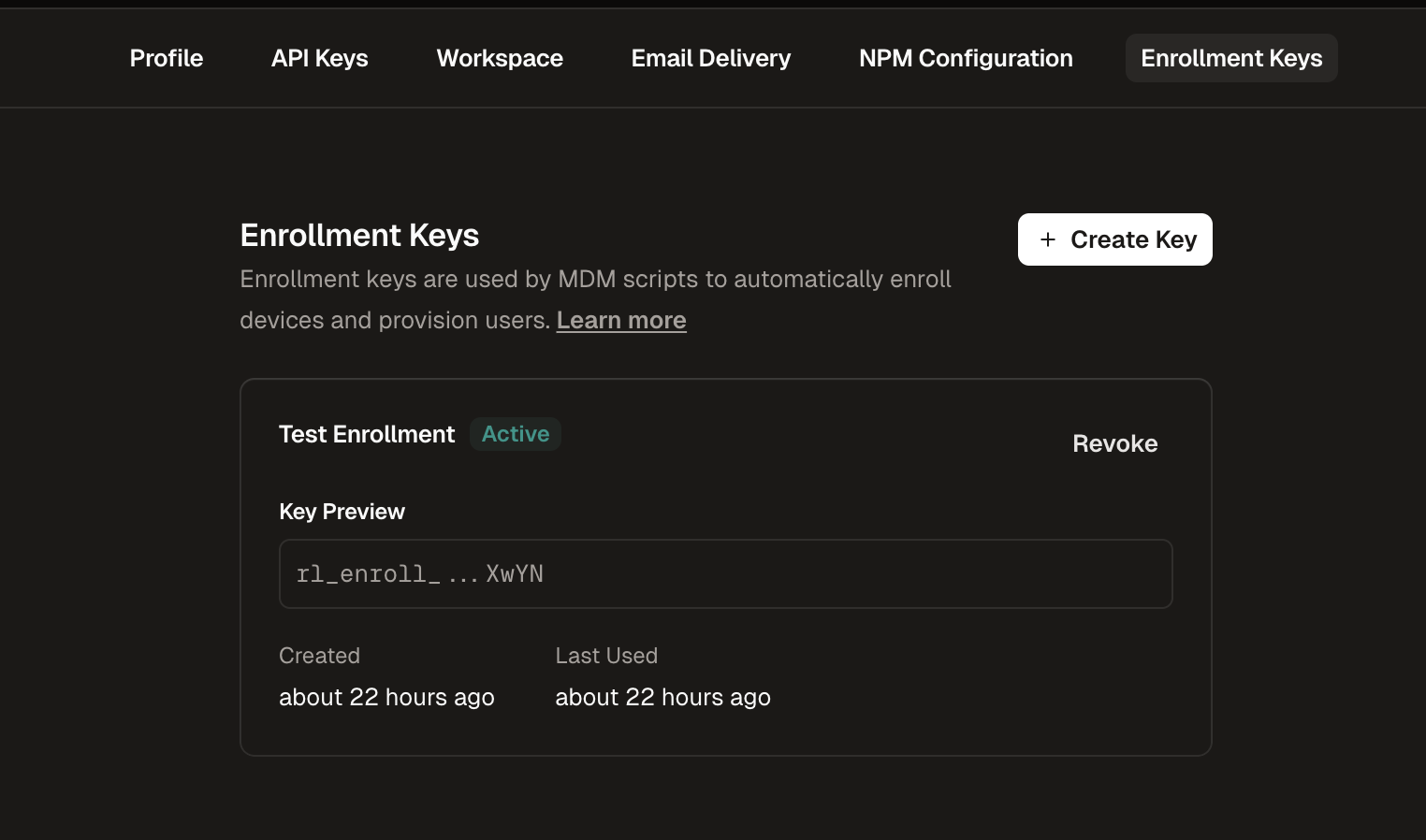
Navigate to Enrollment Keys
Go to Settings in the Runlayer dashboard and select the Enrollment Keys tab
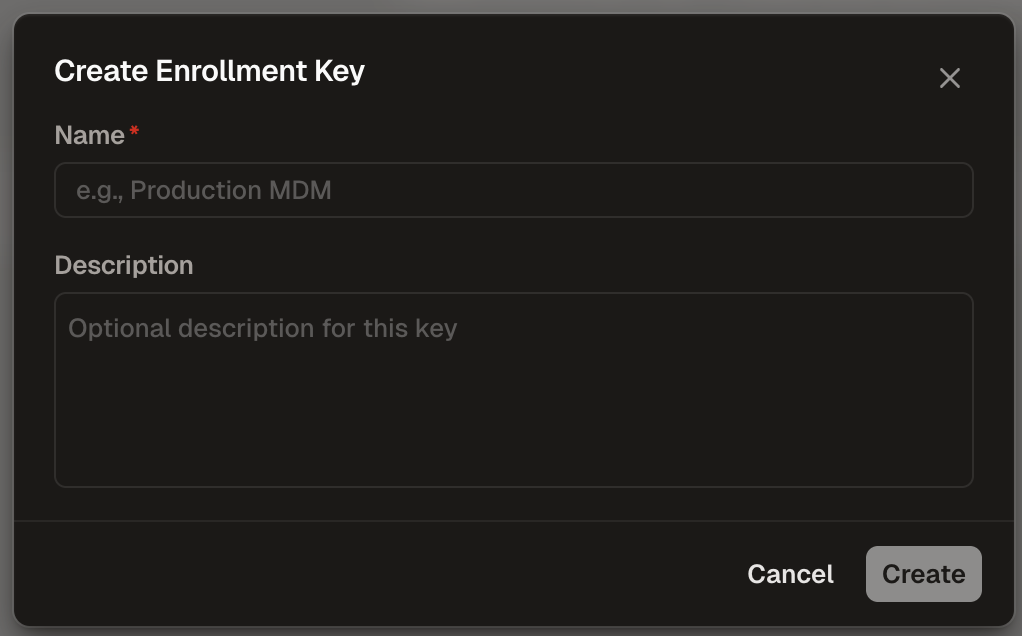
Configure the Key
- Name (required): Enter a descriptive name (e.g., “Production MDM”)
- Description (optional): Add context about the key’s purpose
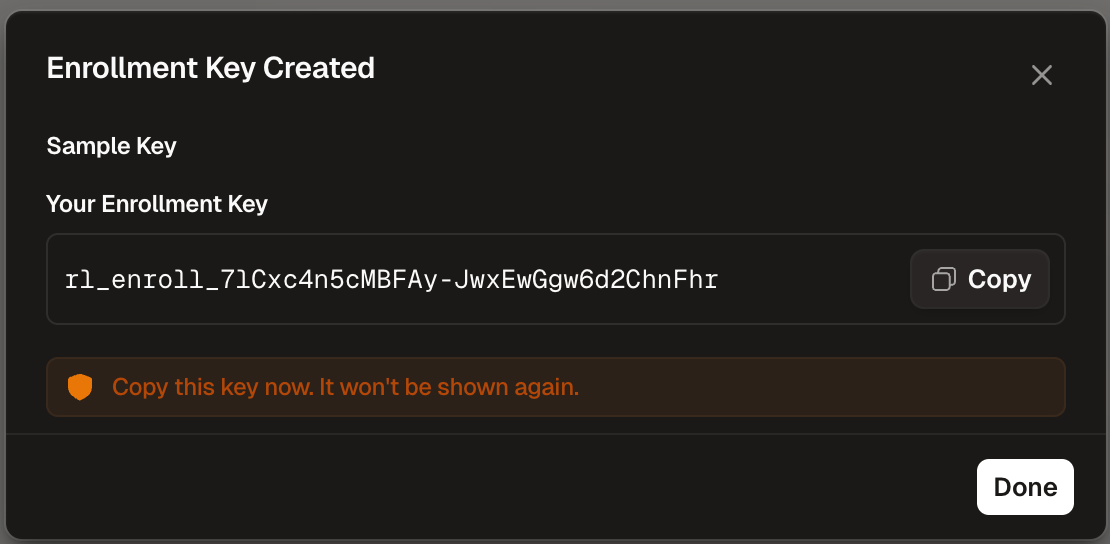
Custom Integration
Use these modular components to build your own MCP Watch integration when:- Your MDM doesn’t support script execution
- You need more control over the execution environment
- You want to integrate with custom deployment infrastructure
- You need custom scheduling (cron, Task Scheduler, etc.)
Installing UV
UV is the Python package manager required to run the Runlayer CLI. macOS/Linux:Installing the Runlayer CLI
Install the CLI as a tool (recommended for automated deployments):Updating the Runlayer CLI
Running MCP Watch Scan
~/.runlayer/config.yaml: