

Prerequisites
- SimpleMDM admin access
- Configured enrollment key from Runlayer (see below)
- Devices enrolled via User-Approved MDM or Automated Device Enrollment (for Full Disk Access)
Creating an Enrollment Key
Creating an Enrollment Key
Enrollment keys allow devices to automatically register with Runlayer and obtain API credentials.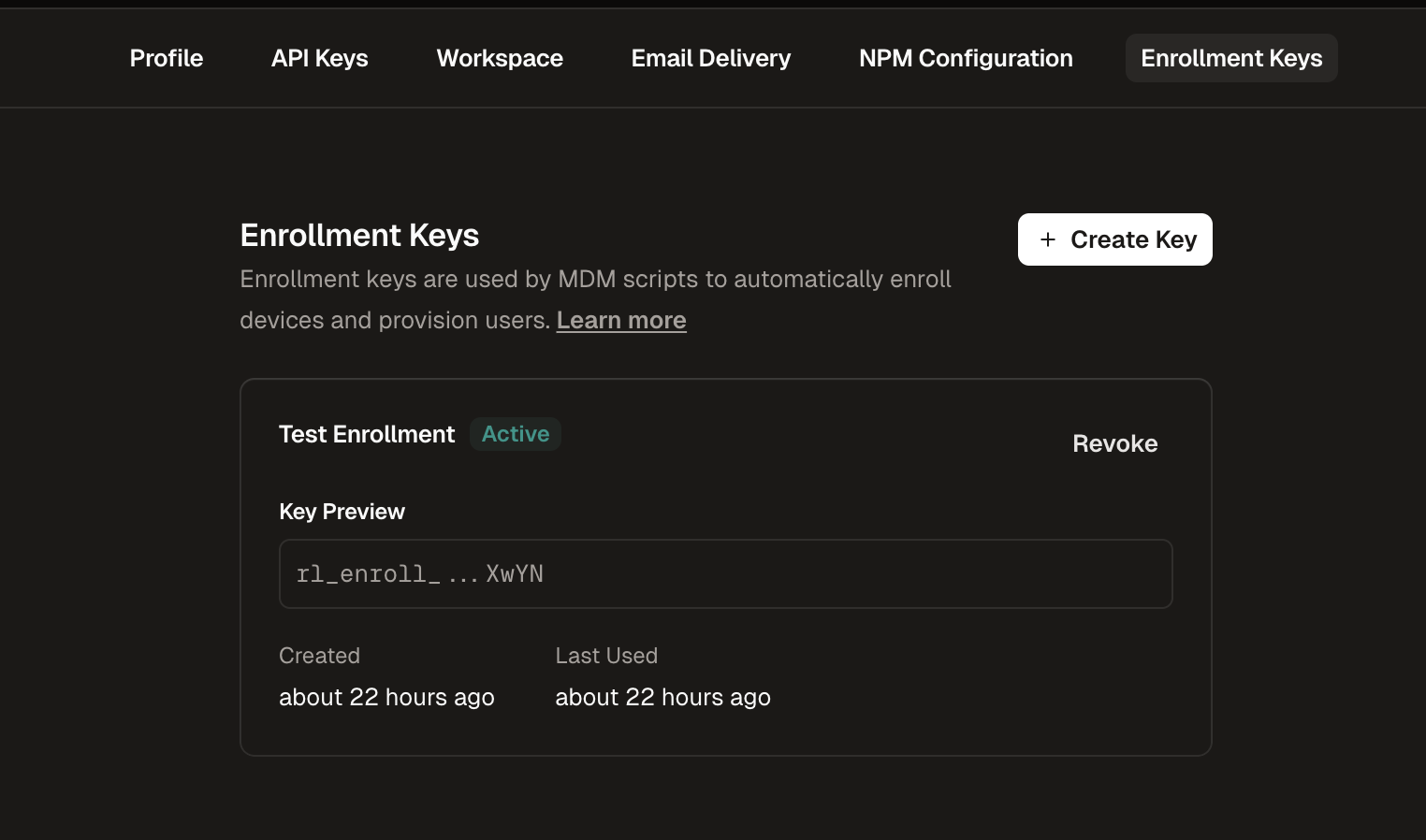
Navigate to Enrollment Keys
Go to Settings in the Runlayer dashboard and select the Enrollment Keys tab
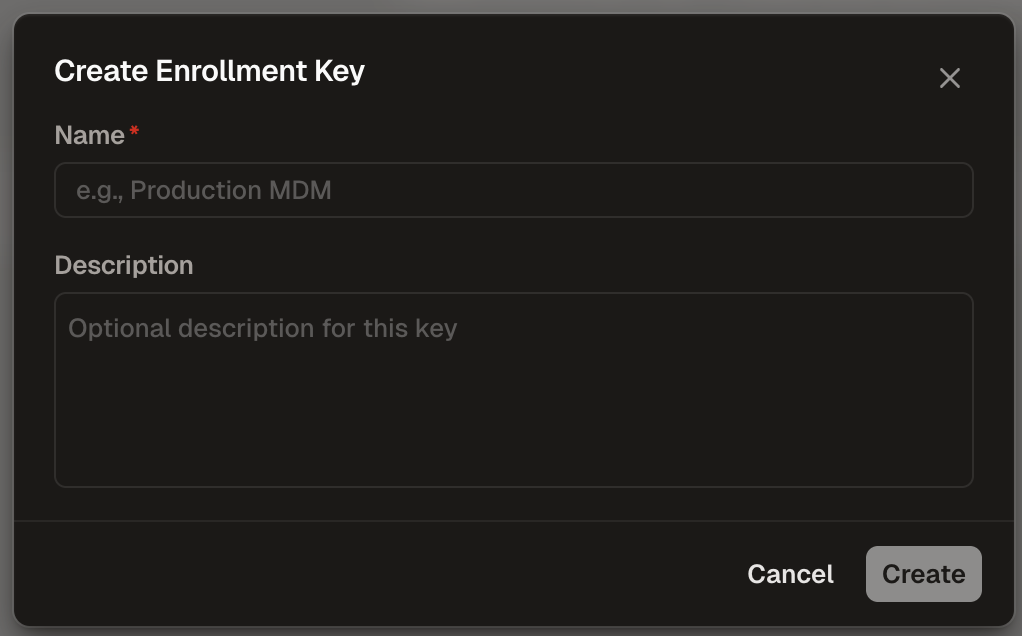
Configure the Key
- Name (required): Enter a descriptive name (e.g., “Production MDM”)
- Description (optional): Add context about the key’s purpose
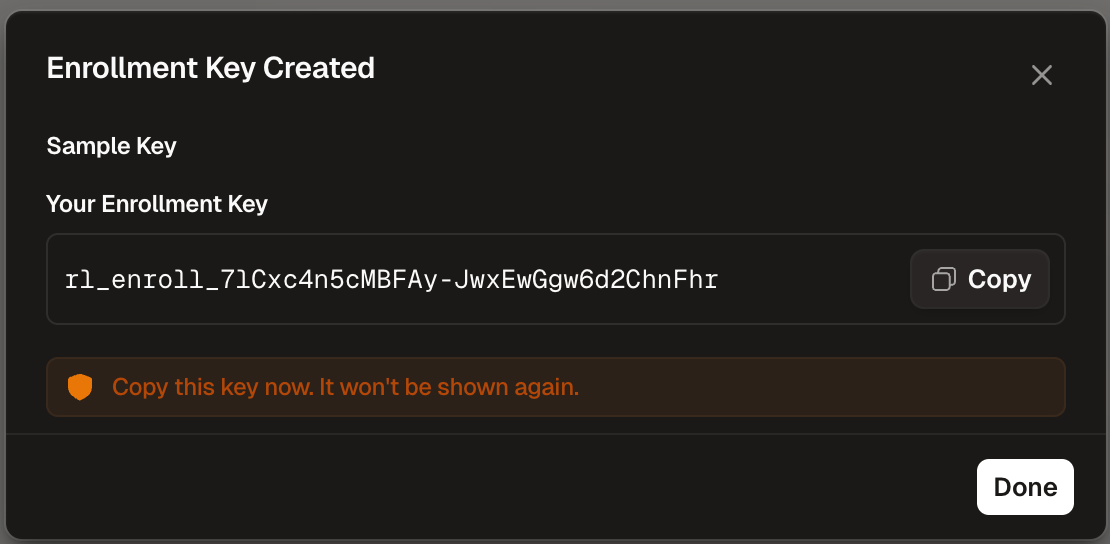
Deployment Steps
Deploy PPPC Profile
The PPPC (Privacy Preferences Policy Control) profile grants Full Disk Access to the Runlayer scan wrapper binary (
/usr/local/bin/runlayer-scan). This wrapper is a signed macOS binary that spawns the scan process, which inherits FDA permissions. This scoped approach ensures only Runlayer scans receive FDA, not all uvx executions.- Go to Profiles in SimpleMDM
- Click Create Profile > Custom Configuration Profile
- Download the PPPC profile below and upload it
- Assign to the same devices/groups that will run the script
- Push the profile to devices
The deployment script embeds the wrapper binary and installs it automatically. You only need to deploy this PPPC profile to grant it Full Disk Access.
PPPC Profile (runlayer-mcp-watch-profile.mobileconfig)
PPPC Profile (runlayer-mcp-watch-profile.mobileconfig)
Generate the Script
Fill in your organization’s settings below to generate a customized deployment script.SimpleMDM-specific configuration tips:
ENROLLMENT_USERNAME: Use an MDM variable or custom attribute that provides the user’s identity. Common variables:$EMAIL,$USER_PRINCIPAL_NAME, or a custom attribute.ENROLLMENT_DEVICE_NAME: Use an MDM variable or custom attribute that identifies the device. Common variables:$DEVICE_NAME,$SERIAL_NUMBER, or a custom attribute.
Add the Script
- Click Add Script
- Paste the generated script contents
- Give it a descriptive name (e.g., “Runlayer MCP Watch”)
Assign to Devices
- Select the devices or device groups to deploy to
- Configure execution schedule (daily recommended)
Verification
After deployment, verify on target devices and in the Runlayer dashboard:Log Locations
| Platform | Log Location |
|---|---|
| macOS | /var/log/mcp-watch.log |
Exit Codes
| Code | Meaning |
|---|---|
| 0 | Success |
| 1 | General failure (missing config, enrollment failed) |
| 2 | Network failure |
| 3 | Installation failure |