

Prerequisites
- Microsoft Intune admin access
- Configured enrollment key from Runlayer (see below)
- Devices running Windows 10 version 1607 or later (Windows 11 supported)
- Devices must be Microsoft Entra joined or Microsoft Entra hybrid joined
- .NET Framework 4.7.2 or later (recommended)
Creating an Enrollment Key
Creating an Enrollment Key
Enrollment keys allow devices to automatically register with Runlayer and obtain API credentials.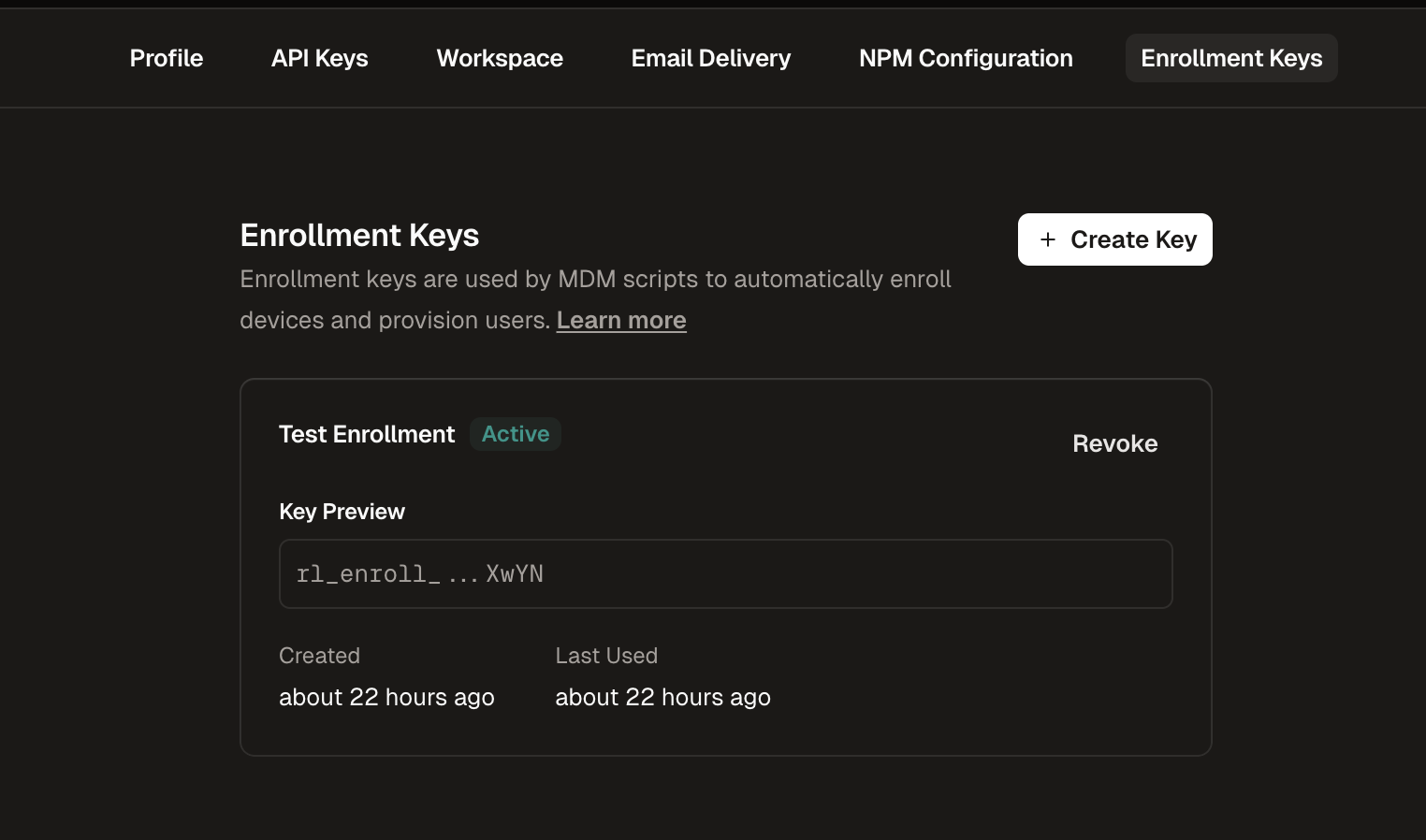
Navigate to Enrollment Keys
Go to Settings in the Runlayer dashboard and select the Enrollment Keys tab
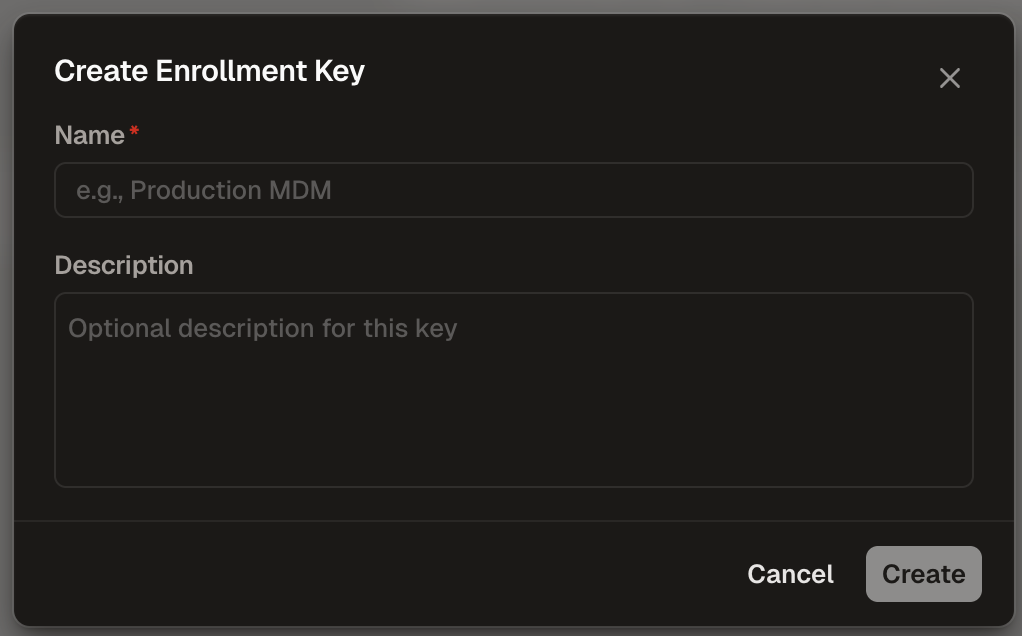
Configure the Key
- Name (required): Enter a descriptive name (e.g., “Production MDM”)
- Description (optional): Add context about the key’s purpose
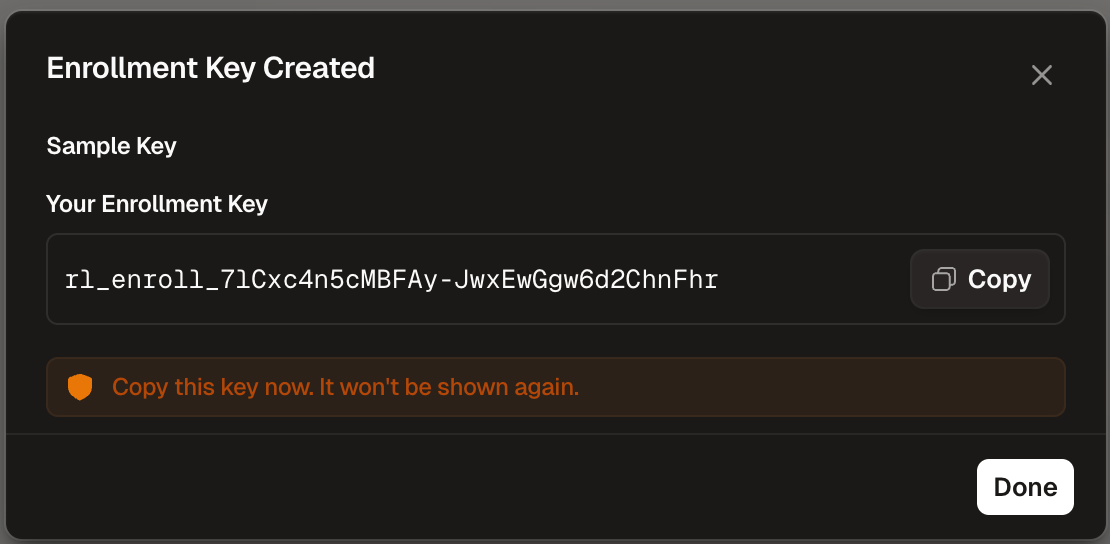
Windows Home and S mode are not supported. The Intune Management Extension installs automatically when you assign a PowerShell script to a device.
Deployment Steps
Generate the Script
Fill in your organization’s settings below to generate a customized deployment script.Intune-specific configuration tips:
ENROLLMENT_USERNAME: Use an Intune variable or leave empty to use the device’s logged-in username (%USERNAME%).ENROLLMENT_DEVICE_NAME: Use an Intune variable or leave empty to use the device’s computer name (%COMPUTERNAME%).
Sign in to Intune Admin Center
Open the Microsoft Intune admin center
Add a New Script
- Click Add > Windows 10 and later
- Enter a name (e.g., “Runlayer MCP Watch”)
- Optionally add a description
- Click Next
Configure Script Settings
- Script location: Upload the generated PowerShell script
- Run this script using the logged on credentials: Select Yes (recommended)
- Enforce script signature check: Select No (unless you’ve signed the script)
- Run script in 64-bit PowerShell host: Select Yes
- Click Next
Add Scope Tags (Optional)
Add any scope tags for your organization’s RBAC configuration, then click Next
Assign to Groups
- Click Select groups to include
- Select the device groups that should receive MCP Watch
- Click Select, then Next
Verification
Monitor Script Status
In the Intune admin center:
- Go to Devices > Scripts and remediations > Platform scripts
- Select your script
- View Device status and User status reports
Script Execution Behavior
The Intune Management Extension handles script execution with the following behavior:- Scripts are checked after every device reboot for changes
- End users don’t need to sign in to execute PowerShell scripts
- If a script fails, the extension retries it three times across three consecutive check-ins
- Once executed, scripts don’t run again unless the script or policy changes
- Scripts assigned to devices run for every new user that signs in
Log Locations
| Location | Description |
|---|---|
%ProgramData%\MCPWatch\mcp-watch.log | MCP Watch script log |
C:\ProgramData\Microsoft\IntuneManagementExtension\Logs | Intune Management Extension logs |
IntuneManagementExtension.log- Main IME log with check-ins and policy processingAgentExecutor.log- Tracks PowerShell script executions
Exit Codes
| Code | Meaning |
|---|---|
| 0 | Success |
| 1 | General failure (missing config, enrollment failed) |
| 2 | Network failure |
| 3 | Installation failure |
Troubleshooting
Script not running
Script not running
- Ensure the device is Microsoft Entra joined (not just registered)
- Check that the Intune Management Extension is installed: look for
IntuneManagementExtensionservice - Verify the device can reach
https://pypi.org(required for UV installation) - Review logs in
C:\ProgramData\Microsoft\IntuneManagementExtension\Logs
Script reports success but no data in Runlayer
Script reports success but no data in Runlayer
- Check
%ProgramData%\MCPWatch\mcp-watch.logfor errors - Verify the enrollment API key is correct and not revoked
- Ensure the device can reach your Runlayer instance
Enrollment fails with 401
Enrollment fails with 401
- Verify the enrollment API key is correct
- Check if the key has been revoked in Runlayer Settings > Enrollment Keys